Transactions
The Transaction Reports section provides detailed insights into various financial transactions recorded in the system. These reports help users monitor sales, purchases, cash movements, and cheque transactions in an organized manner.
Through these reports, users can analyze financial activities, track incoming and outgoing funds, and review transaction records for accounting and auditing purposes.
The Transaction Reports section is categorized into the following reports:
- Invoices
- Purchases
- Sales vs Purchase
- Cash Out
- Cash In
- Post Dated Cheque
Each report provides specific insights into different types of financial transactions, helping users effectively manage and review the company’s financial operations.
Invoice
The Invoice provides detailed information about all sales invoices created in the system. This report helps users track invoice records, analyze sales performance, and review invoice transactions efficiently.
The Invoice is divided into the following sub-reports:
- Invoices
- Invoice Owner
- Sales Person
- Summary
Each of these sub-reports provides a different perspective of invoice data, allowing users to analyze invoices based on owners, sales representatives, and overall invoice summaries.
Invoices Report
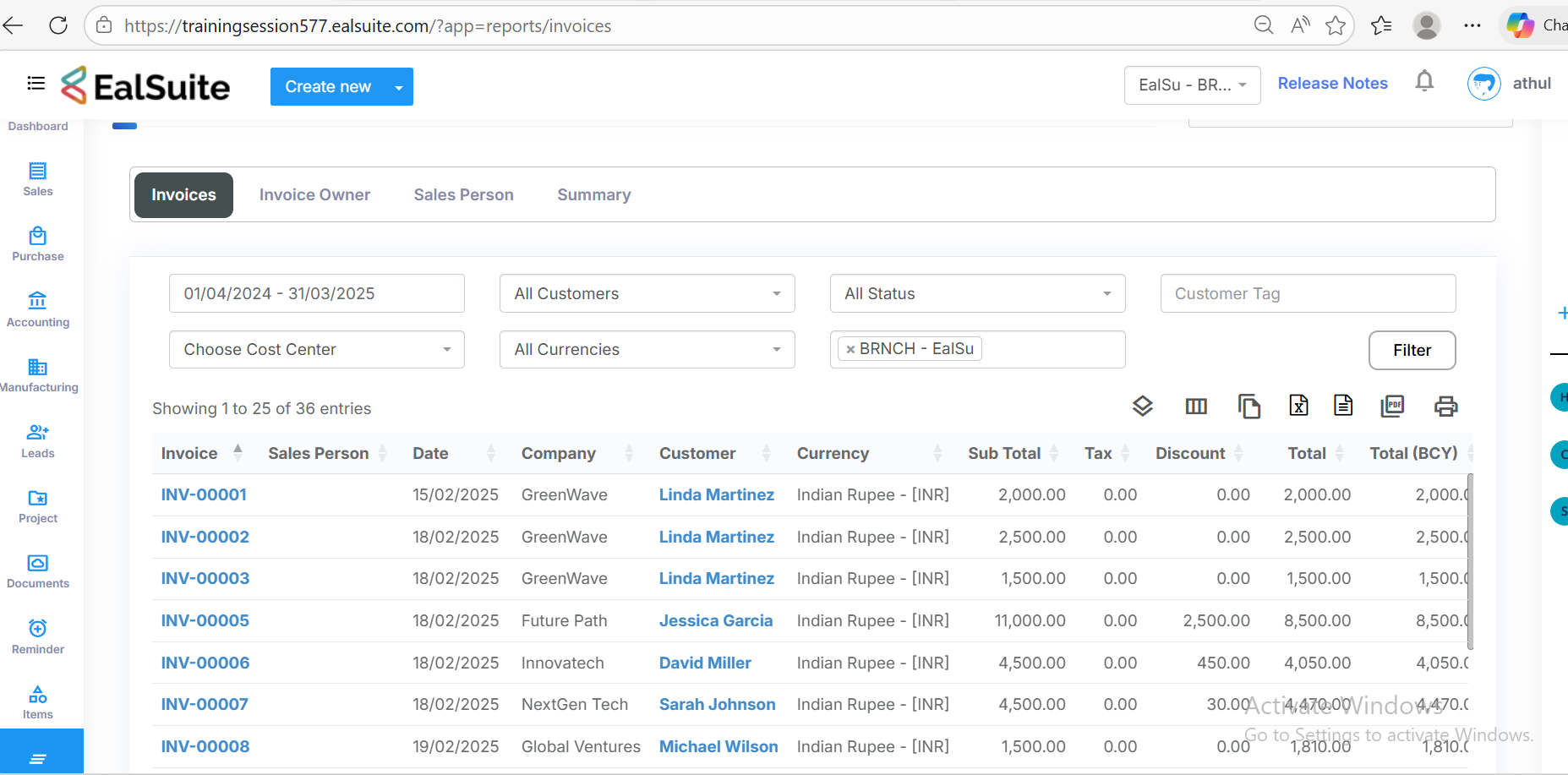
The Invoices report displays the list of all invoices created in the system along with customer details, sales person, and financial values such as subtotal, tax, discount, and total amount.
When you open the Invoices tab, you will be redirected to the Smart View, where all invoice records are displayed in a tabular format.
| Column | Description | Calculation / Formula |
|---|---|---|
| Invoice | Displays the unique invoice number generated by the system. | Auto-generated |
| Sales Person | Displays the sales representative associated with the invoice. | Pulled from Sales Module |
| Date | Shows the date on which the invoice was created. | Format: DD/MM/YYYY |
| Company | Displays the company associated with the invoice. | Pulled from Company Profile |
| Customer | Shows the customer for whom the invoice was created. | Pulled from Customer Module |
| Currency | Displays the currency used for the invoice transaction. | Based on selected currency |
| Sub Total | Displays the subtotal amount before tax and discounts. | Sum of item prices |
| Tax | Shows the total tax applied to the invoice. | Based on tax configuration |
| Discount | Displays the discount applied to the invoice. | Calculated based on discount rules |
| Total | Displays the final invoice amount after tax and discount adjustments. | Sub Total + Tax − Discount |
| Total (BCY) | Displays the invoice total converted to the base currency. | Currency conversion based on system settings |
| Paid | Shows the total amount already paid for the invoice. | Sum of recorded payments |
| Due | Displays the remaining balance that needs to be paid. | Total − Paid |
| Filter | Description | |
|---|---|---|
| Date Range | Allows users to filter invoices based on a selected date range. | |
| Customer | Enables filtering invoices for a specific customer. | |
| Status | Allows filtering invoices based on invoice status. | |
| Customer Tag | Enables filtering invoices using customer tags. | |
| Cost Center | Allows filtering invoices related to a specific cost center. | |
| Currency | Enables filtering invoices based on the selected currency. | |
| Branch | Allows filtering invoices based on the selected branch. |
Table footer
- Sub total (total)
- Tax (total)
- Discount (total)
- Total (total)
- Total BCY (total)
- Paid (total)
- Due (total)
Invoice Owner Report
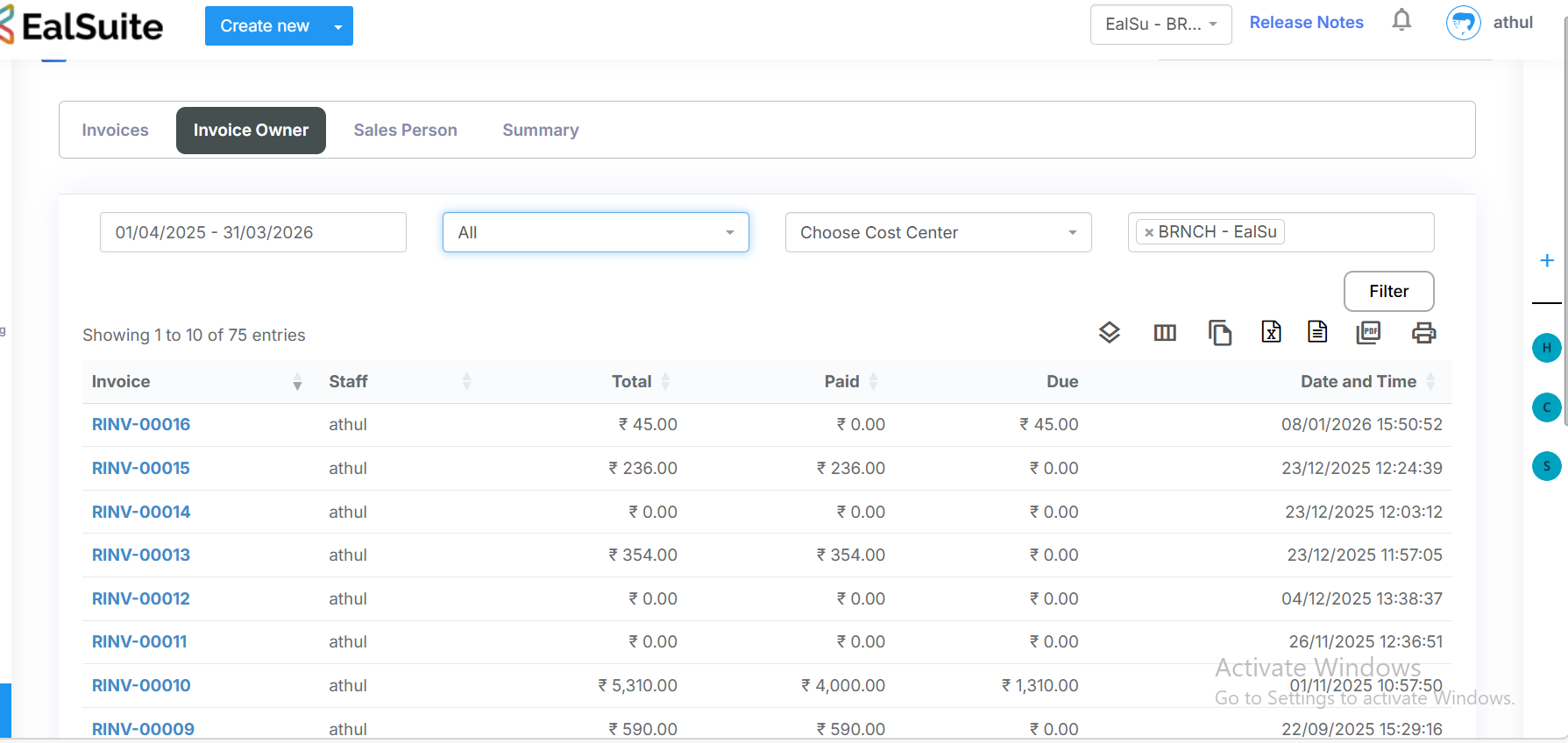
The Invoice Owner Report displays invoices based on the staff member who created the invoice or under whose system access the invoice was created. This helps track invoice activities performed by each staff member and monitor payment status such as paid and due amounts.
When you select the Invoice Owner tab in the Invoice Report section, you will be redirected to the Smart View, where the list of invoices is displayed along with the staff responsible for creating them.
| Column | Description | Calculation / Formula |
|---|---|---|
| Invoice | Displays the unique invoice number generated in the system. | Auto-generated |
| Staff | Shows the staff member who created the invoice or under whose access the invoice was created. | Pulled from System User / Staff Module |
| Paid | Displays the total amount that has already been paid for the invoice. | Sum of recorded payments |
| Due | Displays the remaining balance that needs to be paid. | Total − Paid |
| Date | Shows the date when the invoice was created. | Format: DD/MM/YYYY |
| Time | Displays the time at which the invoice was recorded in the system. | System-generated timestamp (time of that specific invoice created) |
| Filter | Description |
|---|---|
| Date | Allows users to filter invoices based on the selected date range. |
| Staff | Enables filtering invoices created by a specific staff member. |
| Cost Center | Allows filtering invoices related to a specific cost center. |
| Branch | Enables filtering invoices based on the selected branch. |
Table footer
- Total(total)
- Paid(Total)
- Due(total)
Sales Person Report
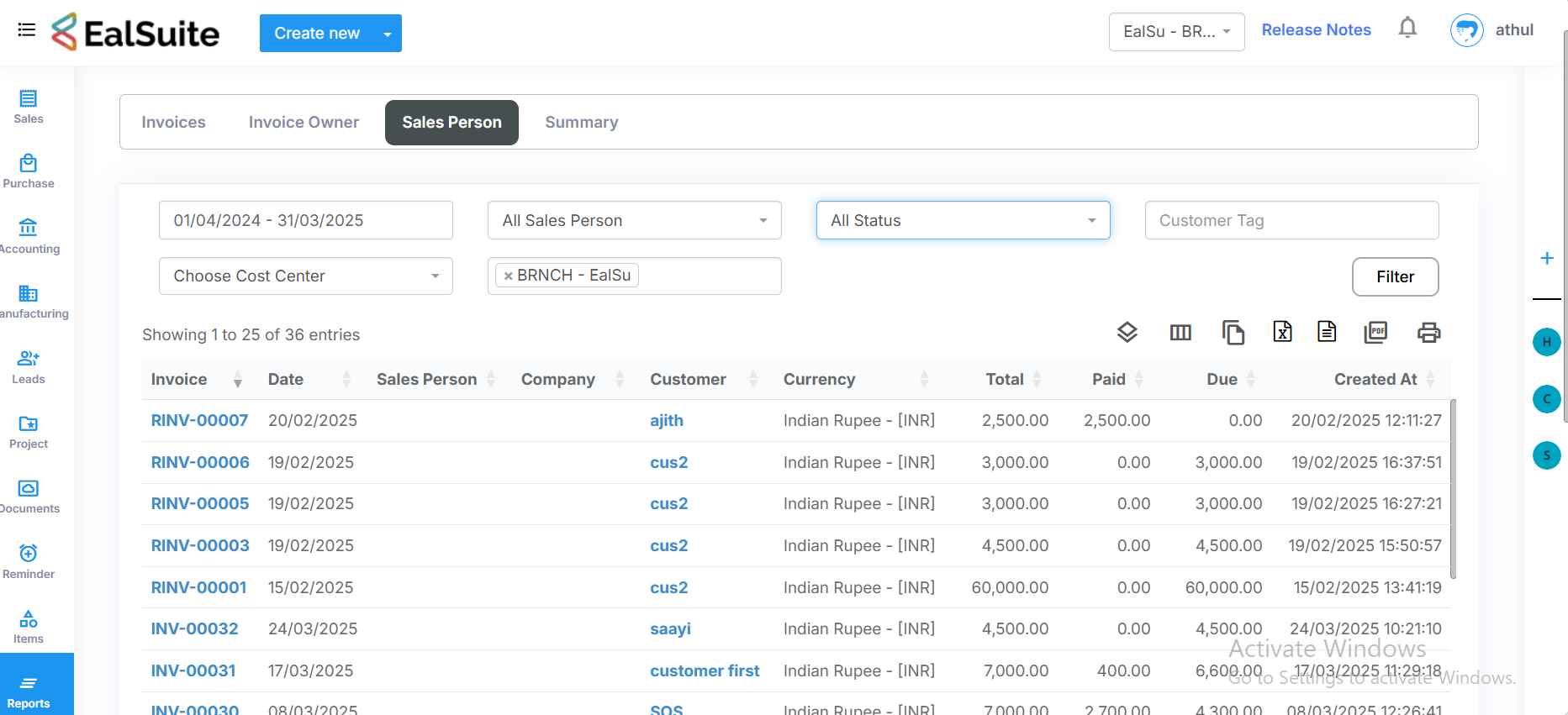
The Sales Person Report provides invoice details based on the sales person assigned to the invoice. When creating an invoice in the system, there is an option to select a Sales Person, which is chosen from the list of users created in the Users and Roles section of the software.
This report helps analyze sales performance by tracking invoices associated with each sales person.
When you select the Sales Person tab under the Invoice Report section, you will be redirected to the Report, where invoices are listed along with their corresponding sales person and payment details.
| Column | Description | Calculation / Formula |
|---|---|---|
| Invoice | Displays the unique invoice number generated in the system. | Auto-generated |
| Date | Shows the date on which the invoice was created. | Format: DD/MM/YYYY |
| Sales Person | Displays the sales person assigned to the invoice. | Pulled from Users and Roles Module |
| Company | Shows the company associated with the invoice. | Pulled from Customer Profile |
| Currency | Displays the currency used for the invoice transaction. | Based on selected currency |
| Total | Displays the total invoice amount. | Sub Total + Tax − Discount |
| Paid | Displays the total amount already paid for the invoice. | Sum of recorded payments |
| Due | Displays the remaining balance to be paid. | Total − Paid |
| Created At | Displays the date and time when the invoice was created in the system. | System-generated timestamp |
| Filter | Description |
|---|---|
| Date | Allows users to filter invoices based on the selected date. |
| Sales Person | Enables filtering invoices associated with a specific sales person. |
| Status | Allows filtering invoices based on invoice status. |
| Customer Tag | Enables filtering invoices using customer tags. |
| Cost Center | Allows filtering invoices related to a specific cost center. |
| Branch | Enables filtering invoices based on the selected branch. |
Table Footer
- Total (total)
- Paid( total)
- Due(total)
Invoice Summary Report
The Invoice Summary Report provides a graphical overview of invoices generated in the system over a selected time period. This report helps users quickly analyze invoice trends, total invoice count, and the overall invoice value.
When you select the Summary tab in the Invoice Report section, the system displays a visual dashboard showing invoice activity for the last 12 months, along with key financial metrics such as total invoices and total invoice amount.
The Summary section presents invoice data using charts and summary cards, allowing users to quickly understand invoice performance and trends over time.
The Invoices (Last 12 Months) chart displays the number or value of invoices generated each month over the past year. This visual representation helps users track invoice trends and identify peak billing periods.
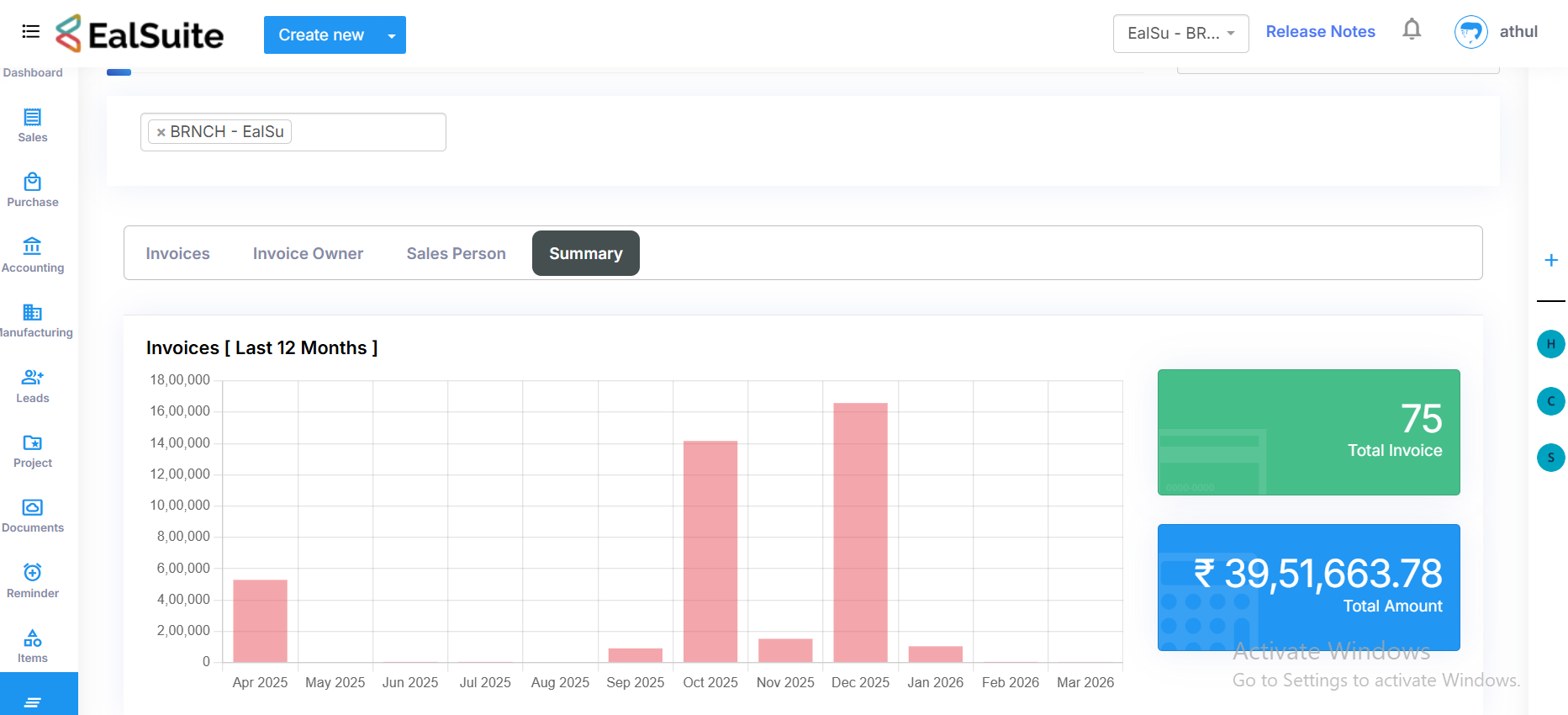
On the right side of the summary dashboard, key metrics are displayed to provide quick insights into invoice activity.
| Metric | Description |
|---|---|
| Total Invoice | Displays the total number of invoices created within the selected period. |
| Total Amount | Shows the total value of all invoices generated within the selected period. |
|
Purchases
The Purchases Report provides a detailed view of all purchase transactions recorded in the system. This report helps users track purchases made from suppliers, monitor payment status, and analyze overall purchasing activity.
The Purchases Report contains two sections:
- Purchases
- Summary
Purchases Report
The Purchases Report provides a detailed view of all purchase transactions recorded in the system. This report helps users track purchases made from suppliers, monitor payment status, and analyze overall purchasing activity.
| Column | Description | Calculation / Formula |
|---|---|---|
| Purchase | Displays the unique purchase number generated in the system. | Auto-generated |
| Date | Shows the date on which the purchase was created. | Format: DD/MM/YYYY |
| Company | Displays the company associated with the purchase. | Pulled from Company Profile of supplier |
| Supplier | Shows the supplier from whom the purchase was made. | Pulled from Supplier Module |
| Currency | Displays the currency used for the purchase transaction. | Based on selected currency |
| Sub Total | Displays the total amount before tax and discount. | Sum of item prices |
| Tax | Shows the total tax applied to the purchase. | Based on tax configuration |
| Discount | Displays the discount applied to the purchase. | Calculated based on discount rules |
| Total | Displays the final purchase amount after tax and discount adjustments. | Sub Total + Tax − Discount |
| Paid | Displays the total amount already paid for the purchase. | Sum of recorded payments |
| Due | Displays the remaining amount that needs to be paid to the supplier. | Total − Paid |
| Filter | Description |
|---|---|
| Date | Allows users to filter purchases based on the selected date. |
| Supplier | Enables filtering purchases associated with a specific supplier. |
| Status | Allows filtering purchases based on purchase status. |
| Supplier Tag | Enables filtering purchases using supplier tags. |
| Cost Center | Allows filtering purchases related to a specific cost center. |
| Branch | Enables filtering purchases based on the selected branch. |
Table Footer
- Sub total (total)
- Tax (total)
- Discount (total)
- Total (total)
- Paid (total)
- Due (total)
- Summary
Purchases Summary Report
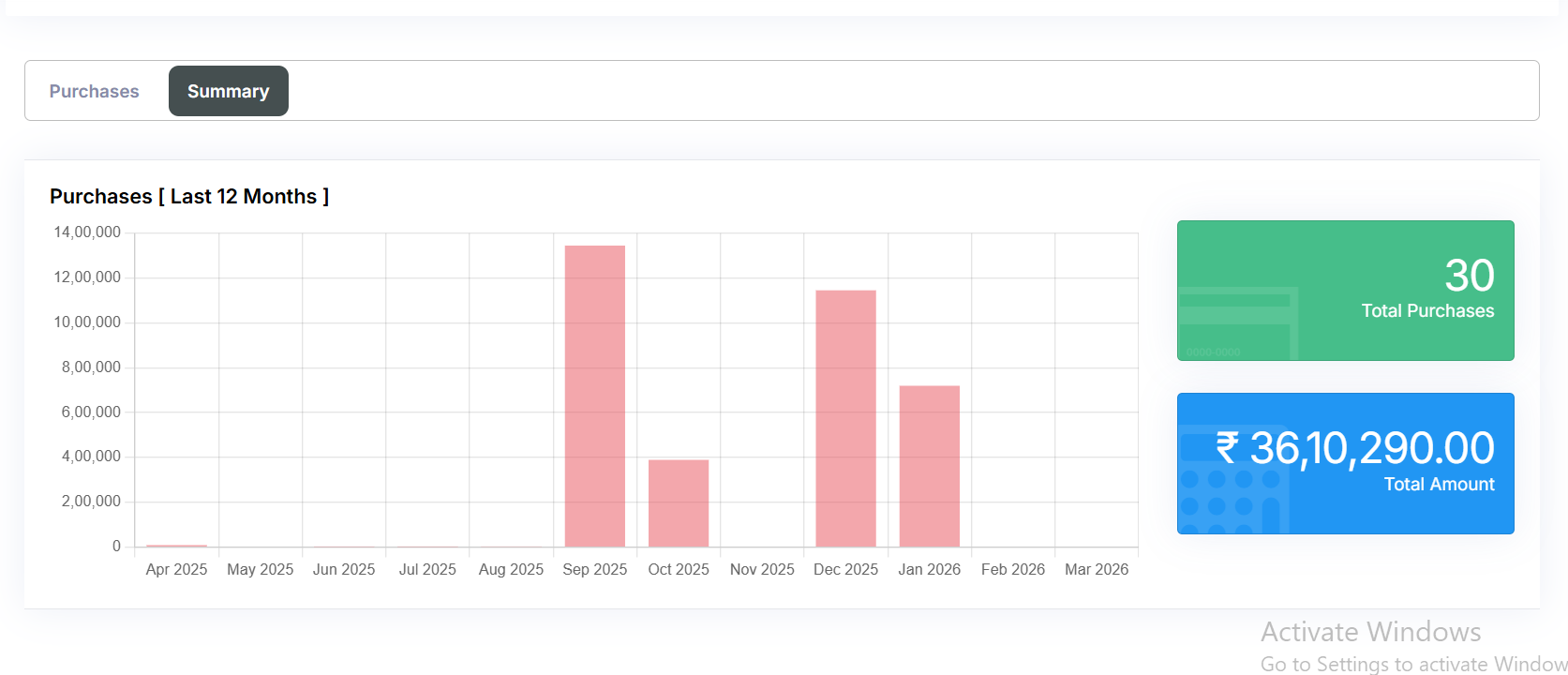
The Purchases Summary Report provides a visual overview of purchase transactions recorded in the system. This report helps users analyze purchasing activity over a selected time period and quickly understand the overall purchase volume and total purchase value.
When you select the Summary tab under the Purchases Report section, the system displays a graphical dashboard showing purchase activity along with key metrics such as the total number of purchases and the total purchase amount.
The Purchases (Last 12 Months) chart displays purchase activity for the previous 12 months. This visual representation helps users understand monthly purchase trends and identify periods with higher purchasing activity.
The right side of the summary dashboard displays key purchase indicators that provide quick insights into purchasing performance.
| Metric | Description |
|---|---|
| Total Purchases | Displays the total number of purchases recorded within the selected period. |
| Total Amount | Shows the total value of all purchases recorded within the selected period. |
Sales vs Purchase
The Sales vs Purchase Report provides a comparative view of sales and purchase transactions recorded in the system. This report helps users analyze revenue, purchasing costs, and the resulting profit margin over a selected period.
It allows businesses to understand the relationship between sales income and purchase expenses, helping them evaluate profitability and financial performance.
Users can filter the report by date range, cost center, and branch to analyze data for specific operational segments.
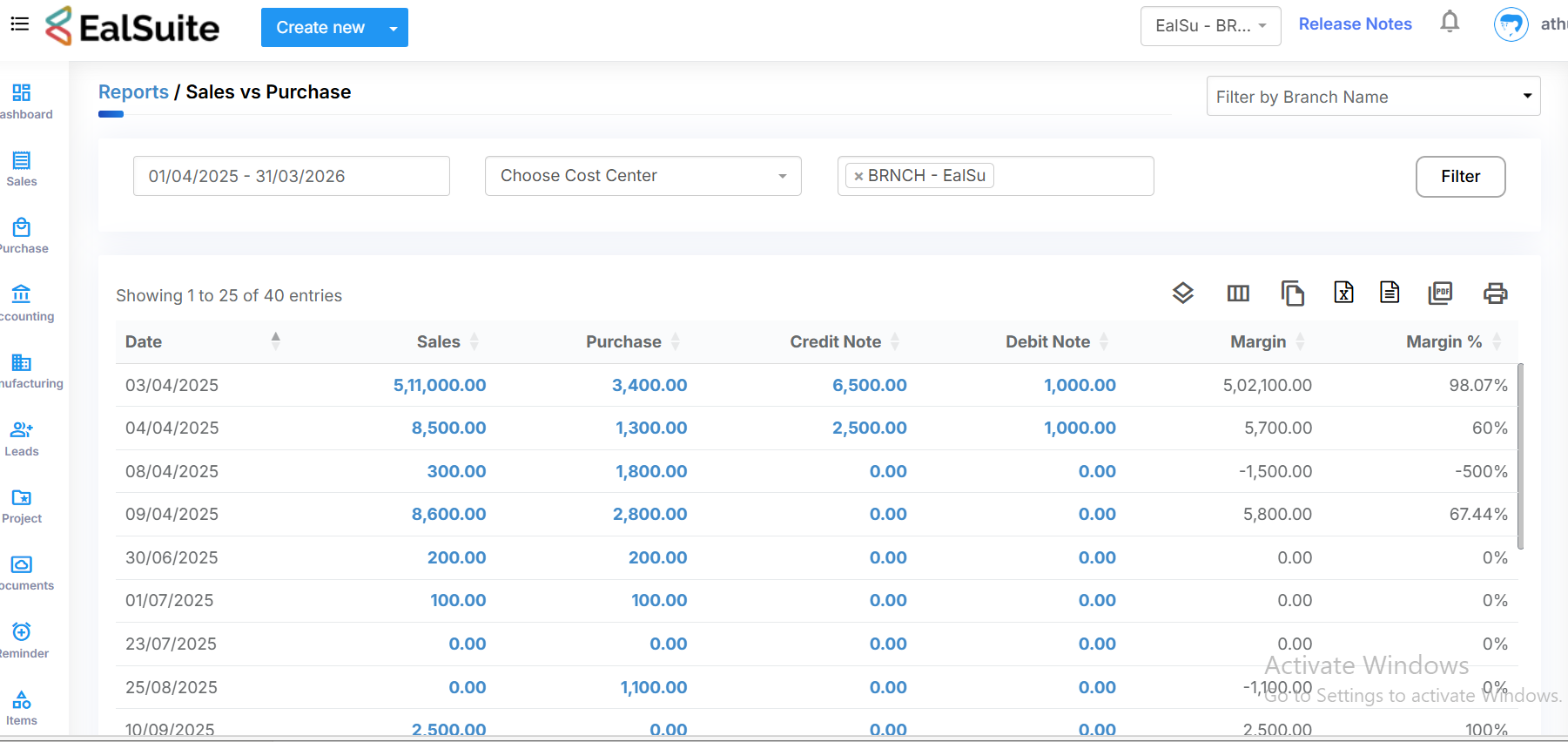
| Column | Description | Calculation / Formula |
|---|---|---|
| Date | Displays the date on which the transactions were recorded. | Format: DD/MM/YYYY |
| Sales | Shows the total sales amount recorded on that date. | Sum of sales invoices |
| Purchase | Displays the total purchase amount recorded on that date. | Sum of purchase transactions |
| Credit Note | Shows the total value of credit notes issued on that date. | Based on credit note entries |
| Debit Note | Displays the total value of debit notes recorded on that date. | Based on debit note entries |
| Margin | Displays the profit margin calculated from sales and purchases. | Sales − Purchase |
| Margin % | Shows the profit margin expressed as a percentage. | (Margin ÷ Sales) × 100 |
| Filter | Description |
|---|---|
| Date | Allows users to filter the report based on the selected date range. |
| Cost Center | Enables filtering data related to a specific cost center. |
| Branch | Allows users to view report data for a selected branch. |
Table footer
- Sales (total)
- Purchase (total)
- Credit note (total)
- Debit note (total)
- Margin (total)
Cash Out
The Cash Out Report provides a detailed overview of all outgoing cash transactions recorded in the system. This report helps users monitor expenses, payments, and other cash outflows made from different accounts.
It also provides quick financial insights through summary cards that display the total cash out values for different time periods such as overall total, current month, current week, and the last 30 days.
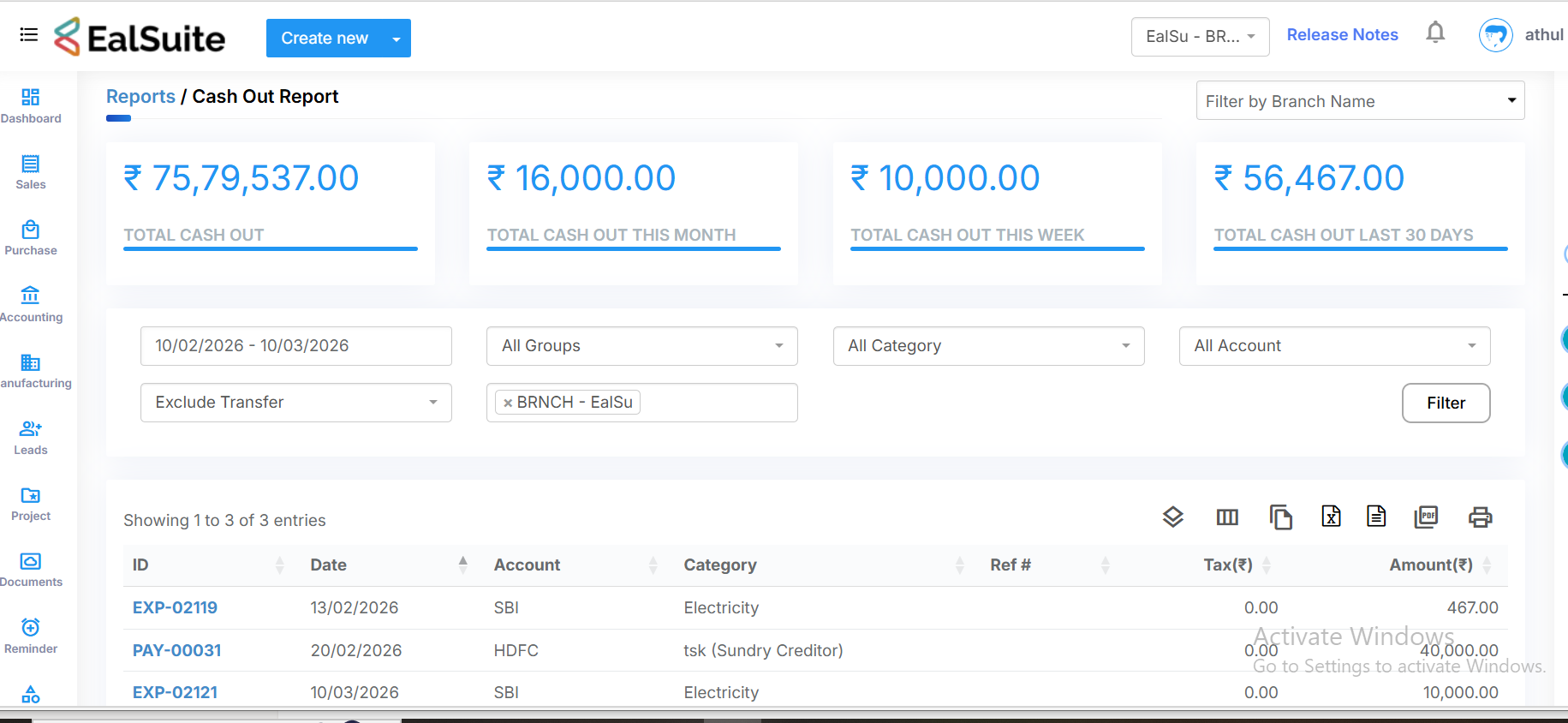
At the top of the report, the system displays key summary metrics that provide a quick overview of cash out activity.
| Metric | Description |
|---|---|
| Total Cash Out | Displays the total amount of all cash out transactions recorded in the system. |
| Total Cash Out This Month | Shows the total cash out amount recorded during the current month. |
| Total Cash Out This Week | Displays the total cash out amount recorded during the current week. |
| Total Cash Out Last 30 Days | Shows the total cash out amount recorded in the last 30 days. |
| Column | Description | Calculation / Formula |
|---|---|---|
| ID | Displays the unique transaction ID generated for the cash out entry. | Auto-generated |
| Date | Shows the date on which the transaction was recorded. | Format: DD/MM/YYYY |
| Account | Displays the account from which the payment or expense was made. | Pulled from Banking / Accounts Module |
| Category | Shows the category under which the expense is recorded. | Pulled from Expense Categories |
| Ref # | Displays the reference number associated with the transaction. | Optional manual entry |
| Tax (₹) | Shows the tax amount applied to the transaction if applicable. | Based on tax configuration |
| Amount (₹) | Displays the total amount of the cash out transaction. | Transaction amount |
| Filter | Description |
|---|---|
| Date | Allows users to filter transactions based on the selected date range. |
| Groups | Enables filtering transactions based on account groups. |
| Category | Allows filtering transactions based on a specific expense category. |
| Account | Enables filtering transactions based on the selected account. |
| Exclude Transfer | Allows users to exclude transfer transactions from the report. |
| Branch | Enables filtering transactions based on the selected branch. |
Table Footer
- Tax (total)
- Amount (total)
Cash In
The Cash In Report provides a detailed overview of all incoming cash transactions recorded in the system. This report helps users track payments received, deposits, and other cash inflows across different accounts.
It also provides quick financial insights through summary cards that display the total cash in values for different time periods such as overall total, current month, current week, and the last 30 days.
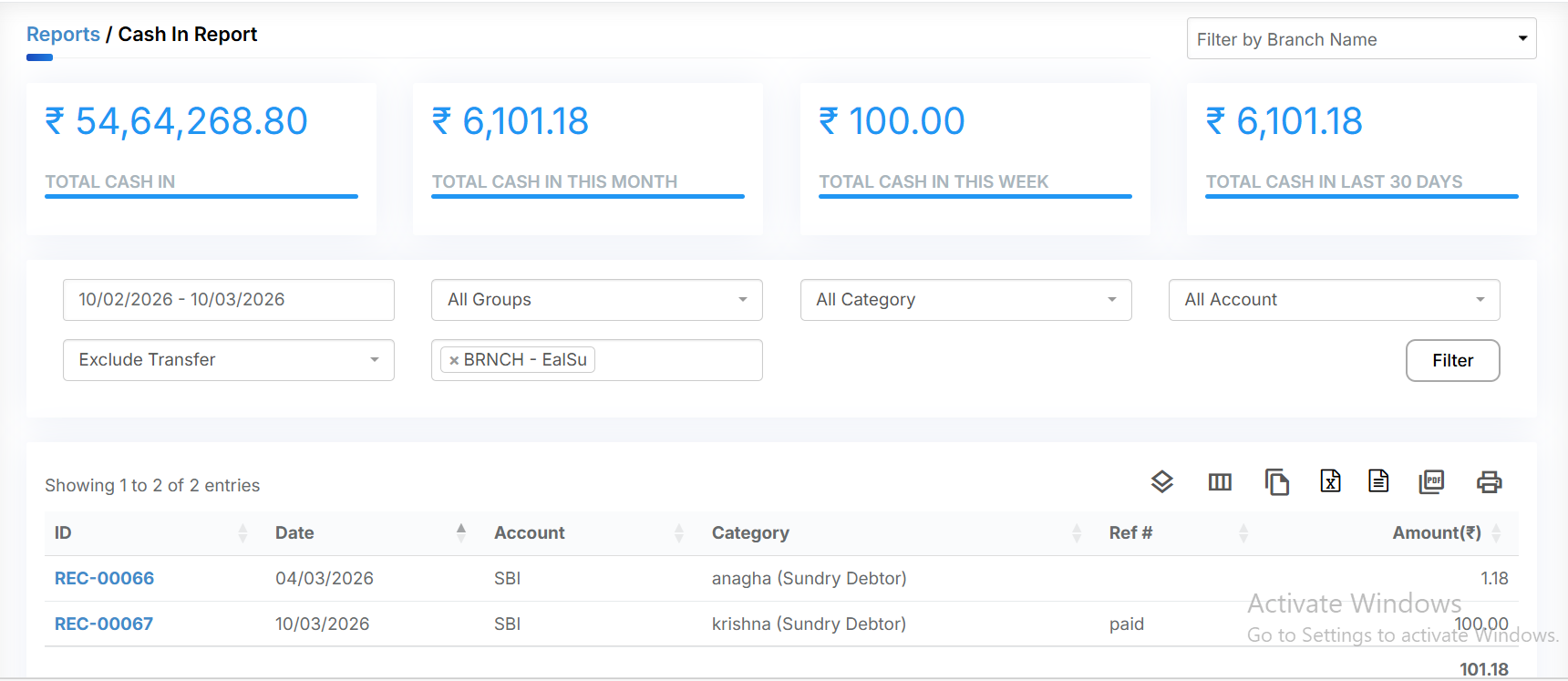
At the top of the report, the system displays key summary metrics that provide a quick overview of cash inflow activity.
| Metric | Description |
|---|---|
| Total Cash In | Displays the total amount of all cash in transactions recorded in the system. |
| Total Cash In This Month | Shows the total cash in amount recorded during the current month. |
| Total Cash In This Week | Displays the total cash in amount recorded during the current week. |
| Total Cash In Last 30 Days | Shows the total cash in amount recorded in the last 30 days. |
| Column | Description | Calculation / Formula |
|---|---|---|
| ID | Displays the unique transaction ID generated for the cash in entry. | Auto-generated |
| Date | Shows the date on which the transaction was recorded. | Format: DD/MM/YYYY |
| Account | Displays the account into which the payment or deposit was received. | Pulled from Banking / Accounts Module |
| Category | Shows the category under which the income is recorded. | Pulled from Income Categories |
| Ref # | Displays the reference number associated with the transaction. | Optional manual entry |
| Amount (₹) | Displays the total amount of the cash in transaction. | Transaction amount |
| Filter | Description |
|---|---|
| Date | Allows users to filter transactions based on the selected date range. |
| Groups | Enables filtering transactions based on account groups. |
| Category | Allows filtering transactions based on a specific income category. |
| Account | Enables filtering transactions based on the selected account. |
| Exclude Transfer | Allows users to exclude transfer transactions from the report. |
| Branch | Enables filtering transactions based on the selected branch. |
Table Footer
- Amount (total)
Post Dated Cheque
The Post Dated Cheque (PDC) Report displays all cheque transactions that are recorded with a future cheque date. This report helps users track issued and received cheques, monitor their status, and manage cheque-based payments effectively.
Users can filter the report to view cheque transactions based on date, account, type, status, sales person, and branch.
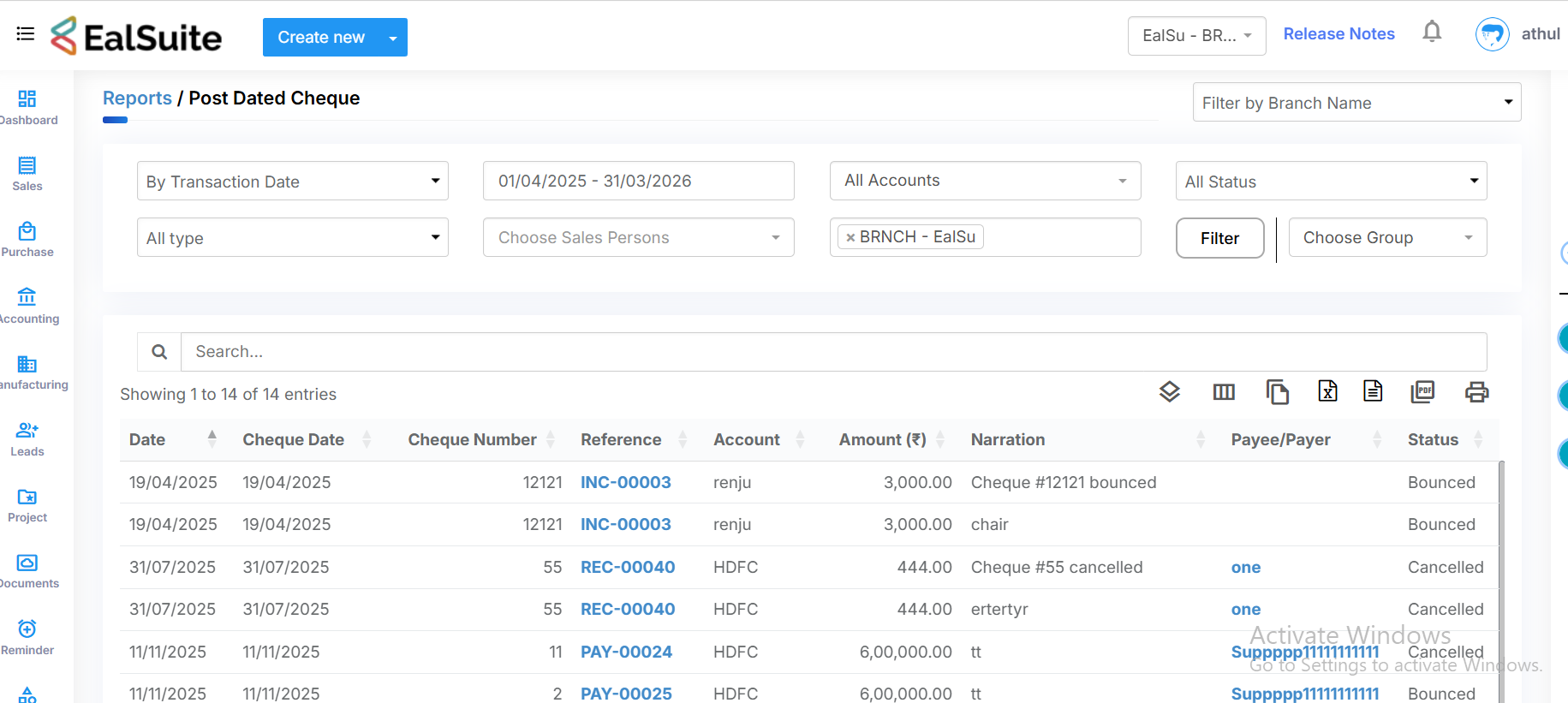
| Column | Description | Calculation / Formula |
|---|---|---|
| Date | The transaction date when the cheque entry was recorded in the system. | Format: DD/MM/YYYY |
| Cheque Date | The actual date mentioned on the cheque. | Format: DD/MM/YYYY |
| Cheque Number | The unique number printed on the cheque used for identification. | Entered during cheque entry |
| Reference | The system-generated reference number linked to the transaction. | Example: INC-00003, REC-00040 |
| Account | The account through which the cheque transaction is recorded. | Pulled from Accounts Module |
| Amount | The cheque amount recorded in the transaction. | Transaction value |
| Narration | Description or notes added during the cheque transaction. | Example: Cheque bounced, Cheque cancelled |
| Payee/Payer | Displays the person or organization who issued or received the cheque. | Pulled from related transaction |
| Status | Indicates the current status of the cheque transaction. | Example: Cleared, Bounced, Cancelled |
| Filter | Description |
|---|---|
| Date | Allows users to filter cheque transactions based on the selected date range. |
| Account | Enables filtering transactions related to a specific account. |
| Status | Allows filtering cheques based on their current status. |
| Type | Enables filtering cheque transactions based on the transaction type. |
| Sales Person | Allows users to filter transactions associated with a specific sales person. |
| Branch | Allows filtering the report based on the selected branch. |
Table Footer
- Amount (total)
Last updated: July 24, 2026