Manufacturing
BOM
Creating a Bill of Materials (BOM)
- Navigate to the Manufacturing section from the navigation bar.
- Select BOM.
- Click Create BOM.
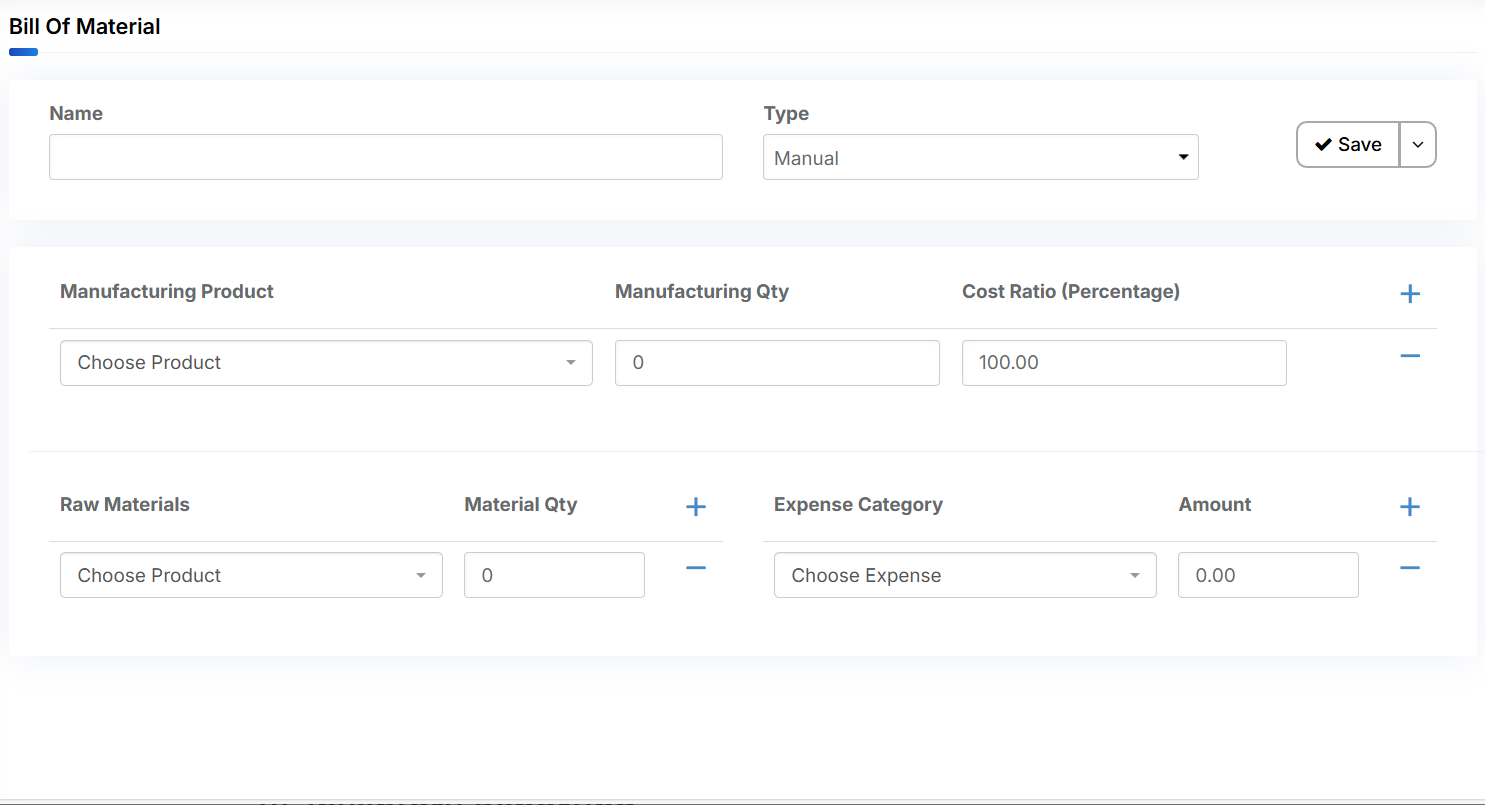
- Fill in the required fields:
- Name
- Type (Manual or Auto)
- Manufacturing Product (Finished product)
- Quantity
- Cost Ratio Percentage
- Add Raw Materials with their respective quantities
- Add Expenses with their respective amounts
- Click Save to create the BOM.
BOM Type Definitions
Manual
- Used when input and output quantities are not strictly fixed.
- Suitable when there are multiple output products.
- The total manufacturing cost can be divided using the customizable Cost Ratio Percentage.
- Changes in finished product quantity will not affect the raw material ratio automatically.
Auto
- Used when both input and output quantities are clearly defined.
- Suitable when there is a single output product.
- Raw material quantities are automatically adjusted based on the defined ratio.
Managing BOM Records
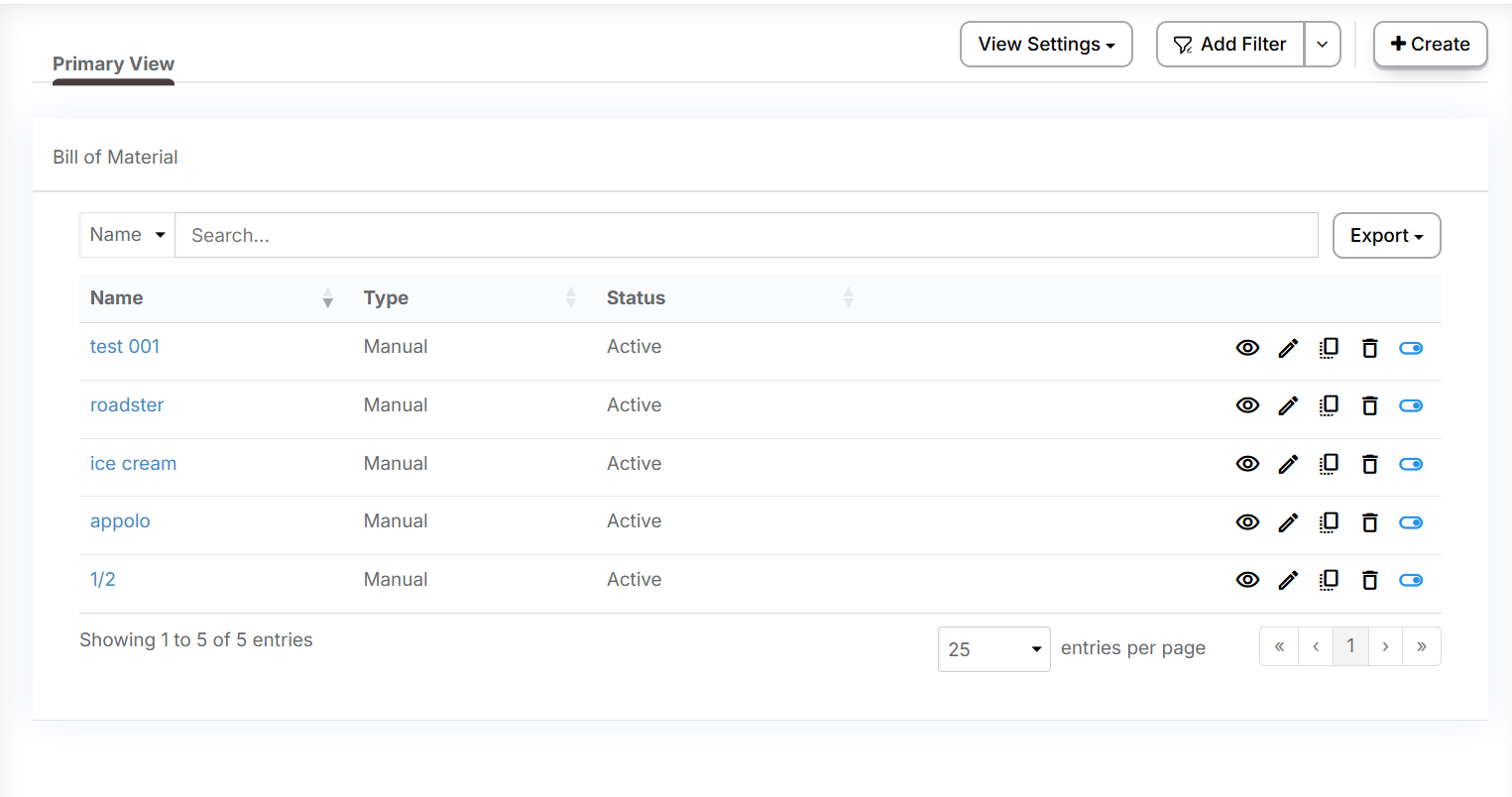
In the BOM List under the Manufacturing section, you can manage existing BOM records using the following options:
| Option | Description |
|---|---|
| View | Open the BOM to view complete details, including the product, raw materials, expenses, and cost ratio configuration. |
| Edit | Modify the BOM details, such as quantities, raw materials, expenses, or cost ratio percentage. |
| Clone | Duplicate an existing BOM to quickly create a similar configuration for another product. |
| Disable | Deactivate the BOM to prevent it from being selected for new manufacturing orders. |
Note: Disabled BOMs remain in the system for record purposes but cannot be used in active manufacturing transactions.
Manufacturing
- Go to the Manufacturing section from the navigation bar.
- Select Manufacturing.
- Click Create.
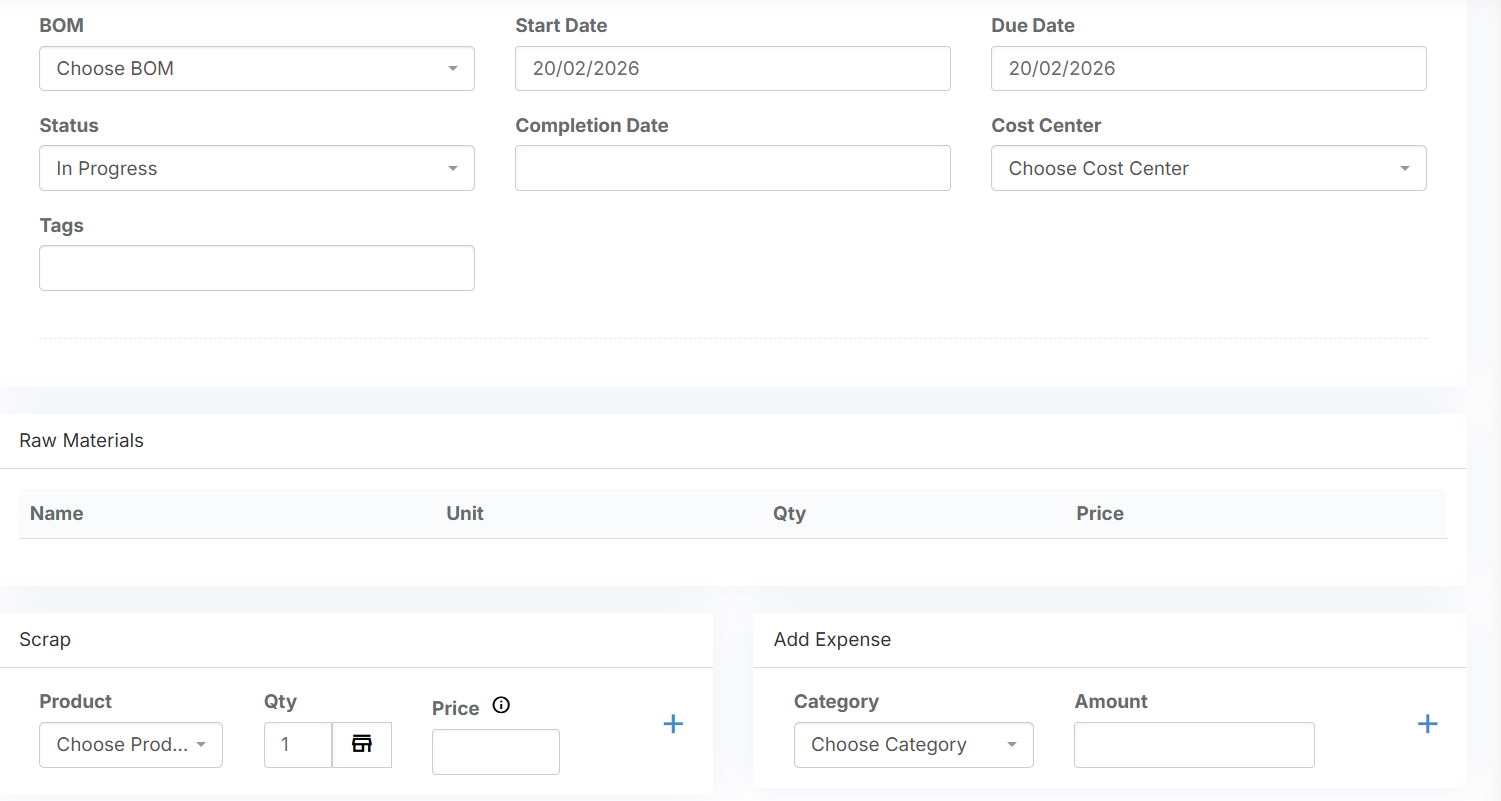
- Choose the required BOM.
Once the BOM is selected, the system automatically populates:
- Manufacturing Product
- Manufacturing Quantity
- Cost Ratio Percentage
- Raw Materials and quantities
- Expenses and amounts
- Complete the remaining details:
- Start Date
- Due Date
- Status
- Completion Date
- Cost Center
- Tags
- The system automatically calculates the Total Cost and Cost Per Unit.
Managing Manufacturing Orders
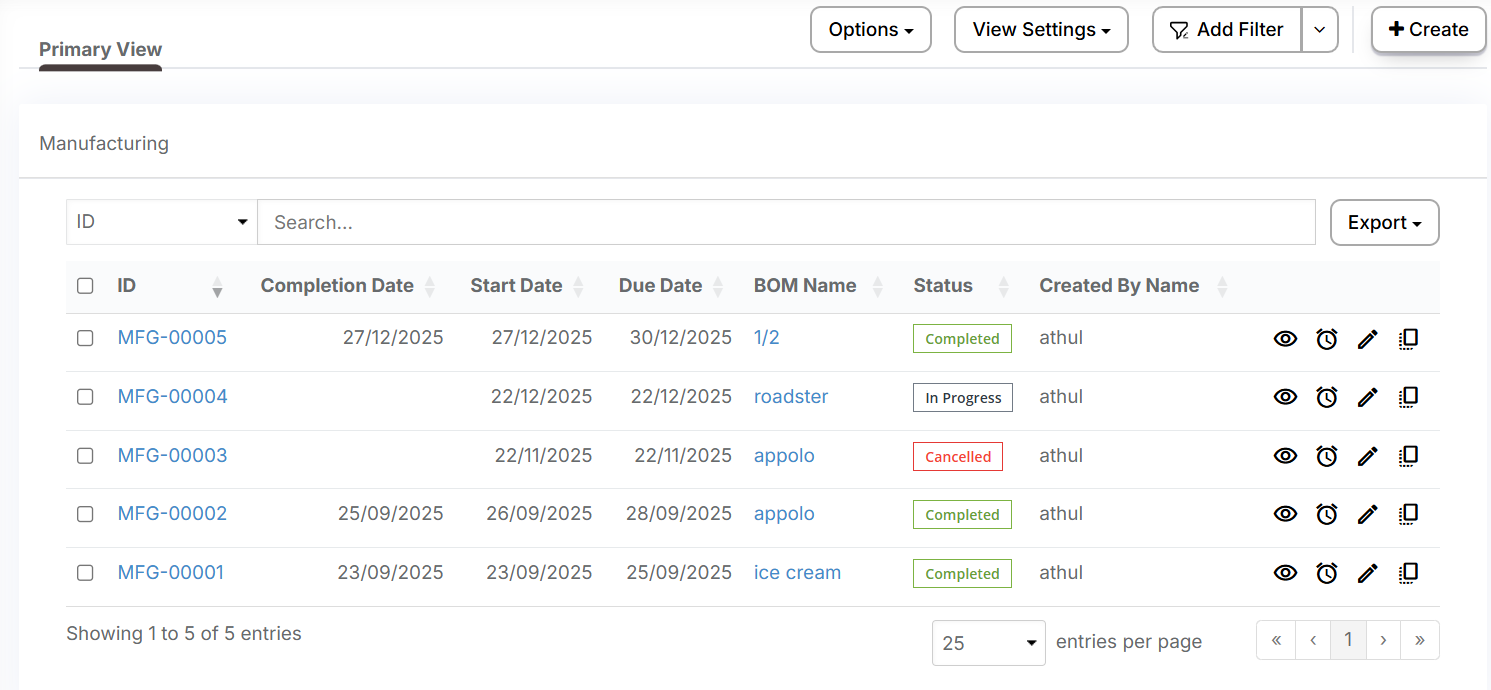
In the Manufacturing List, the following options are available for each order:
- Reminder
- View
- Edit (to update status as In-Process, Completed, or Cancelled)
- Clone
Scrap Management
The manufacturing tracking section includes a dedicated Scrap area for managing scrap materials.
- Users can record the quantity produced as scrap.
- Enter the total scrap value (price).
- Click the Add (+) symbol to create a new scrap entry.
Note: The scrap item must first be created in the Inventory module before it can be used in manufacturing.
Bulk Expense Update
To apply a single expense (such as an electricity bill) across multiple manufacturing orders:
- Go to the Manufacturing List.
- Select the required manufacturing orders.
- Click the Option button.
- Choose Expense Bulk Update.
- Click Add.
- Select the Expense, enter the Amount, and click Save.
This feature helps efficiently allocate common expenses to multiple manufacturing records at once
Last updated: July 24, 2026