Customer
Daily Sales Report
Report Overview
The Daily Sales Report provides an overview of a company’s sales performance over a specified period. It displays detailed information about each sales transaction including customer details, items sold, quantities, sales amount, tax, and totals.
This report helps users monitor daily sales activity, analyze revenue generation, and review sales handled by specific sales persons or branches.
The report can be filtered based on Date, Customer, Items, Item Group, Sales Person, Cost Center, Branch, and Transaction Type (Invoice or Credit Note).
Options are available to export or view the data using Entsries, Columns, Copy, Excel, CSV, PDF, and Print. A Search option is also available to quickly locate specific records within the report.
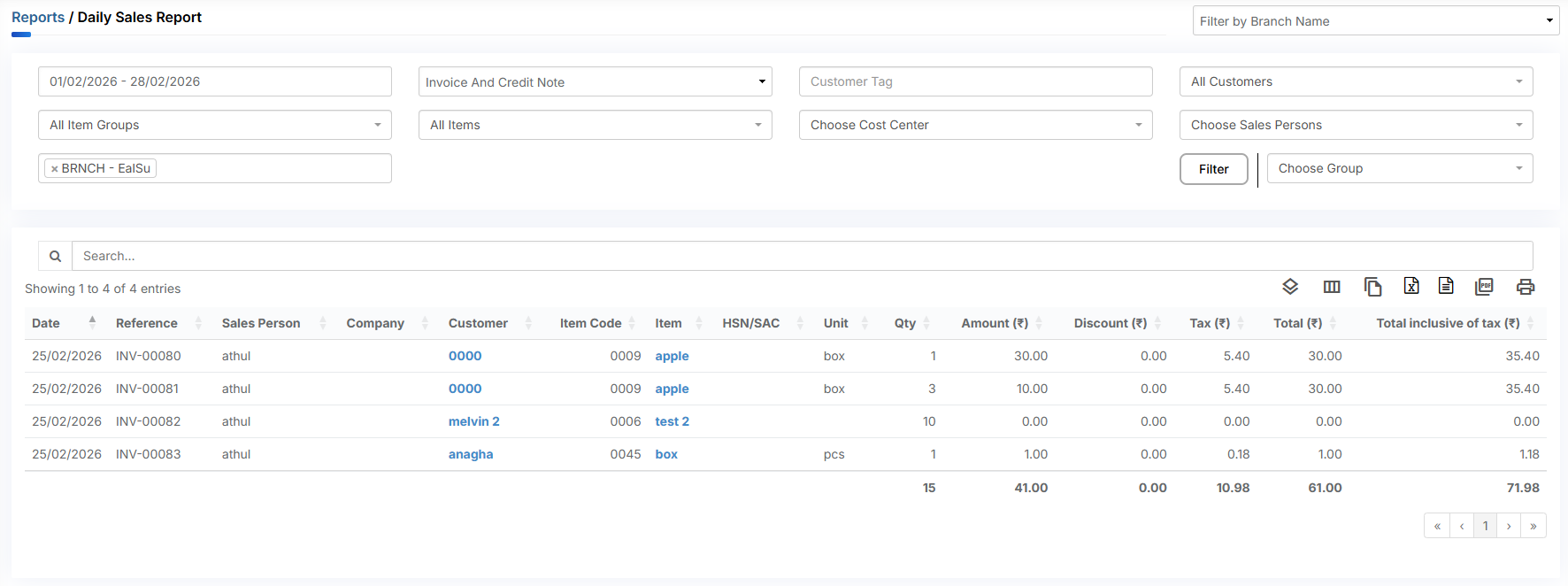
Report Columns
| Column | Description | Calculation / Formula (Optional) |
|---|---|---|
| Date | The date on which the sales transaction was created. | Format: DD/MM/YYYY |
| Reference | Unique reference number of the transaction (Invoice or Credit Note). | Generated from the sales transaction record |
| Sales Person | Name of the sales person associated with the sale. | Pulled from the Sales Person assigned in the transaction |
| Company | The company associated with the transaction. | Pulled from company master data |
| Customer | Name of the customer to whom the item was sold. | Pulled from Customer Master |
| Item Code | Unique identification code of the item sold. | Pulled from Item Master |
| Item | Name and description of the item sold. | Pulled from Item Master |
| HSN/SAC | HSN or SAC code used for tax classification of the item. | Pulled from Item Tax configuration |
| Unit | Unit of measurement used for the item (e.g., Nos, Kg, Box). | Pulled from Item Master |
| Qty | Quantity of the item sold in the transaction. | Entered in the invoice item table |
| Amount (₹) | Total value of the item before discount and tax. | Qty × Item Rate |
| Discount (₹) | Discount applied to the item or transaction. | Based on discount settings in invoice |
| Tax (₹) | Tax applied to the item based on configured tax rates. | Calculated according to tax configuration |
| Total (₹) | Total value of the item after discount but before adding tax. | Amount − Discount |
| Total inclusive of tax (₹) | Final value including tax. | Total + Tax |
| Branch | Branch from which the transaction was created. | Pulled from Branch configuration |
Report Filters
| Filter Name | Description |
|---|---|
| Date Range | Allows users to filter transactions within a selected time period. |
| Options include: Today, This Month, Last Month, This Fiscal Year, Last Fiscal Year, Custom Range | |
| Transaction Type | Allows selection of transaction type to display. |
| Options: Invoice and Credit Note, Invoice Only, Credit Note Only | |
| Customer Tag | Filters customers based on assigned customer tags. |
| All Customers | Allows filtering the report for a specific customer. |
| All Item Groups | Filters transactions based on item group classification. |
| All Items | Filters report data for a specific item. |
| Choose Cost Center | Filters transactions assigned to a particular cost center. |
| Choose Sales Persons | Filters transactions handled by a selected sales person. |
| Filter by Branch Name | If multiple branches exist, the report can be filtered by specific branches. |
| Choose Group | Allows grouping or filtering transactions based on a selected group. |
Report Footers
- Qty
Total quantity of all items included in the report.
- Amount
Sum of all item amounts before discounts and taxes.
- Discount
Total discount applied across all transactions in the report.
- Tax
Total tax amount calculated for all transactions.
- Total
Sum of all transaction totals after discount but before tax.
- Total Inclusive of Tax
Final total including all taxes applied to the transactions.
Receivable Aging Report
Report Overview
The Receivable Aging Report provides an overview of outstanding balances that are due from customers based on their aging period. It helps businesses track unpaid invoices and understand how long receivables have remained outstanding.
The report categorizes receivables into aging buckets such as Current, 1–30 Days, 31–60 Days, 61–90 Days, and 91+ Days. This helps the finance team identify overdue payments, prioritize collections, and monitor customer payment behavior.
Options are available to export or view the data using Entries, Columns, Copy, Excel, CSV, PDF, and Print. A Search option is also available to quickly locate specific records within the report.
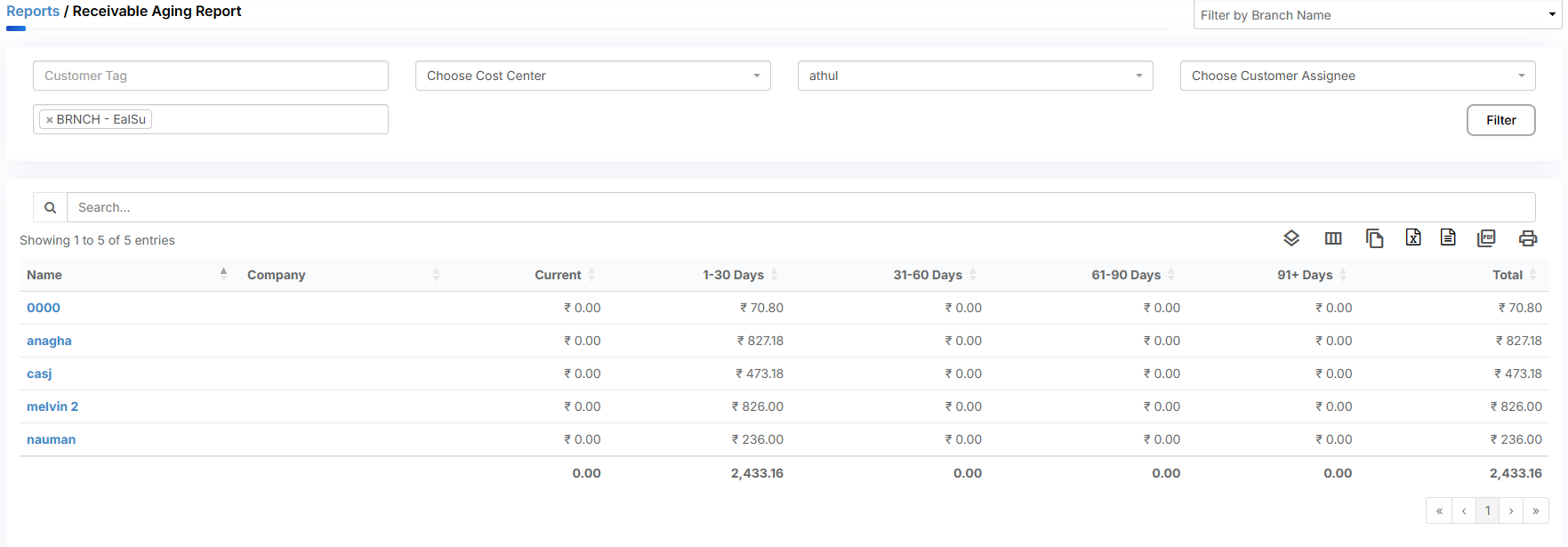
Report Columns
| Column | Description | Calculation / Formula (Optional) |
|---|---|---|
| Customer | Name of the customer who has outstanding receivables. | Pulled from Customer Master |
| Company | The company associated with the customer or transaction. | Pulled from Company records |
| Current | Amount that is not yet overdue and falls within the current payment term period. | Amount where Due Date ≥ Current Date |
| 1–30 Days | Outstanding amount that is overdue between 1 and 30 days. | Current Date – Due Date = 1–30 days |
| 31–60 Days | Outstanding amount overdue between 31 and 60 days. | Current Date – Due Date = 31–60 days |
| 61–90 Days | Outstanding amount overdue between 61 and 90 days. | Current Date – Due Date = 61–90 days |
| 91+ Days | Outstanding amount overdue for more than 90 days. | Current Date – Due Date > 90 days |
| Total | Total outstanding balance for the customer across all aging buckets. | Current + 1–30 + 31–60 + 61–90 + 91+ |
Report Filters
| Filter Name | Description |
|---|---|
| Customer Tag | Filters customers based on assigned tags. |
| Choose Cost Center | Allows filtering transactions related to a specific cost center. |
| Choose Sales Persons | Filters receivables associated with a selected sales person. |
| Choose Customer Assignee | Filters customers assigned to a specific staff or account manager. |
| Filter by Branch Name | If multiple branches exist, the report can be filtered by specific branches. |
Report Footers
- Current
Total receivable amount that is not yet overdue.
- 1–30 Days
Total receivable amount overdue between 1 and 30 days.
- 31–60 Days
Total receivable amount overdue between 31 and 60 days.
- 61–90 Days
Total receivable amount overdue between 61 and 90 days.
- 91+ Days
Total receivable amount overdue for more than 90 days.
- Total
Overall outstanding receivable amount across all aging buckets.
Customer Due Statement
Report Overview
The Customer Due Statement provides a detailed overview of outstanding dues owed by individual customers. It displays invoice-level information including customer details, reference numbers, due dates, payment status, and remaining due amounts.
This report helps businesses monitor unpaid invoices, track overdue payments, and understand the payment status of each customer.
Options are available to export or view the data using Entries, Columns, Copy, Excel, CSV, PDF, and Print.
A Search option is also available to quickly locate specific records within the report.
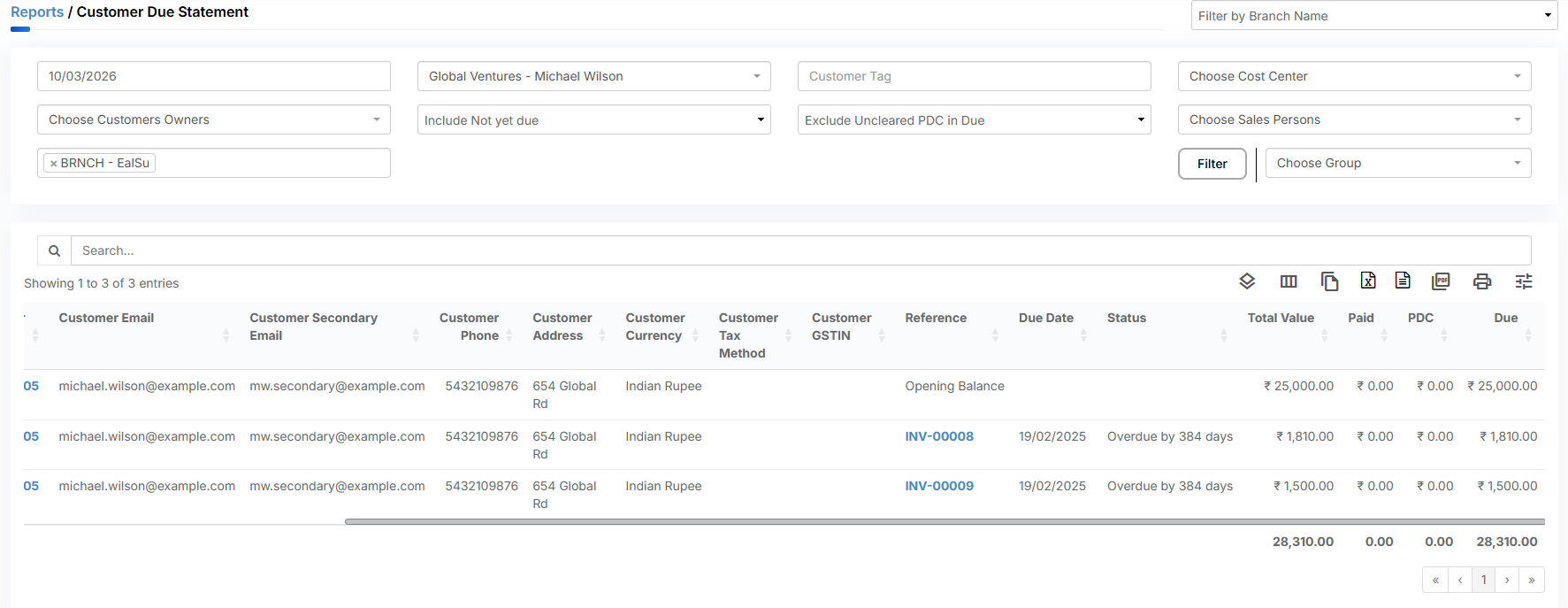
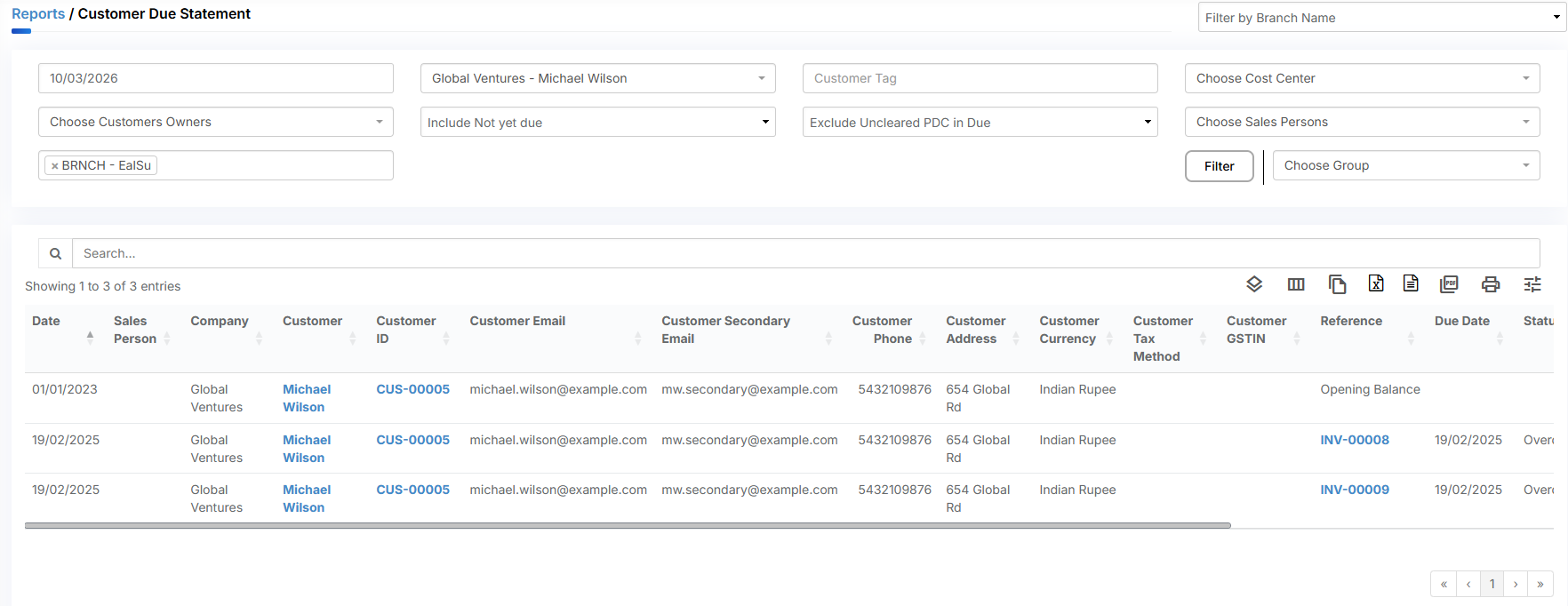
Report Columns
| Column | Description | Calculation / Formula (Optional) |
|---|---|---|
| Date | The date on which the transaction or invoice was created. | Format: DD/MM/YYYY |
| Sales Person | Name of the sales person associated with the transaction. | Pulled from Sales Person assigned in the transaction |
| Company | The company associated with the customer or transaction. | Pulled from company records |
| Customer | Name of the customer for whom the invoice was created. | Pulled from Customer Master |
| Customer ID | Unique identification code assigned to the customer. | Generated from Customer Master |
| Customer Email | Primary email address of the customer. | Pulled from Customer Master |
| Customer Secondary Email | Additional email address of the customer if provided. | Pulled from Customer Master |
| Customer Phone | Contact number of the customer. | Pulled from Customer Master |
| Customer Address | Address associated with the customer. | Pulled from Customer Address records |
| Customer Currency | Currency used for the transaction with the customer. | Example: Indian Rupee |
| Customer Tax Method | Tax calculation method applied to the customer transactions. | Based on customer tax configuration |
| Customer GSTIN | GST identification number of the customer. | Pulled from Customer Tax Details |
| Reference | Reference number of the invoice associated with the due amount. | Generated from Invoice record |
| Due Date | Date by which the payment for the invoice is expected. | Based on invoice payment terms |
| Status | Indicates the payment status of the invoice (e.g., overdue with number of days). | Current Date – Due Date |
| Total Value | Total invoice amount for the transaction. | Calculated during invoice generation |
| Paid | Amount that has already been paid by the customer. | Sum of payments applied to the invoice |
| PDC | Amount received as Post-Dated Cheque (PDC) that has not yet been cleared. | Recorded from PDC entries |
| Due | Remaining amount that is yet to be paid. | Total Value − Paid − PDC |
Report Filters
| Filter Name | Description |
|---|---|
| Date | Allows filtering the report based on a specific date. |
| All Customers | Allows selecting a specific customer to view their outstanding dues. |
| Customer Tag | Filters customers based on assigned customer tags. |
| Choose Cost Center | Filters transactions associated with a specific cost center. |
| Choose Customers Owners | Displays a list of users and allows filtering customers assigned to a particular owner. |
| Include Not Yet Due | Option to include or exclude invoices that are not yet due. |
| Include Uncleared PDC in Due | Option to include or exclude uncleared Post-Dated Cheques in the due calculation. |
| Choose Sales Persons | Filters records based on the selected sales person. |
| Filter by Branch Name | If multiple branches exist, the report can be filtered by specific branches. |
| Choose Group | Allows grouping or filtering records based on a selected group. |
Report Footers
- Total Value
Sum of all invoice values displayed in the report.
- Paid
Total amount that has been received from customers against the listed invoices.
- PDC
Total amount received through Post-Dated Cheques that are not yet cleared.
- Due
Total outstanding amount yet to be received from customers.
Calculation:
Total Value − Paid − PDC
Customer Trend Report
Report Overview
The Customer Trend Report presents a dynamic view of customer transactional activities over a specified time range. It displays the transaction count and total value for multiple types of sales-related documents such as invoices, credit notes, delivery challans, sales orders, pro forma invoices, and quotes.
This report helps businesses analyze customer activity trends and identify high-value and most active customers based on transaction volume and value. It provides insights that can help determine the company’s best-performing customers over the selected period.
Options are available to export or view the data using Entries, Columns, Copy, Excel, CSV, PDF, and Print.
A Search option is also available to quickly find specific companies or customers within the report.
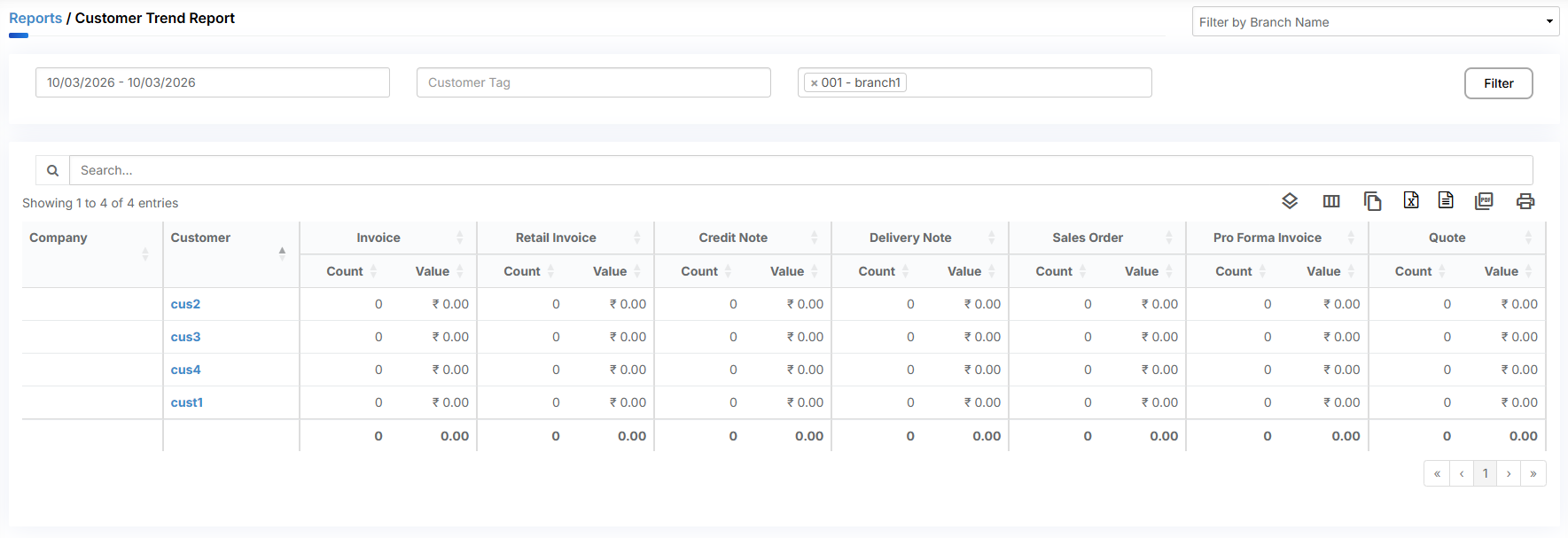
Report Columns
| Column | Description | Calculation / Formula (Optional) |
|---|---|---|
| Company | Name of the company associated with the customer. | Pulled from Company records |
| Customer | Name of the customer whose transactions are included in the report. | Pulled from Customer Master |
| Invoice – Count | Number of sales invoices generated for the customer during the selected period. | Count of invoice transactions |
| Invoice – Value | Total value of all invoices generated for the customer. | Sum of invoice amounts |
| Retail Invoice – Count | Number of retail invoices issued to the customer. | Count of retail invoice transactions |
| Retail Invoice – Value | Total value of retail invoices issued. | Sum of retail invoice amounts |
| Credit Note – Count | Number of credit notes issued to the customer. | Count of credit note transactions |
| Credit Note – Value | Total value of credit notes issued. | Sum of credit note amounts |
| Delivery Challan – Count | Number of delivery challans created for the customer. | Count of delivery challan records |
| Delivery Challan – Value | Total value associated with delivery challans. | Sum of delivery challan values |
| Sales Order – Count | Number of sales orders created for the customer. | Count of sales order transactions |
| Sales Order – Value | Total value of sales orders created. | Sum of sales order values |
| Pro Forma Invoice – Count | Number of pro forma invoices issued to the customer. | Count of pro forma invoices |
| Pro Forma Invoice – Value | Total value of pro forma invoices issued. | Sum of pro forma invoice values |
| Quote – Count | Number of quotations generated for the customer. | Count of quote records |
| Quote – Value | Total value of quotations issued. | Sum of quote values |
Report Filters
| Filter Name | Description |
|---|---|
| Date Range | Allows filtering the report based on a selected time period. |
| Customer Tag | Filters customers based on assigned customer tags. |
| Filter by Branch Name | If multiple branches exist, the report can be filtered by specific branches. |
Report Footers
- Invoice Count / Value
Total number and value of invoices generated for all customers in the report.
- Retail Invoice Count / Value
Total number and value of retail invoices generated.
- Credit Note Count / Value
Total number and value of credit notes issued.
- Delivery Challan Count / Value
Total number and value of delivery challans created.
- Sales Order Count / Value
Total number and value of sales orders generated.
- Pro Forma Invoice Count / Value
Total number and value of pro forma invoices created.
- Quote Count / Value
Total number and value of quotations generated during the selected period.
Customer Credits Report
Report Overview
The Customer Credits Report provides a comprehensive view of credits issued to customers. It displays details of credit transactions including the amount received, amount used, refunded amount, and remaining credit balance.
The report also provides references to related transactions such as Credit Notes and Payment Receipts, enabling users to easily identify the origin of each credit entry. This helps finance teams track customer credit balances and monitor how credits are utilized.
Options are available to export or view the data using Entries, Columns, Copy, Excel, CSV, PDF, and Print.
A Search option is also available to quickly locate specific records in the report.
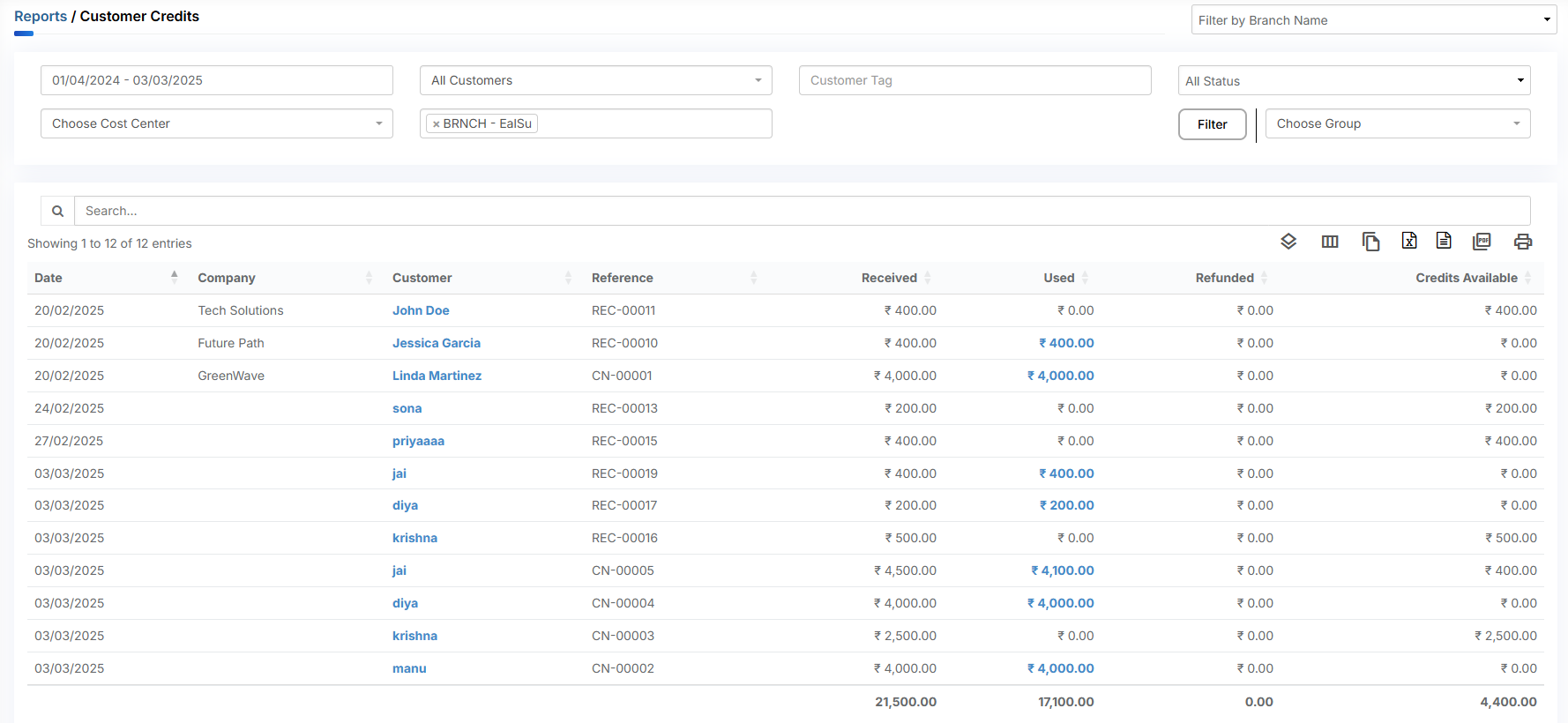
Report Columns
| Column | Description | Calculation / Formula (Optional) |
|---|---|---|
| Date | The date on which the credit transaction was recorded. | Format: DD/MM/YYYY |
| Company | The company associated with the customer transaction. | Pulled from company records |
| Customer | Name of the customer to whom the credit was issued. | Pulled from Customer Master |
| Reference | Reference number associated with the credit transaction such as Credit Note or Payment Receipt. | Generated from related transaction |
| Received | Amount of credit received from the customer through credit notes or payment adjustments. | Recorded during credit entry |
| Used | Portion of the credit that has been applied to invoices or other transactions. | Deducted when credit is utilized |
| Refunded | Amount of credit refunded back to the customer. | Recorded when refund transaction occurs |
| Credits Available | Remaining credit balance available for the customer to use. | Received − Used − Refunded |
Report Filters
| Filter Name | Description |
|---|---|
| Date Range | Allows filtering the report based on a selected date range. |
| All Customers | Allows selecting a specific customer to view their credit transactions. |
| Customer Tag | Filters customers based on assigned customer tags. |
| All Status | Filters credits based on their status. |
| Choose Cost Center | Filters transactions associated with a specific cost center. |
| Filter by Branch Name | If multiple branches exist, the report can be filtered by specific branches. |
| Choose Group | Allows grouping or filtering records based on a selected group. |
Report Footers
- Received
Total credit amount received from customers through credit notes or payment receipts.
- Used
Total credit amount that has been applied against invoices or other transactions.
- Refunded
Total credit amount returned to customers.
- Credits Available
Remaining credit balance available for customers to use.
Calculation:
Received − Used − Refunded
Sales Person Summary Report
Report Overview
The Sales Person Summary Report provides a summarized view of the performance of each salesperson over a selected period. It works like a report card for salespeople, showing the names of salespersons and summarizing their sales activity.
The report displays the number of invoices and credit notes handled by each salesperson, along with their amounts, discounts, and totals. This helps management evaluate sales performance, track contributions from each salesperson, and analyze revenue generated through their transactions.
Options are available to export or view the data using Entries, Columns, Copy, Excel, CSV, PDF, and Print.
A Search option is also available to quickly locate a specific salesperson in the report.
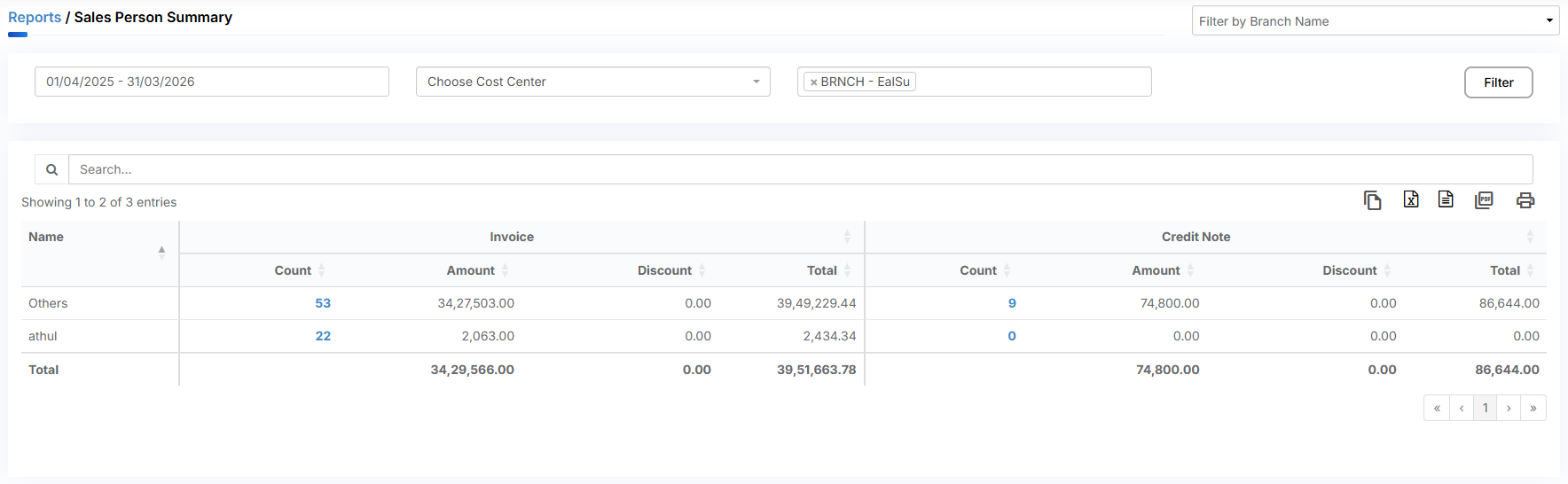
Report Columns
| Column | Description | Calculation / Formula (Optional) |
|---|---|---|
| Name | Name of the salesperson associated with the transactions. | Pulled from Sales Person records |
| Invoice – Count | Number of invoices created by the salesperson during the selected period. | Count of invoice transactions |
| Invoice – Amount | Total invoice amount before discounts. | Sum of invoice amounts |
| Invoice – Discount | Total discount applied across invoices handled by the salesperson. | Sum of invoice discounts |
| Invoice – Total | Total value of invoices after applying discounts. | Amount − Discount + Tax (if applicable) |
| Credit Note – Count | Number of credit notes issued by the salesperson. | Count of credit note transactions |
| Credit Note – Amount | Total amount of credit notes issued. | Sum of credit note amounts |
| Credit Note – Discount | Total discounts applied in credit notes. | Sum of credit note discounts |
| Credit Note – Total | Total value of credit notes issued after discount adjustments. | Calculated from credit note totals |
Report Filters
| Filter Name | Description |
|---|---|
| Date Range | Allows filtering the report based on a selected time period. |
| Choose Cost Center | Filters transactions associated with a specific cost center. |
| Filter by Branch Name | If multiple branches exist, the report can be filtered by specific branches. |
Report Footers
- Invoice Amount
Total value of all invoices generated by the listed salespersons.
- Invoice Discount
Total discount applied across all invoices.
- Invoice Total
Final total of all invoices after applying discounts.
- Credit Note Amount
Total value of credit notes issued by salespersons.
- Credit Note Discount
Total discounts applied in credit notes.
- Credit Note Total
Final total value of credit notes issued.
Invoice Profit Report
Report Overview
The Invoice Profit Report shows how much profit is generated from each sales invoice. It helps businesses track customer payments, related expenses, and the resulting net profit for every invoice.
The report provides a detailed view of invoices including total invoice value, amount paid, outstanding due, expenses associated with the invoice, and the final net profit (tax exclusive and tax inclusive). This enables businesses to analyze the profitability of their sales transactions.
Users can filter the report based on date, customers, invoice owner, salesperson, project, and cost center to better understand profitability across different business segments.
Options are available to export or view the data using Entries, Columns, Copy, Excel, CSV, PDF, and Print.
A Search option is also available to quickly find specific invoices.
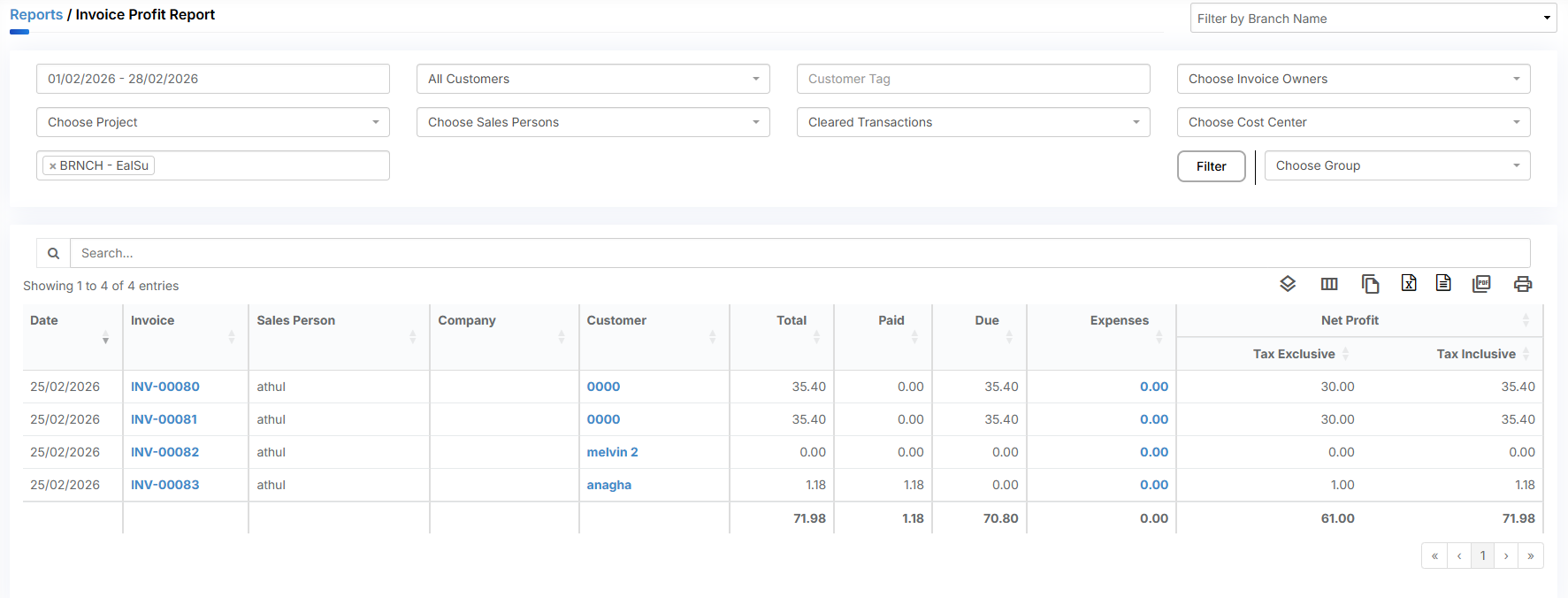
Report Columns
| Column | Description | Calculation / Formula (Optional) |
|---|---|---|
| Date | Date on which the invoice was created. | Format: DD/MM/YYYY |
| Invoice | Unique reference number of the invoice. | Generated during invoice creation |
| Sales Person | Salesperson associated with the invoice. | Pulled from Sales Person records |
| Company | Company associated with the transaction. | Pulled from company records |
| Customer | Name of the customer for whom the invoice was issued. | Pulled from Customer Master |
| Total | Total value of the invoice. | Calculated during invoice generation |
| Paid | Amount already received from the customer. | Sum of payments applied to the invoice |
| Due | Remaining amount yet to be paid. | Total − Paid |
| Expenses | Expenses recorded against the invoice or related transaction. | Pulled from linked expense records |
| Net Profit – Tax Exclusive | Profit calculated excluding tax values. | Total (excluding tax) − Expenses |
| Net Profit – Tax Inclusive | Profit calculated including tax values. | Total (including tax) − Expenses |
Report Filters
| Filter Name | Description |
|---|---|
| Date Range | Allows filtering invoices based on a selected date range. |
| All Customers | Allows selecting a specific customer to view their invoice profit details. |
| Customer Tag | Filters customers based on assigned tags. |
| Choose Invoice Owners | Filters invoices based on the selected invoice owner. |
| Choose Project | Filters invoices related to a specific project. |
| Choose Sales Persons | Filters invoices associated with selected salespersons. |
| Cleared Transactions | Filters transactions based on their clearing status. |
| Choose Cost Center | Filters invoices related to a specific cost center. |
| Filter by Branch Name | If multiple branches exist, the report can be filtered by specific branches. |
| Choose Group | Allows grouping or filtering records based on a selected group. |
Report Footers
- Total
Sum of all invoice values displayed in the report.
- Paid
Total amount received from customers for the listed invoices.
- Due
Total outstanding amount yet to be received.
Calculation:
Total − Paid
- Expenses
Total expenses associated with the invoices.
- Net Profit (Tax Exclusive)
Total profit calculated excluding tax values.
- Net Profit (Tax Inclusive)
Total profit calculated including tax values.
Invoice Item Profit Report
Report Overview
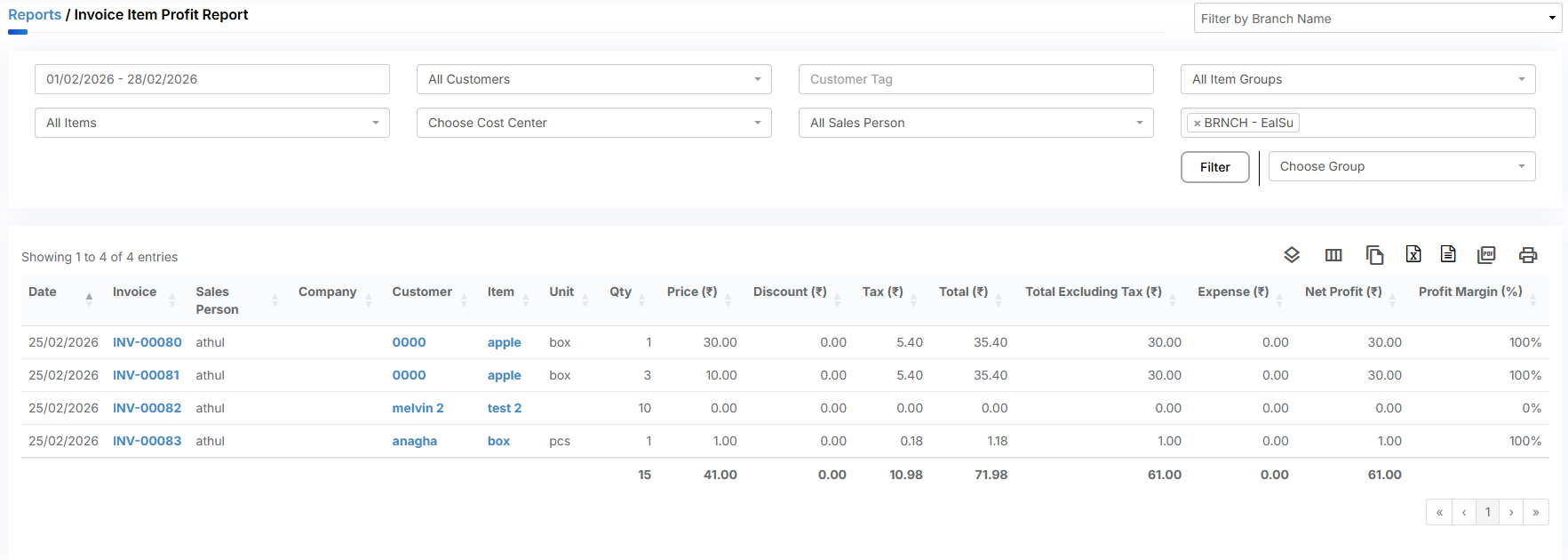
The Invoice Item Profit Report helps businesses understand the profit generated on each item sold. It provides a detailed breakdown of item-level sales including customer details, item information, pricing, discounts, taxes, expenses, and the resulting net profit and profit margin.
This report allows users to analyze the profitability of individual items across different transactions. By filtering the report based on dates, customers, items, item groups, salespersons, and cost centers, businesses can evaluate which products generate the most profit and identify opportunities for improving margins.
Options are available to export or view the data using Entries, Columns, Copy, Excel, CSV, PDF, and Print.
A Search option is also available to quickly locate specific records in the report.
Report Columns
| Column | Description | Calculation / Formula (Optional) |
|---|---|---|
| Date | Date on which the invoice was created. | Format: DD/MM/YYYY |
| Invoice | Unique reference number of the invoice. | Generated during invoice creation |
| Sales Person | Name of the salesperson associated with the invoice. | Pulled from Sales Person records |
| Company | Company associated with the transaction. | Pulled from company records |
| Customer | Name of the customer who purchased the item. | Pulled from Customer Master |
| Item | Name and description of the item sold. | Pulled from Item Master |
| Unit | Unit of measurement used for the item (e.g., Nos, Kg, Box). | Pulled from Item Master |
| Qty | Quantity of the item sold in the invoice. | Entered in invoice item table |
| Price (₹) | Selling price per unit of the item. | Defined in the invoice item record |
| Discount (₹) | Discount applied to the item. | Entered in the invoice item details |
| Tax (₹) | Tax amount calculated for the item based on configured tax rates. | Calculated using tax configuration |
| Total (₹) | Total item value including tax. | Total Excluding Tax + Tax |
| Total Excluding Tax (₹) | Item value before tax is applied. | Qty × Price − Discount |
| Expense (₹) | Expenses allocated to the item or associated transaction. | Pulled from linked expense records |
| Net Profit (₹) | Profit generated from the item after deducting expenses. | Total Excluding Tax − Expense |
| Profit Margin (%) | Percentage of profit earned relative to the sales value. | (Net Profit ÷ Total Excluding Tax) × 100 |
Report Filters
| Filter Name | Description |
|---|---|
| Date Range | Allows filtering transactions based on a selected date range. |
| All Customers | Allows selecting a specific customer to view their item-level profit details. |
| Customer Tag | Filters customers based on assigned customer tags. |
| All Item Groups | Filters report data based on item group classification. |
| All Items | Allows selecting a specific item to analyze its profit. |
| Choose Cost Center | Filters transactions associated with a specific cost center. |
| All Sales Person | Filters records based on the selected salesperson. |
| Filter by Branch Name | If multiple branches exist, the report can be filtered by specific branches. |
| Choose Group | Allows grouping or filtering records based on a selected group. |
Report Footers
- Qty
Total quantity of items sold in the report.
- Price
Total value of item prices before discounts and taxes.
- Discount
Total discount applied across all item transactions.
- Tax
Total tax amount applied to all items.
- Total
Sum of all item values including tax.
- Total Excluding Tax
Sum of item values before tax.
- Expense
Total expenses allocated to the listed item transactions.
- Net Profit
Total profit generated from item sales after deducting expenses.
- Profit Margin (%)
Overall profit percentage calculated from the total net profit relative to sales value.
Quotes Report
Report Overview
The Quotes Report provides a comprehensive view of sales quotations created in the system. It helps businesses track the progress of quotation proposals, analyze quote activity, and monitor their overall status.
The report is divided into three sections:
- Quotes
- Item Wise
- Summary

These sections allow users to view quotation data at different levels — overall quotation records, item-level quotation details, and a summarized graphical overview of quote statuses.
Options are available to export or view the data using Entries, Columns, Copy, Excel, CSV, PDF, and Print.
A Search option is also available to quickly locate specific records.
1. Quotes
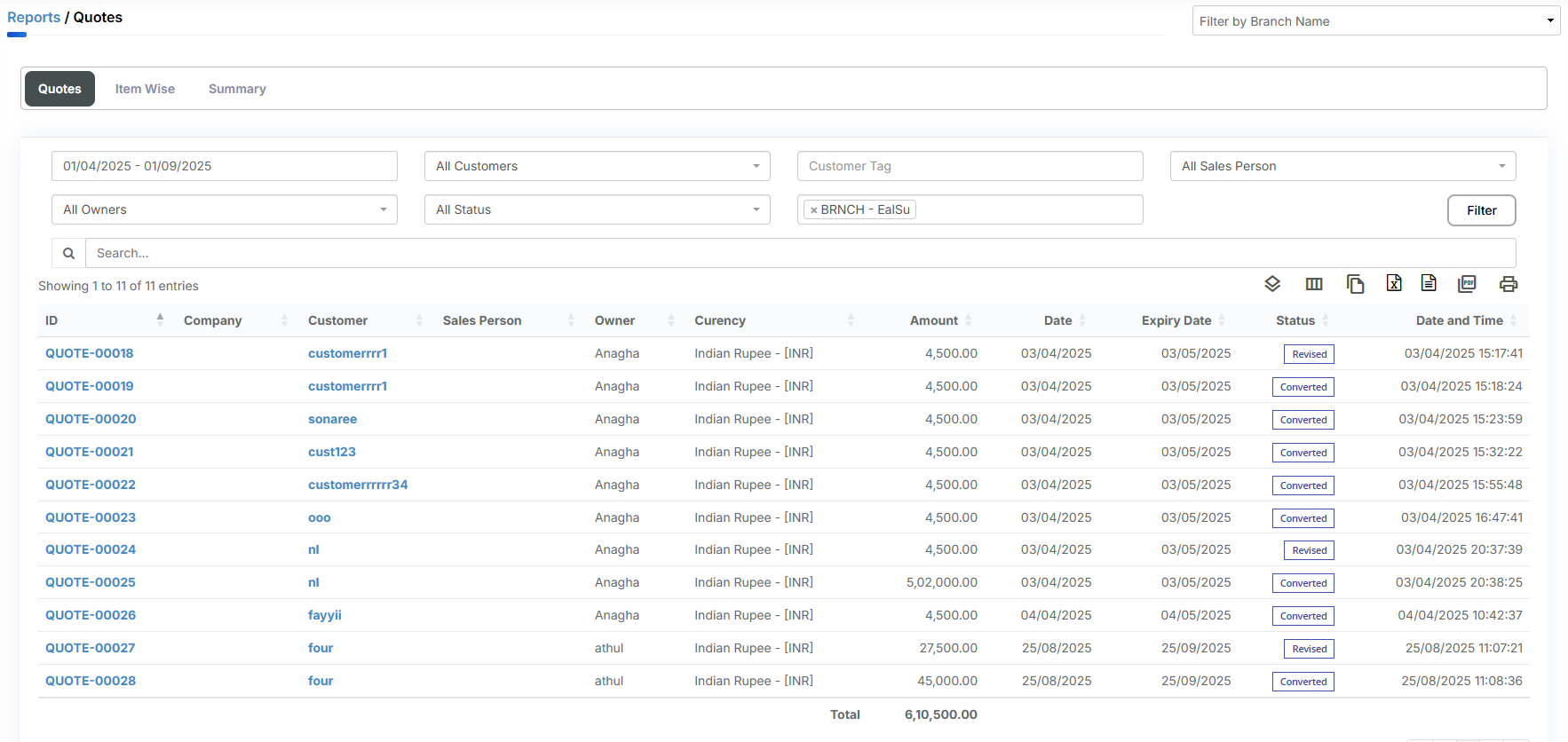
The Quotes tab displays a list of all quotation records created within the selected period. It provides detailed information about each quote including customer details, salesperson, owner, quotation value, dates, and status.
This section helps users track the lifecycle of quotations such as Draft, Accepted, Revised, Converted, or Delivered, allowing them to monitor the progress of sales opportunities.
Quotes Section – Columns
| Column | Description | Calculation / Formula (Optional) |
|---|---|---|
| ID | Unique identifier of the quotation. | Generated during quote creation |
| Company | Company associated with the quotation. | Pulled from company records |
| Customer | Name of the customer for whom the quotation was created. | Pulled from Customer Master |
| Sales Person | Salesperson responsible for the quotation. | Pulled from Sales Person records |
| Owner | User who owns or manages the quotation. | Pulled from system users |
| Currency | Currency used in the quotation. | Example: Indian Rupee [INR] |
| Amount | Total quotation amount. | Calculated from quote items |
| Date | Date on which the quotation was created. | Format: DD/MM/YYYY |
| Expiry Date | Validity date of the quotation. | Defined during quote creation |
| Status | Current status of the quotation. | Example: Draft, Accepted, Revised, Converted |
| Date and Time | Timestamp of the quotation record. | System-generated |
Quotes Section – Filters
| Filter Name | Description |
|---|---|
| Date Range | Filters quotations created within the selected date range. |
| All Customers | Allows selecting a specific customer to view their quotations. |
| Customer Tag | Filters customers based on assigned tags. |
| All Sales Person | Filters quotations created by selected salespersons. |
| All Owners | Filters quotations based on the selected owner. |
| All Status | Filters quotations based on their current status. |
| Filter by Branch Name | Allows filtering quotations based on branch. |
Report Footers
- Amount
Total value of all quotations displayed in the report.
2. Item Wise
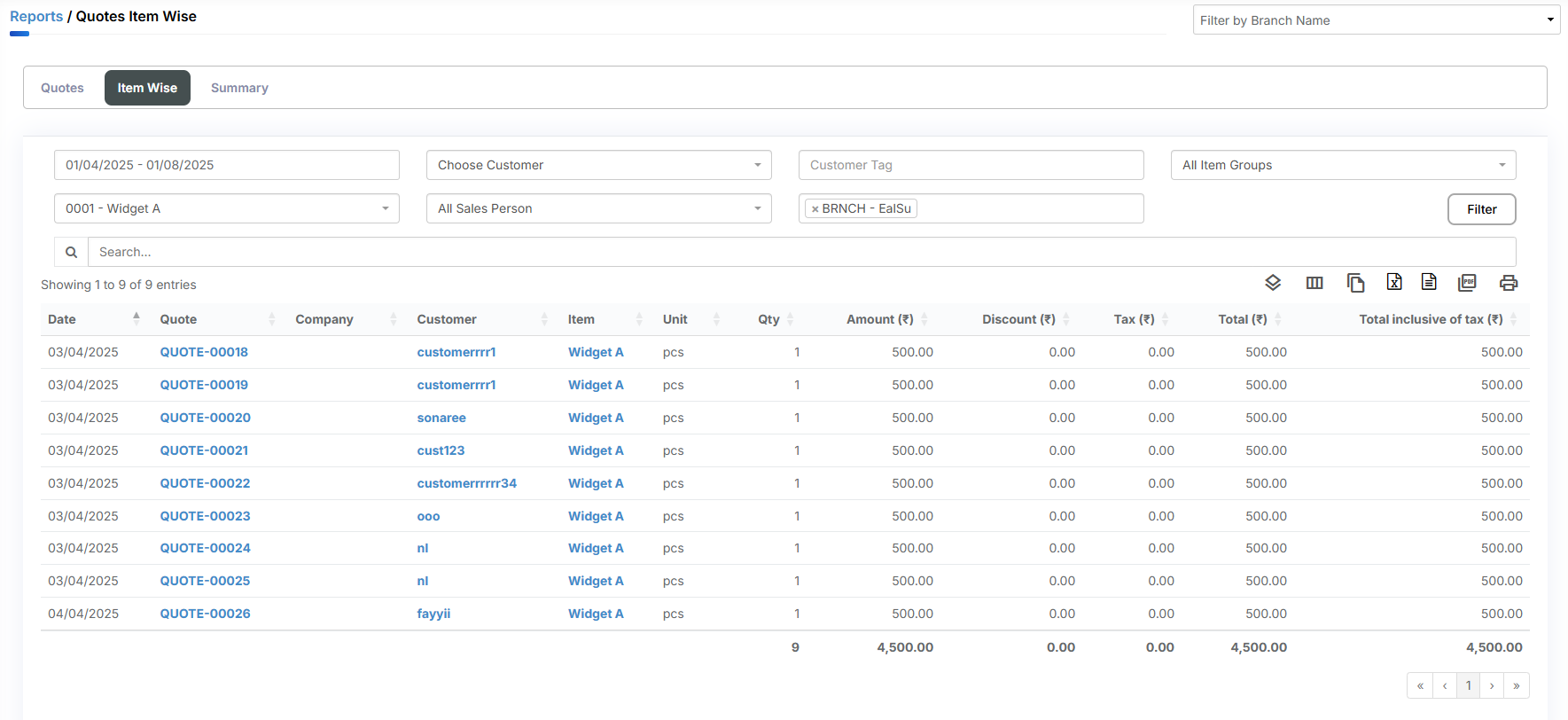
The Item Wise tab provides a detailed view of quotations at the item level. It displays each item included in quotation proposals along with quantities, pricing, discounts, taxes, and total values.
This section helps businesses analyze which items are frequently quoted, track pricing trends, and review item-level quotation values across different customers.
Item Wise – Columns
| Column | Description | Calculation / Formula (Optional) |
|---|---|---|
| Date | Date when the quotation was created. | Format: DD/MM/YYYY |
| Quote | Reference number of the quotation. | Generated during quote creation |
| Company | Company associated with the quotation. | Pulled from company records |
| Customer | Customer to whom the quotation was issued. | Pulled from Customer Master |
| Item | Item included in the quotation. | Pulled from Item Master |
| Unit | Unit of measurement used for the item. | Example: Nos, Box, Kg |
| Qty | Quantity of the item quoted. | Entered in quotation item table |
| Amount (₹) | Value of the item before discounts and taxes. | Qty × Item Rate |
| Discount (₹) | Discount applied to the item in the quotation. | Defined in quotation item details |
| Tax (₹) | Tax calculated for the item based on configured tax rules. | Calculated from tax configuration |
| Total (₹) | Total value of the item before tax adjustments. | Amount − Discount |
| Total Inclusive of Tax (₹) | Final value including tax. | Total + Tax |
Item Wise – Filters
| Filter Name | Description |
|---|---|
| Date Range | Filters quotations based on the selected date period. |
| Choose Customer | Allows selecting a specific customer. |
| Customer Tag | Filters customers based on tags. |
| All Item Groups | Filters quotation items based on item groups. |
| All Items | Filters specific items within quotations. |
| All Sales Person | Filters quotations handled by selected salespersons. |
| Filter by Branch Name | Allows filtering quotations by branch. |
Report Footers
- Qty
Total quantity of items included across all quotations in the report.
- Amount
Total item value before discounts and taxes.
- Discount
Total discount applied across all quoted items.
- Tax
Total tax amount calculated for all quoted items.
- Total
Total item value after discount but before adding tax.
- Total Inclusive of Tax
Final value including tax for all quoted items.
3. Summary
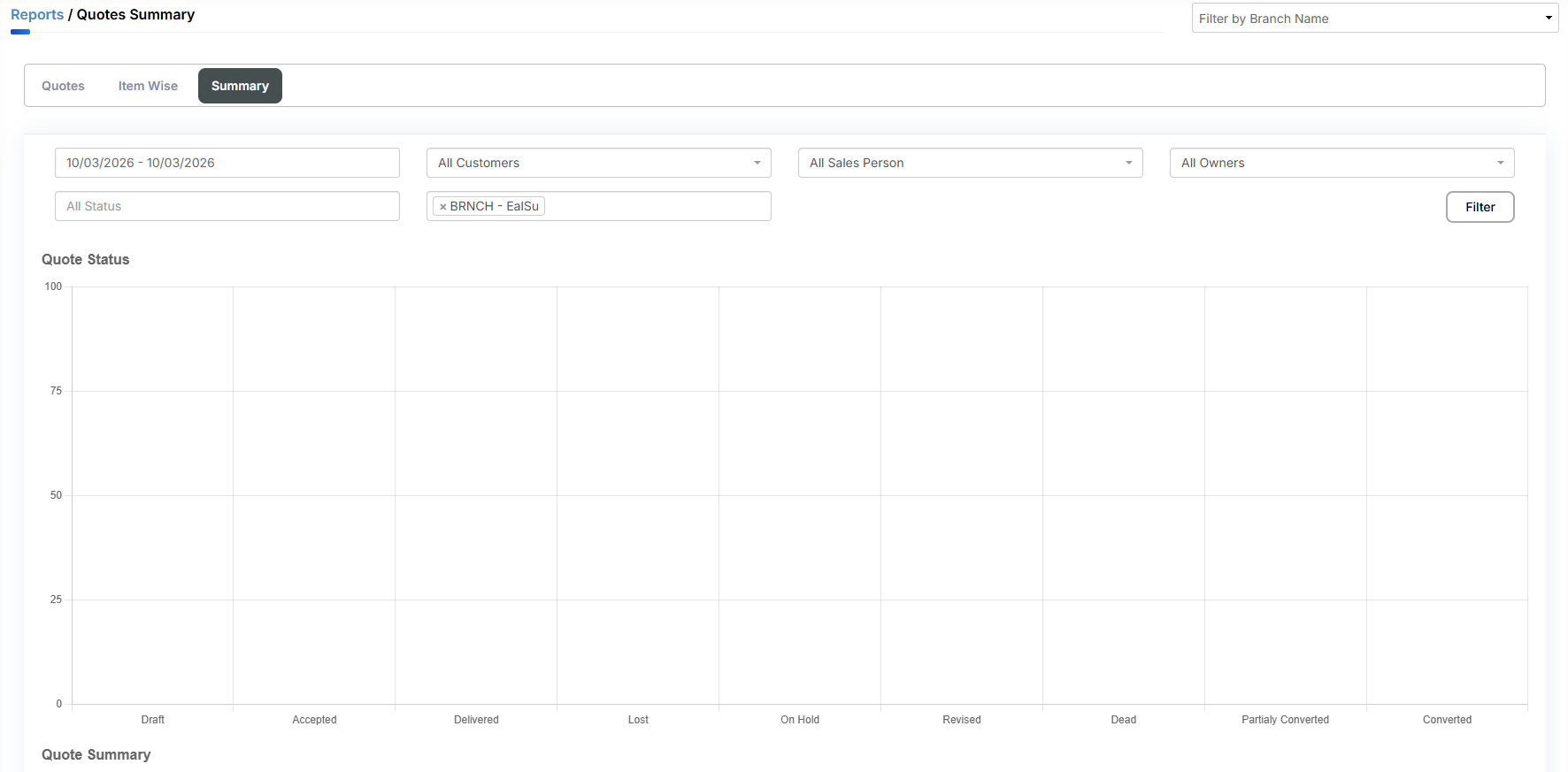
The Summary section provides a visual representation of quotation statuses through a graphical view. It helps users quickly understand the overall distribution of quotes across different stages such as Draft, Accepted, Delivered, Lost, On Hold, Revised, Dead, Partially Converted, and Converted.
This section enables management to evaluate the effectiveness of the sales quotation process and monitor how many quotes are progressing toward conversion into sales.
Summary – Filters
| Filter Name | Description |
|---|---|
| Date Range | Filters quotations based on a selected date range. |
| All Customers | Allows selecting quotations for a specific customer. |
| All Sales Person | Filters quotations created by selected salespersons. |
| All Owners | Filters quotations based on the assigned owner. |
| All Status | Filters quotations based on status categories. |
| Filter by Branch Name | Allows filtering quotation data by branch. |
Sales Order Report
Report Overview
The Sales Order Report provides information about the orders customers have placed. It includes details such as the total amount of the order, the date when the order was placed, the expected shipment date, and the current status of the order.
This report helps businesses track sales orders and monitor their progress through different stages such as Pending, Partially Converted, or Converted. It allows users to review customer orders and understand how many orders are yet to be fulfilled or already processed.
Options are available to export or view the data using Entries, Columns, Copy, Excel, CSV, PDF, and Print.
A Search option is also available to quickly locate specific sales orders.
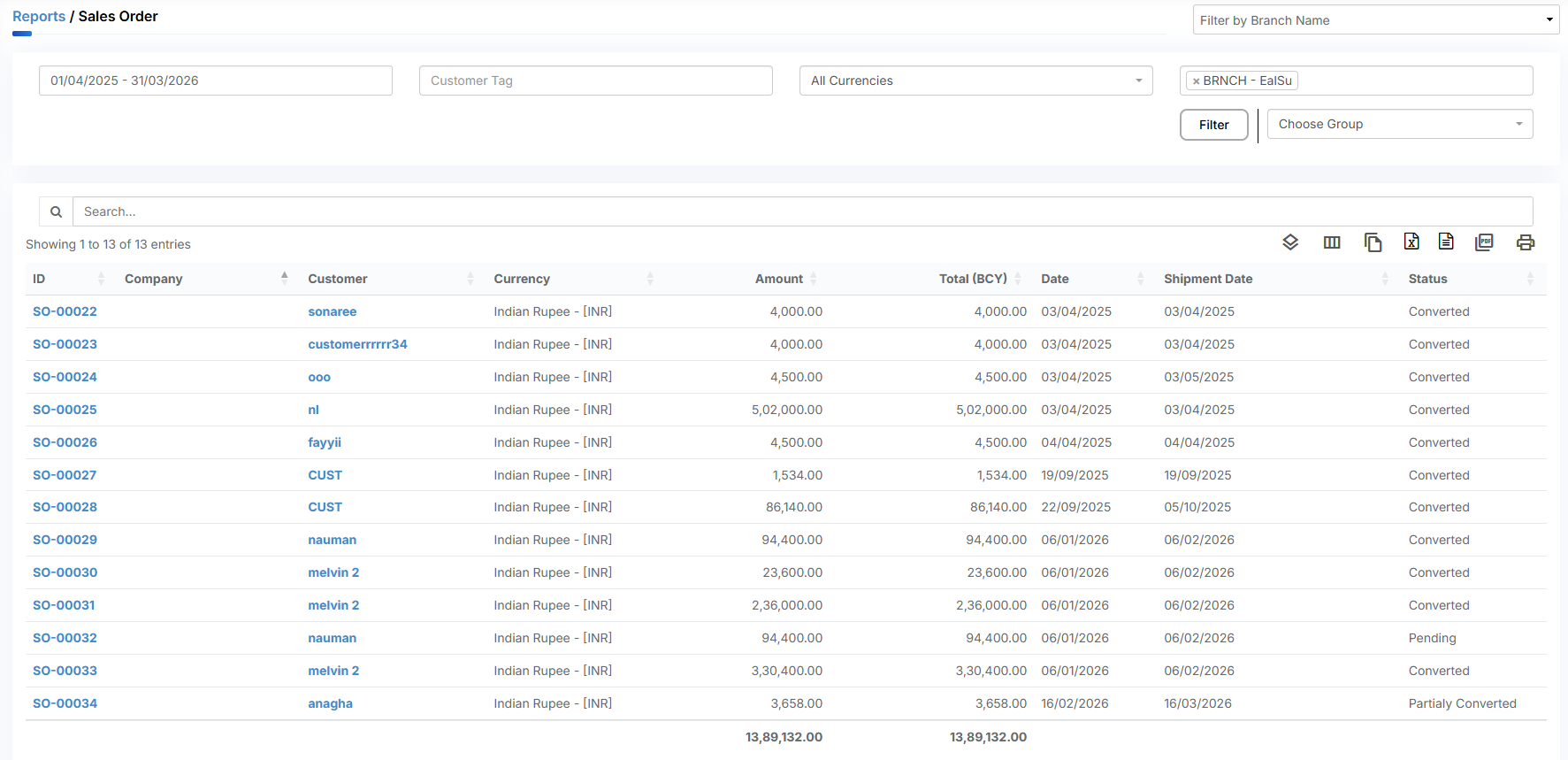
Report Columns
| Column | Description | Calculation / Formula (Optional) |
|---|---|---|
| ID | Unique reference number assigned to the sales order. | Generated during sales order creation |
| Company | Company associated with the sales order. | Pulled from company records |
| Customer | Name of the customer who placed the order. | Pulled from Customer Master |
| Currency | Currency used for the sales order transaction. | Example: Indian Rupee [INR] |
| Amount | Total order value in the selected currency. | Calculated from sales order items |
| Total (BCY) | Total order value converted to Base Currency (BCY) of the company. | System-calculated currency conversion |
| Date | Date when the sales order was created. | Format: DD/MM/YYYY |
| Shipment Date | Expected shipment or delivery date for the order. | Defined during order creation |
| Status | Current processing status of the sales order. | Example: Pending, Partially Converted, Converted |
Report Filters
| Filter Name | Description |
|---|---|
| Date Range | Filters sales orders based on the selected date period. |
| Customer Tag | Filters customers based on assigned tags. |
| All Currencies | Filters orders based on selected transaction currency. |
| Filter by Branch Name | Allows filtering sales orders based on branch. |
| Choose Group | Allows grouping or filtering records based on a selected group. |
Report Footers
- Amount
Total value of all sales orders displayed in the report.
- Total (BCY)
Total value of all sales orders converted into the company’s base currency.
Delivery Challan Report
Report Overview
The Delivery Challan Report provides a clear view of the goods delivered to customers. It includes information such as the total amount of goods delivered, the date of delivery, and the status of each delivery.
This report helps businesses track deliveries and ensure that customer orders are fulfilled on time. It allows users to monitor the progress of deliveries through statuses such as In Transit, Delivered, or Converted, helping maintain better control over the logistics and fulfillment process.
Options are available to export or view the data using Entries, Columns, Copy, Excel, CSV, PDF, and Print.
A Search option is also available to quickly locate specific delivery records.
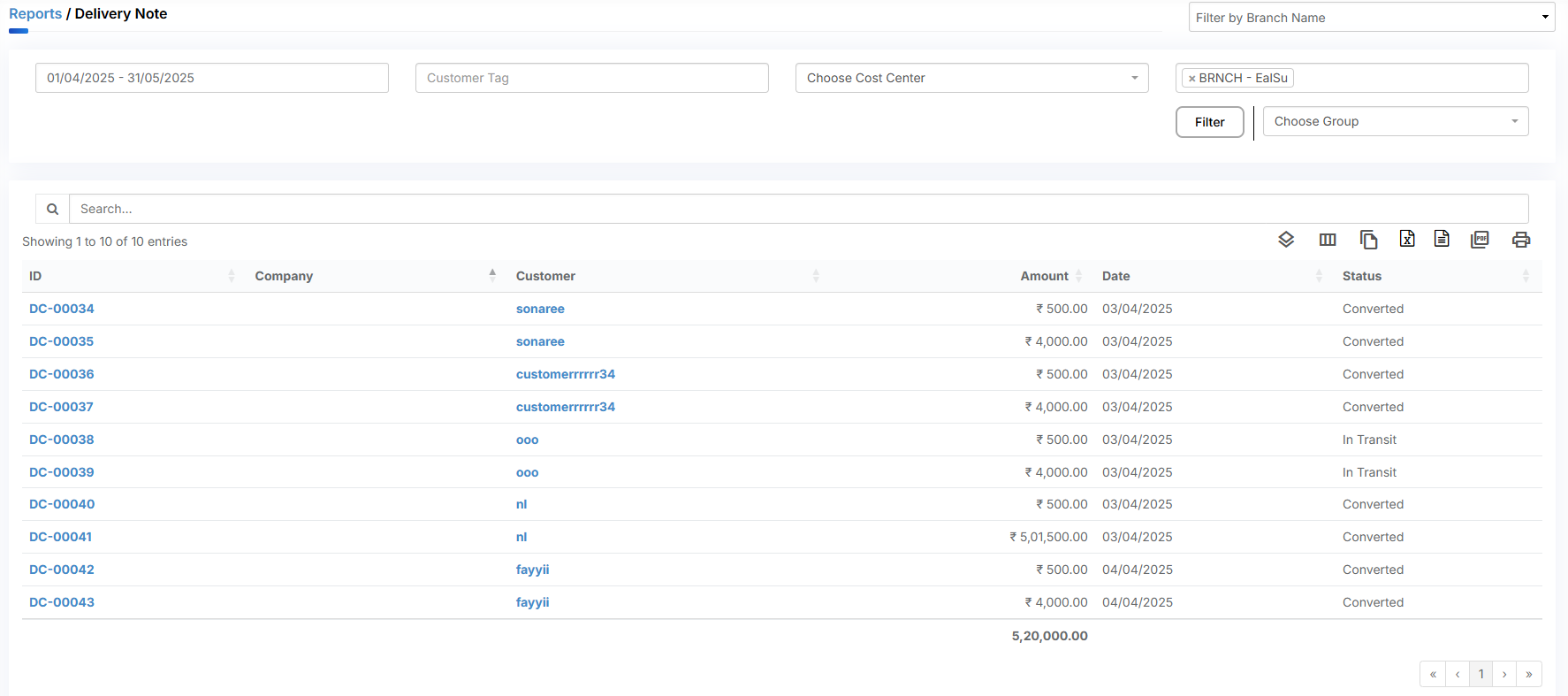
Report Columns
| Column | Description | Calculation / Formula (Optional) |
|---|---|---|
| ID | Unique reference number assigned to the delivery challan. | Generated during delivery challan creation |
| Company | Company associated with the delivery. | Pulled from company records |
| Customer | Name of the customer receiving the delivered goods. | Pulled from Customer Master |
| Amount | Total value of the goods included in the delivery challan. | Calculated from delivery item values |
| Date | Date when the delivery challan was created or processed. | Format: DD/MM/YYYY |
| Status | Current delivery status of the challan. | Example: In Transit, Delivered, Converted |
Report Filters
| Filter Name | Description |
|---|---|
| Date Range | Filters delivery challans based on the selected date period. |
| Customer Tag | Filters customers based on assigned tags. |
| Choose Cost Center | Filters deliveries related to a specific cost center. |
| Filter by Branch Name | Allows filtering delivery challans based on branch. |
| Choose Group | Allows grouping or filtering records based on a selected group. |
Report Footers
- Amount
Total value of all delivery challans displayed in the report.
Credit Note Report
Report Overview
The Credit Note Report provides a detailed view of credit notes issued in business transactions. It helps track adjustments related to returned goods, invoice corrections, or customer refunds.
The report includes important information such as the credit note date, reference to the related sales invoice (if applicable), credit status, and the credited amount. This enables businesses to monitor issued credits and maintain accurate financial records.
Options are available to export or view the data using Entries, Columns, Copy, Excel, CSV, PDF, and Print.
A Search option is also available to quickly locate specific credit note records.
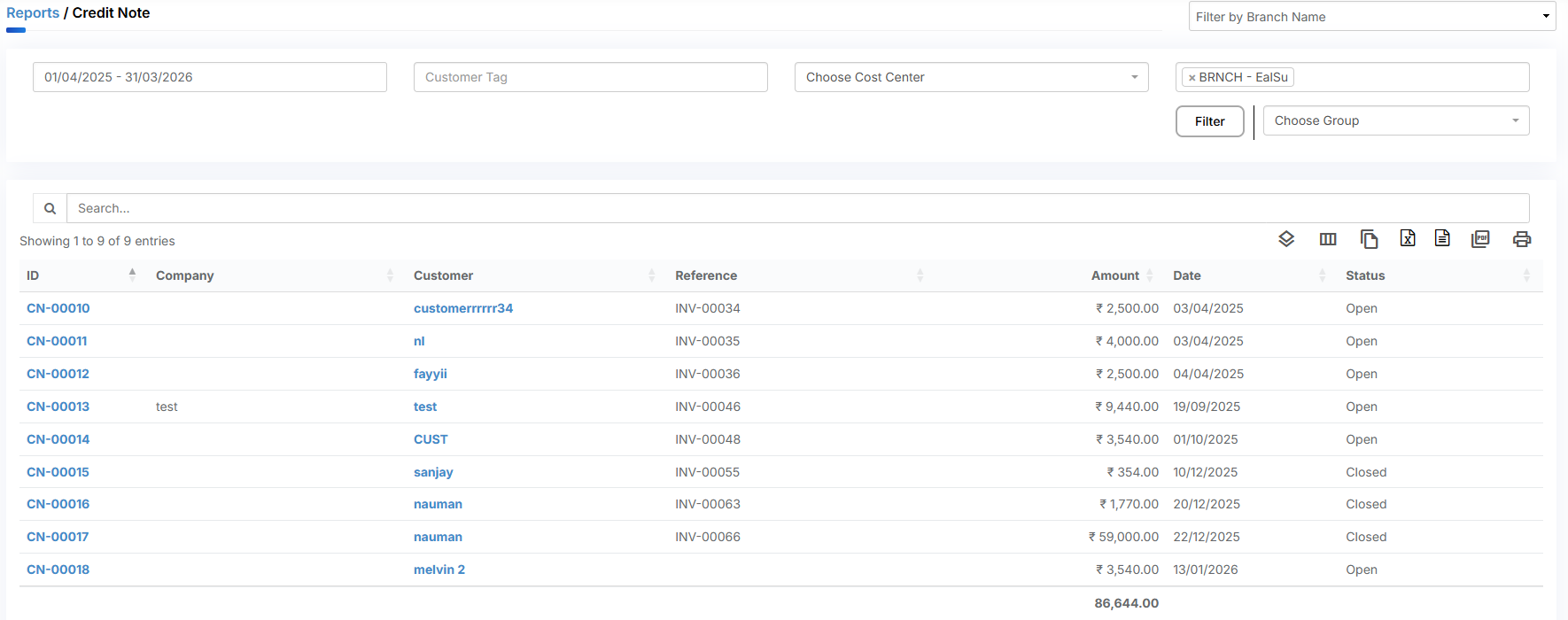
Report Columns
| Column | Description | Calculation / Formula (Optional) |
|---|---|---|
| ID | Unique reference number assigned to the credit note. | Generated during credit note creation |
| Company | Company associated with the credit transaction. | Pulled from company records |
| Customer | Name of the customer receiving the credit note. | Pulled from Customer Master |
| Reference | Reference to the original sales invoice associated with the credit note (if applicable). | Pulled from linked invoice record |
| Amount | Total value credited to the customer. | Calculated during credit note generation |
| Date | Date when the credit note was created. | Format: DD/MM/YYYY |
| Status | Current status of the credit note. | Example: Open, Closed, Cancelled |
Report Filters
| Filter Name | Description |
|---|---|
| Date Range | Filters credit notes based on the selected date period. |
| Customer Tag | Filters customers based on assigned tags. |
| Choose Cost Center | Filters credit notes associated with a specific cost center. |
| Filter by Branch Name | Allows filtering credit notes based on branch. |
| Choose Group | Allows grouping or filtering records based on a selected group. |
Report Footers
- Amount
Total value of all credit notes displayed in the report.
- Payment
Payment Report
Report Overview
The Payment Report provides a detailed view of all customer payments recorded in the system. It helps track the date of each payment, payment ID, customer details, narration or description of the payment, the currency used, and the payment amount.
This report allows businesses to monitor incoming payments, verify transaction references, and maintain accurate financial records. Each payment entry is associated with a unique Payment ID, which can be used for easy tracking and auditing.
The report also supports export and viewing options such as Entries, Columns, Copy, Excel, CSV, PDF, and Print.
A Search bar is available to quickly find specific payment records.
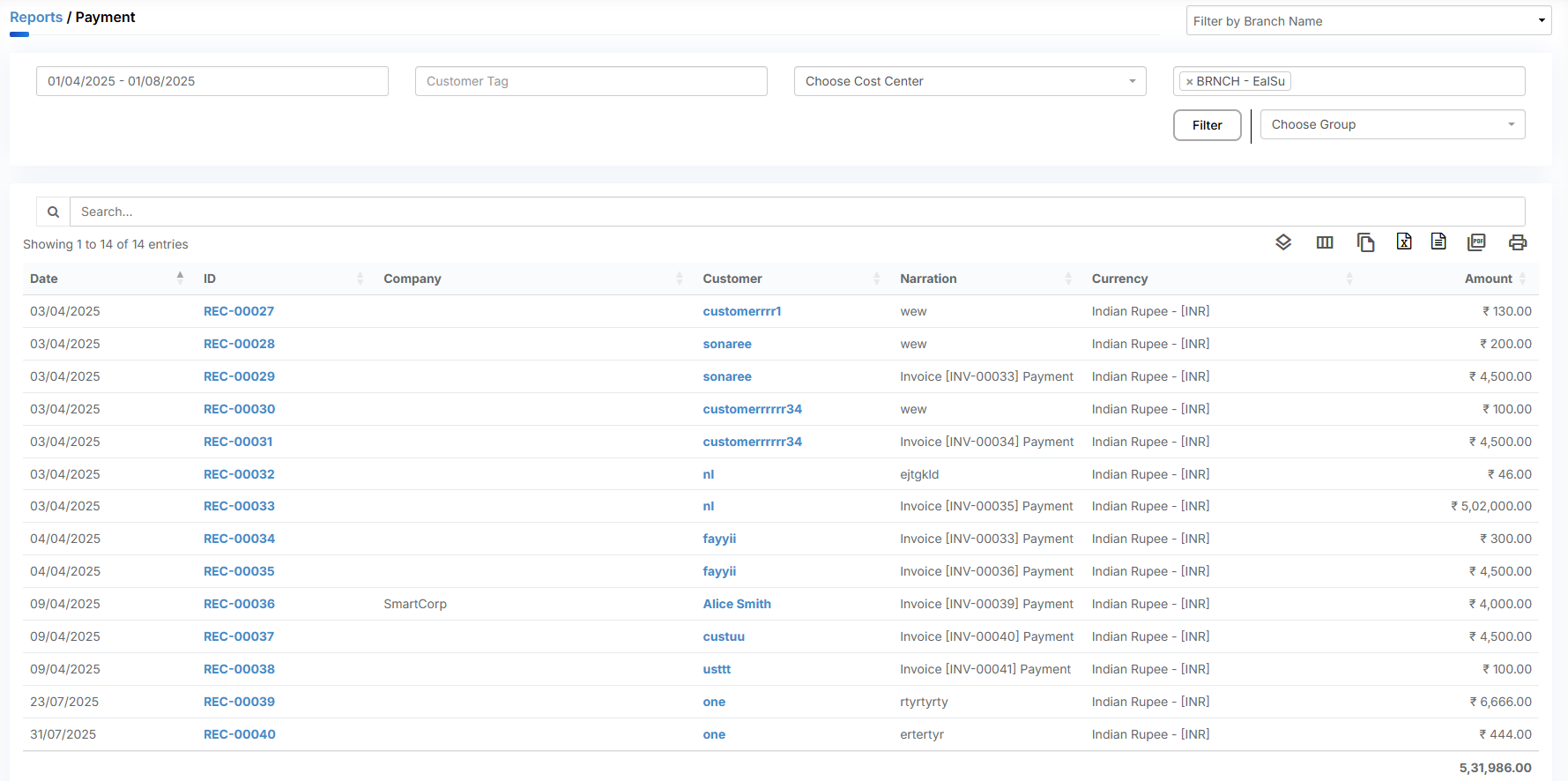
Report Columns
| Column | Description | Calculation / Formula (Optional) |
|---|---|---|
| Date | The date on which the payment was recorded. | Format: DD/MM/YYYY |
| ID | Unique reference number generated for the payment transaction. | Auto-generated during payment creation |
| Company | Company associated with the payment transaction. | Pulled from company records |
| Customer | Name of the customer who made the payment. | Pulled from Customer Master |
| Narration | Short description or reference related to the payment (e.g., linked invoice payment). | Entered during payment creation |
| Currency | Currency used for the payment transaction. | Pulled from transaction settings |
| Amount | Total amount received from the customer. | Entered during payment entry |
Report Filters
| Filter Name | Description |
|---|---|
| Date Range | Filters payments based on the selected time period. |
| Customer Tag | Filters customers based on assigned tags. |
| Choose Cost Center | Displays payments associated with a specific cost center. |
| Filter by Branch Name | Filters payment transactions based on branch. |
| Choose Group | Allows grouping or filtering records based on a selected group. |
Report Footers
- Amount
Total sum of all payment amounts displayed in the report.
Last updated: July 24, 2026