Ledger
The Ledger Report provides a detailed view of all financial transactions recorded under different accounts in the system. It helps users track the debit and credit entries for specific ledgers, making it easier to analyze account activity and monitor balances.
The Ledger report is classified into the following categories:
- All Ledger
- Customer Report
- Supplier Report
All Ledger
The All Ledger Report provides a summary of all ledger accounts available in the system. It allows users to view the list of accounts along with their respective groups and total amounts recorded under each ledger.
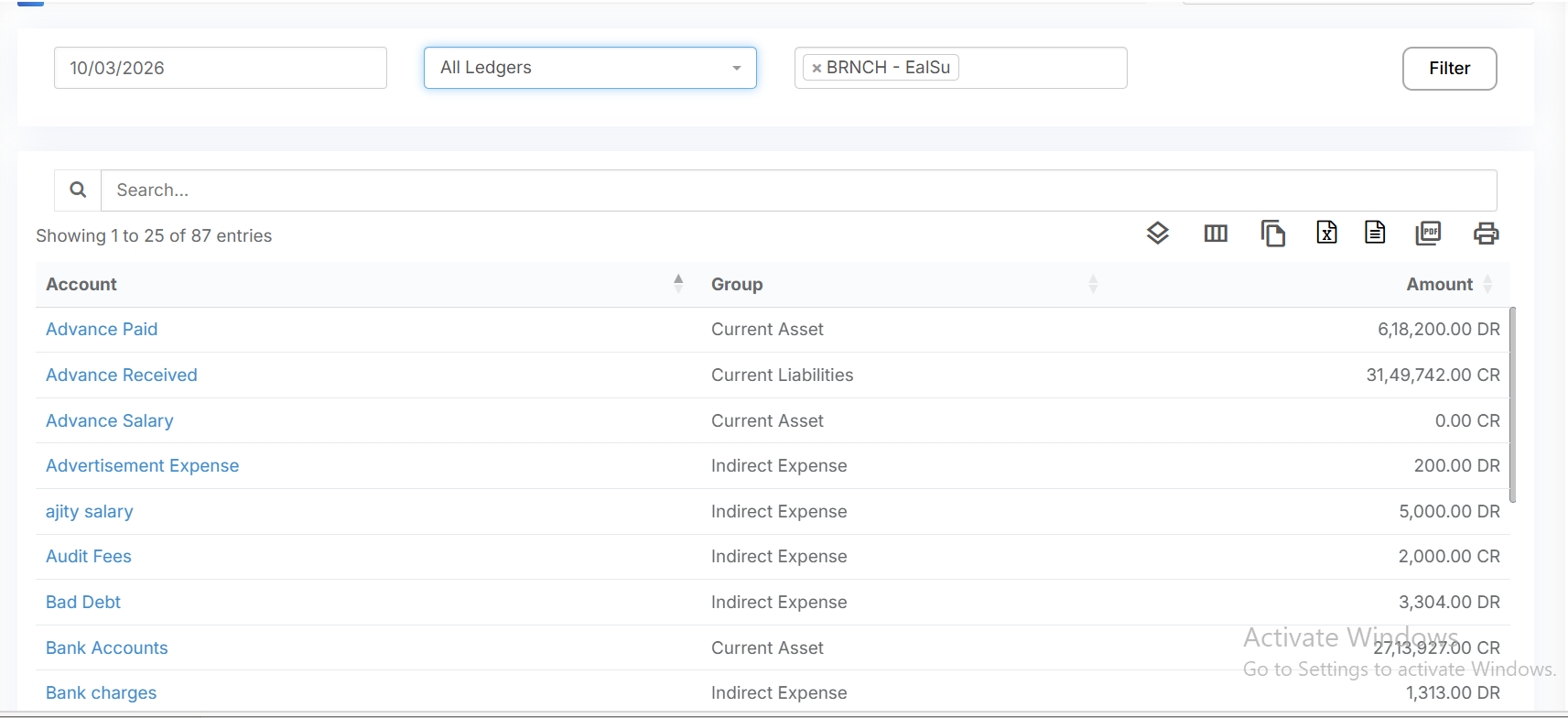
When you select All Ledger, you will be redirected to the Smart View, where you can see the list of ledger accounts created in the system based on the Chart of Accounts.
In the Smart View, you can see the list of all ledger accounts along with their corresponding details.
| Column | Description |
|---|---|
| Account | Displays the name of the ledger account created in the system. |
| Group | Shows the account group to which the ledger belongs, based on the classification defined in the Chart of Accounts. |
| Amount | Displays the total amount recorded under the respective ledger account. |
| Filter Name | Description |
|---|---|
| Date Range | Allows users to select the time period for generating the ledger report. |
| Ledger | Enables filtering the report based on the selected ledger account. |
| Branch | Allows filtering the report based on the selected branch. |
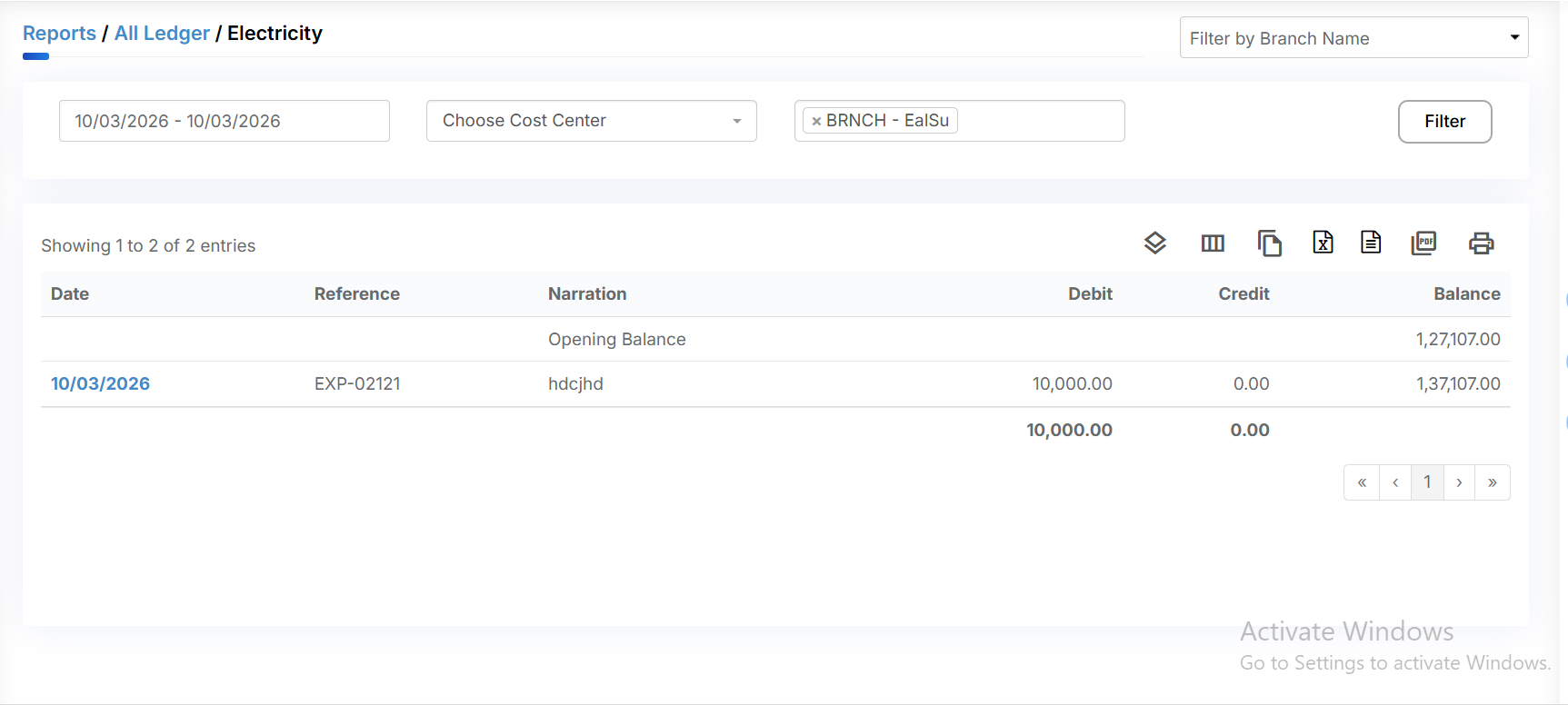
When you click on any Account from the Smart View, you will be redirected to the Detailed Ledger of that specific account.
This section displays the complete transaction history recorded under the selected ledger account, including debit and credit entries along with the running balance.
| Column | Description | Calculation / Formula (Optional) |
|---|---|---|
| Date | The date on which the transaction was recorded. | Format: DD/MM/YYYY |
| Reference | The reference number or transaction ID associated with the entry. | Pulled from the corresponding transaction module |
| Narration | Description or note added during the transaction. | Example: Journal Entry, Expense Payment, Transfer Entry |
| Debit | The amount debited from the ledger account. | Amount recorded on the Debit side |
| Credit | The amount credited to the ledger account. | Amount recorded on the Credit side |
| Balance | The running balance of the ledger after each transaction. | Previous Balance ± Transaction Amount |
| Filter | Description |
|---|---|
| To Date | Allows users to generate the ledger report up to the selected date. |
| Cost Center | Enables filtering the report based on the selected cost center. |
| Branch | Allows filtering the report based on the selected branch. |
Customer Report
The Customer Ledger Report provides a detailed overview of all financial transactions related to customers. This report helps users track customer balances, payments received, and transaction history for each customer in the system.
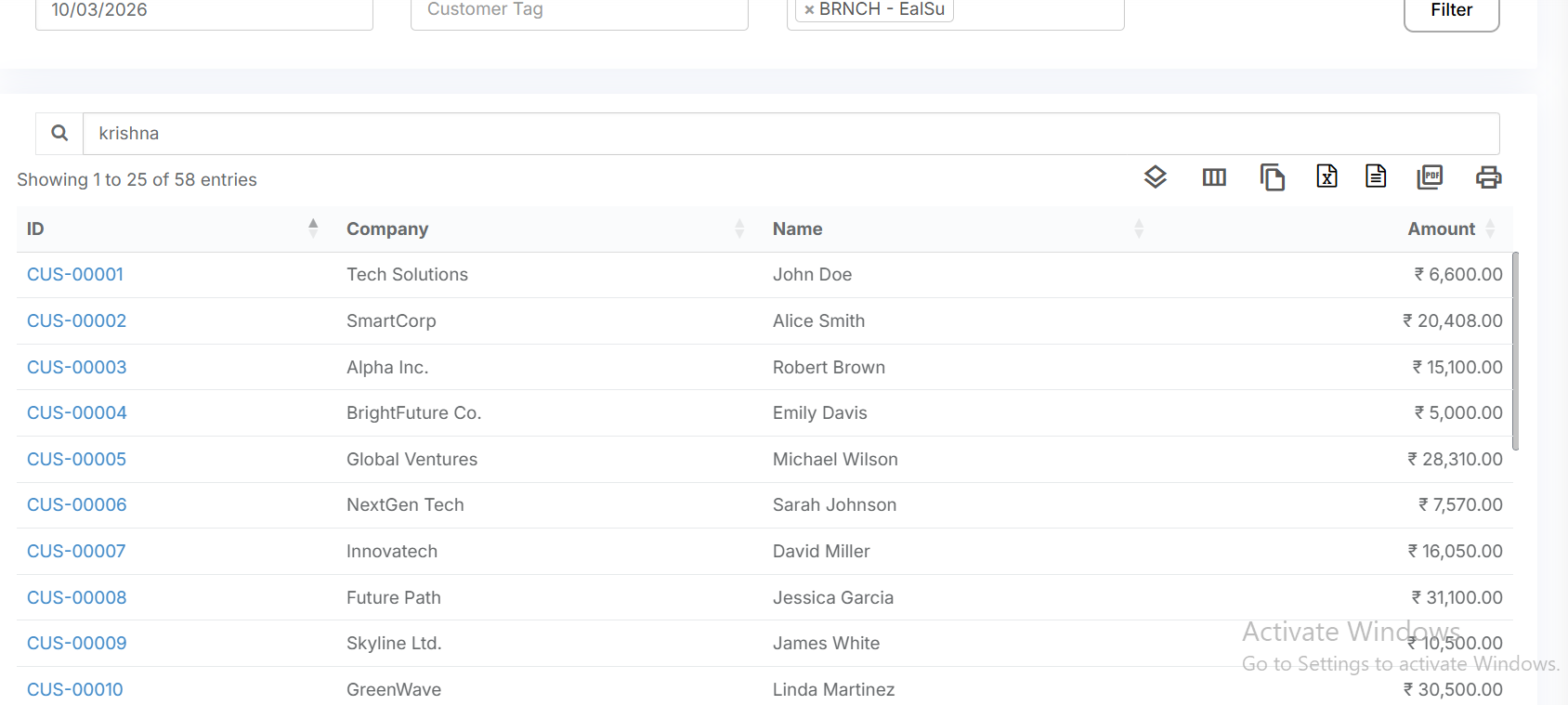
When you select Customer Ledger under the Ledger Reports section, you will be redirected to the Smart View, where you can see the list of customers along with their company name and corresponding balances. From this view, users can open the detailed ledger of any specific customer.
In the Smart View, you can see the list of customers along with their company details and total balance recorded in the system.
| Column | Description | Calculation / Formula (Optional) |
|---|---|---|
| ID | Displays the unique identification number of the customer record. | Auto-generated by the system |
| Customer Name | Displays the name of the customer. | Pulled from Customer Module |
| Company Name | Displays the company associated with the customer. | Pulled from Customer Profile |
| Amount | Displays the total balance associated with the customer. | Total Debit – Total Credit |
| Filter | Description |
|---|---|
| Date | Allows users to generate the customer ledger report for a selected time period. |
| Customer Tag | Enables filtering the report based on specific customer tags. |
| Branch | Allows filtering the report based on the selected branch. |
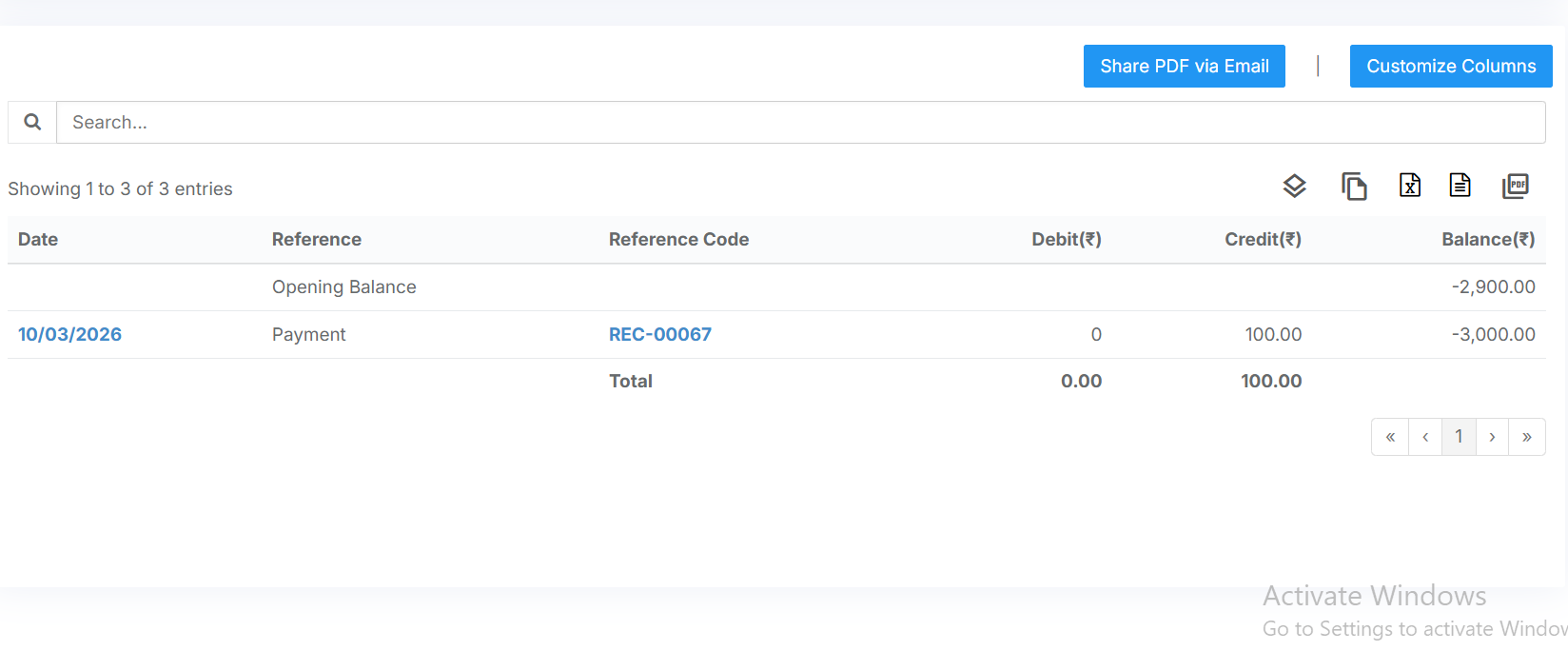
When you click on a specific customer from the Smart View, you will be redirected to the Detailed Customer Ledger page.
This section displays the complete transaction history associated with that particular customer, including debit and credit entries along with the running balance.
| Column | Description | Calculation / Formula (Optional) |
|---|---|---|
| Date | The date on which the transaction was recorded. | Format: DD/MM/YYYY |
| Reference | Displays the reference of the transaction. | Pulled from the corresponding transaction module |
| Reference Code | Shows the unique transaction code associated with the entry. | System-generated |
| Debit | The amount debited for the transaction. | Amount recorded on the Debit side |
| Credit | The amount credited for the transaction. | Amount recorded on the Credit side |
| Balance | Displays the running balance after each transaction. | Previous Balance ± Transaction Amount |
| Filter | Description |
|---|---|
| Date | Allows users to filter transactions based on the selected date. |
| Cost Center | Enables filtering transactions related to a specific cost center. |
| Branch | Allows filtering the report based on the selected branch. |
Supplier Report
The Supplier Ledger Report provides a detailed overview of all financial transactions related to suppliers. This report helps users monitor supplier payments, outstanding balances, and the transaction history for each supplier.
When you select Supplier Ledger under the Ledger Reports section, you will be redirected to the Smart View, where the list of suppliers along with their company details and balances is displayed.
In the Smart View, you can see the list of suppliers along with their company name and the total balance recorded in the system.
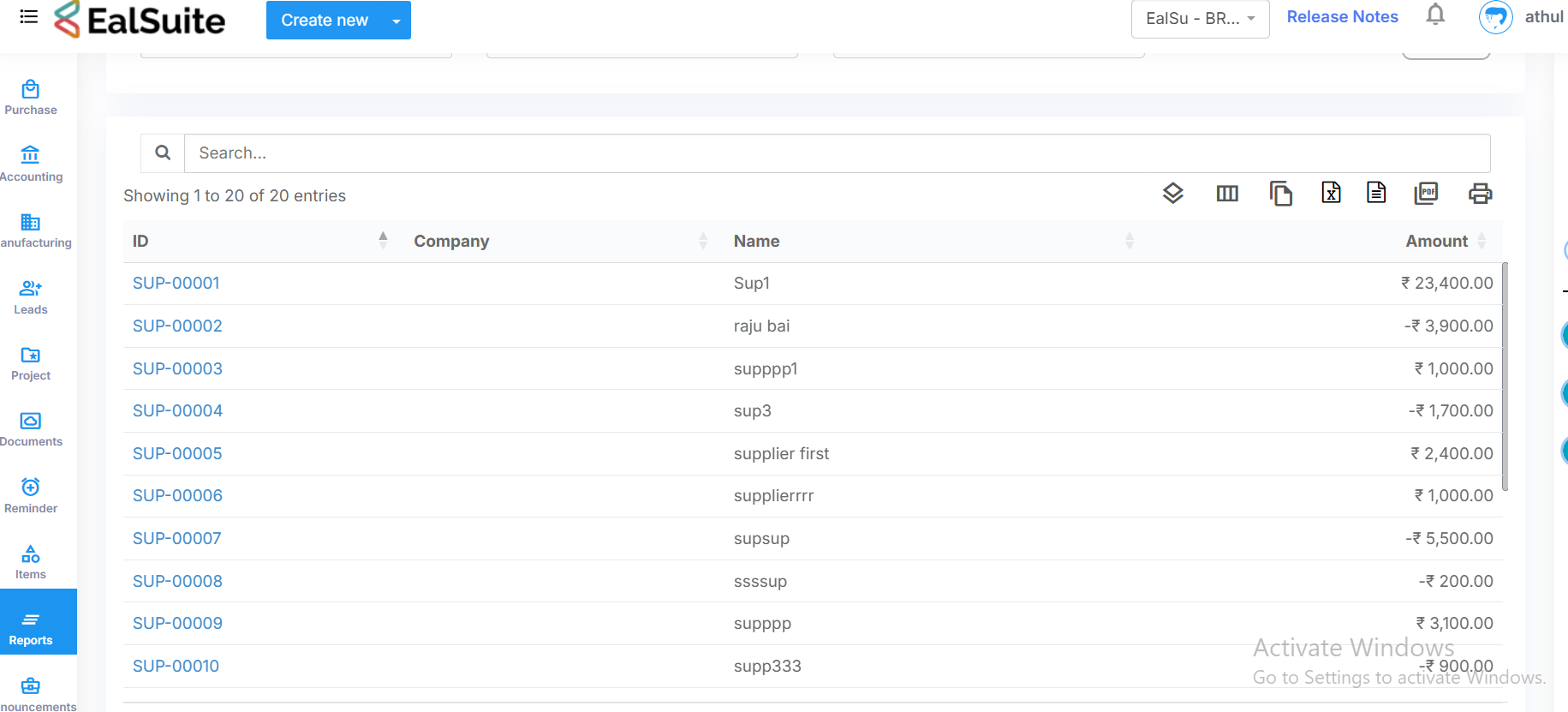
| Column | Description | Calculation / Formula (Optional) |
|---|---|---|
| ID | Displays the unique identification number of the supplier record. | Auto-generated by the system |
| Supplier Name | Displays the name of the supplier. | Pulled from Supplier Module |
| Company Name | Displays the company associated with the supplier. | Pulled from Supplier Profile |
| Amount | Displays the total balance associated with the supplier. | Total Debit – Total Credit |
| Filter | Description |
|---|---|
| Date | Allows users to generate the supplier ledger report for a selected time period. |
| Supplier Tag | Enables filtering the report based on specific supplier tags. |
| Branch | Allows filtering the report based on the selected branch. |
When you click on a specific supplier from the Smart View, you will be redirected to the Detailed Supplier Ledger page.
This section displays the complete transaction history associated with that supplier, including debit and credit entries along with the running balance.
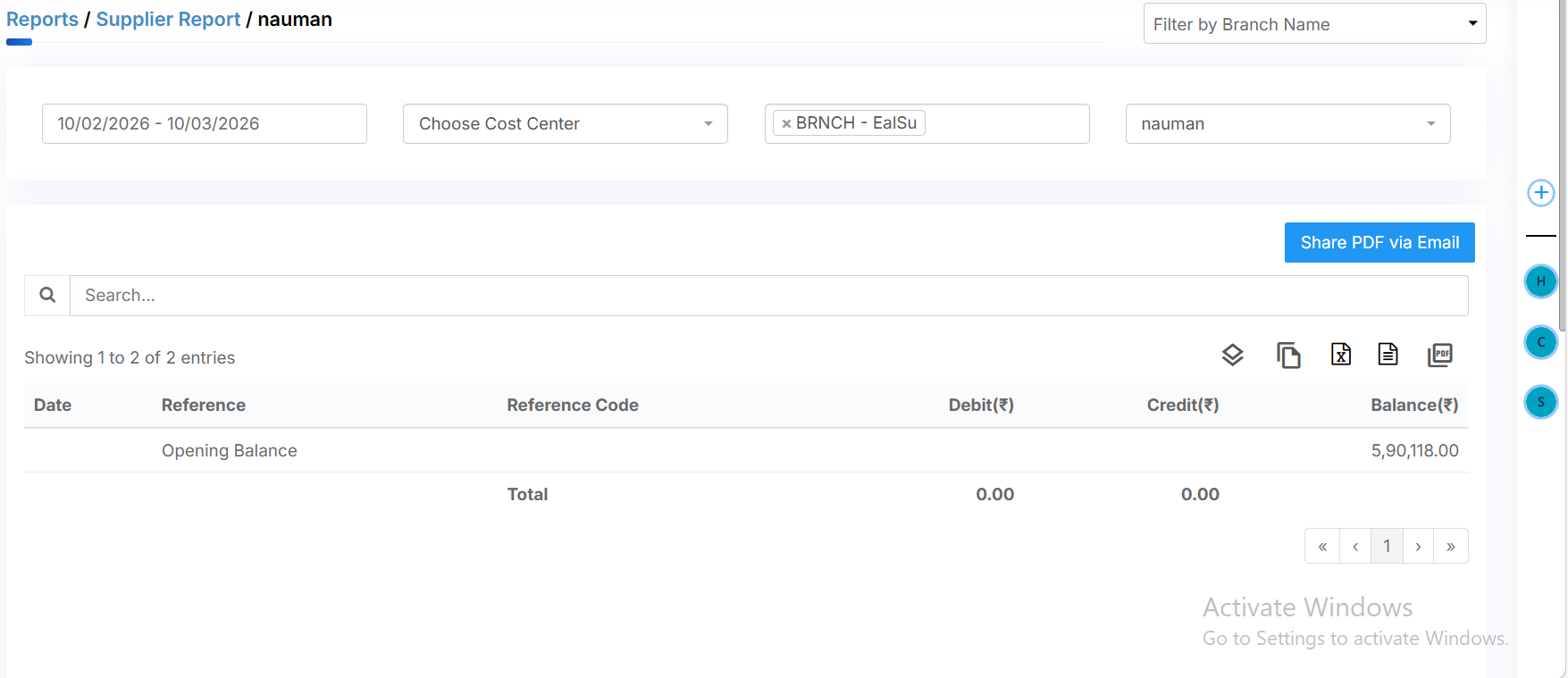
| Column | Description | Calculation / Formula (Optional) |
|---|---|---|
| Date | The date on which the transaction was recorded. | Format: DD/MM/YYYY |
| Reference | Displays the reference of the transaction. | Pulled from the corresponding transaction module |
| Reference Code | Shows the unique transaction code associated with the entry. | System-generated |
| Debit | The amount debited for the transaction. | Amount recorded on the Debit side |
| Credit | The amount credited for the transaction. | Amount recorded on the Credit side |
| Balance | Displays the running balance after each transaction. | Previous Balance ± Transaction Amount |
| Filter | Description |
|---|---|
| Date | Allows users to filter transactions based on the selected date. |
| Cost Center | Enables filtering transactions related to a specific cost center. |
| Branch | Allows filtering the report based on the selected branch. |
Last updated: July 24, 2026