Leads
Lead Quotes Report
Report Overview
The Lead Quotes Report provides detailed insights into quotation proposals created for leads. It helps businesses monitor quote activities, analyze quoted items, and understand the overall progress of sales opportunities.
The report provides visibility into what is being offered, the discounts applied, taxes involved, total values, and the current status of each quote. Users can easily determine whether a quote is open, closed, converted, or expired.
The report is divided into three sections:
- Quote
- Item Wise
- Summary

These sections allow users to analyze quotation data at different levels — overall quotation records, item-level quotation details, and summarized insights of quotation activity.
The report also supports Entries, Columns, Copy, Excel, CSV, PDF, and Print options for exporting or viewing data, along with a Search feature to quickly locate specific quotation records.
1. Quote
The Quote section displays a list of all quotation records created for leads. It includes important details such as the quotation ID, associated lead, salesperson responsible, owner of the record, quotation value, validity period, and current status.
This section helps users track the lifecycle of quotations and monitor the progress of sales opportunities generated from leads.
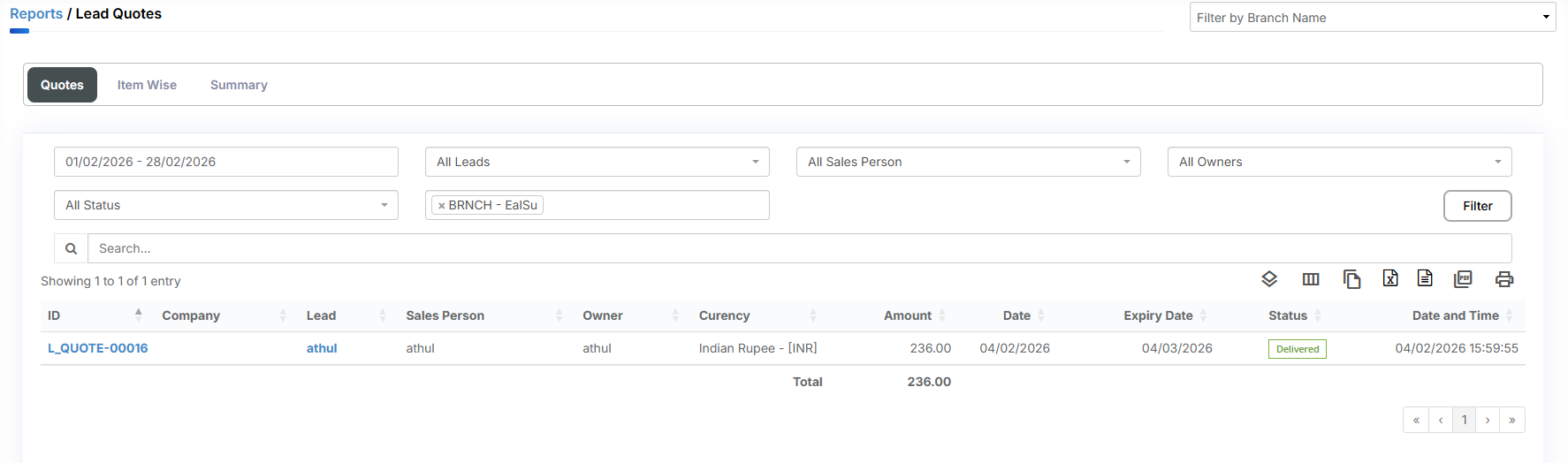
Quote Section – Columns
| Column | Description | Calculation / Formula (Optional) |
|---|---|---|
| ID | Unique identifier of the quotation. | Generated during quote creation |
| Company | Company associated with the quotation. | Pulled from company records |
| Lead | Lead for whom the quotation was created. | Pulled from Lead records |
| Sales Person | Salesperson responsible for managing the quotation. | Pulled from Sales Person records |
| Owner | System user who owns or manages the quotation. | Pulled from system users |
| Currency | Currency used for the quotation. | Example: Indian Rupee (INR) |
| Amount | Total quotation amount. | Calculated from quotation items |
| Date | Date when the quotation was created. | Format: DD/MM/YYYY |
| Expiry Date | Date until which the quotation remains valid. | Defined during quote creation |
| Status | Current status of the quotation. | Example: Draft, Open, Converted, Closed |
| Date and Time | Timestamp indicating when the quotation record was created or updated. | System generated |
Quote Section – Filters
| Filter Name | Description |
|---|---|
| Date Range | Filters quotations created within the selected period. |
| All Leads | Allows viewing quotations for all leads or a selected lead. |
| All Sales Person | Filters quotations handled by selected salespersons. |
| All Owners | Filters quotations based on the selected owner. |
| All Status | Filters quotations based on their current status. |
| Filter by Branch Name | Filters quotations associated with a specific branch. |
Quote Section – Report Footer
| Footer Field | Description |
|---|---|
| Amount | Total value of all quotations displayed in the report. |
2. Item Wise
The Item Wise section displays quotation information at the item level, showing the individual products or services included in each quote. It includes item quantities, pricing, discounts, taxes, and the final calculated totals.
This section helps businesses analyze which items are frequently quoted, their pricing trends, and their contribution to total quotation values.
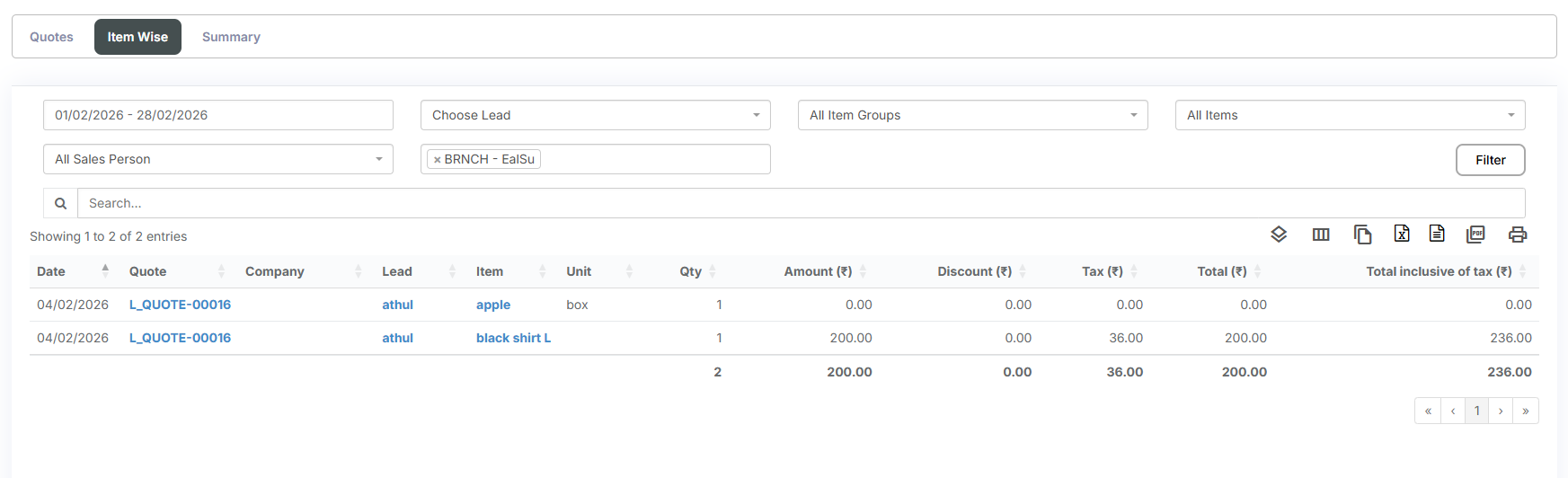
Item Wise – Columns
| Column | Description | Calculation / Formula (Optional) |
|---|---|---|
| Date | Date when the quotation was created. | Format: DD/MM/YYYY |
| Quote | Reference number of the quotation. | Generated during quote creation |
| Company | Company associated with the quotation. | Pulled from company records |
| Lead | Lead to whom the quotation was issued. | Pulled from Lead records |
| Item | Item included in the quotation. | Pulled from Item Master |
| Unit | Unit of measurement used for the item. | Example: Nos, Kg, Box |
| Qty | Quantity of the item quoted. | Entered during quotation creation |
| Amount | Item value before discount and tax. | Qty × Item Rate |
| Discount | Discount applied to the item. | Defined in quotation item details |
| Tax | Tax calculated for the item. | Based on configured tax rules |
| Total | Item value after discount but before tax. | Amount − Discount |
| Total Inclusive of Tax | Final item value including tax. | Total + Tax |
Item Wise – Filters
| Filter Name | Description |
|---|---|
| Date Range | Filters quotation items within the selected date range. |
| Choose Lead | Allows viewing quotation items related to a specific lead. |
| All Sales Person | Filters quotations handled by selected salespersons. |
| All Item Groups | Filters items based on their item group classification. |
| All Items | Filters specific items included in quotations. |
| Filter by Branch Name | Filters quotation data based on branch. |
Item Wise – Report Footer
| Footer Field | Description |
|---|---|
| Qty | Total quantity of all items quoted in the report. |
| Amount | Total item value before discounts and taxes. |
| Discount | Total discount applied across all quoted items. |
| Tax | Total tax calculated for all quoted items. |
| Total | Total item value after discounts but before tax. |
| Total Inclusive of Tax | Final total value including tax for all quoted items. |
3. Summary
The Summary section provides a consolidated overview of quotation activity. It visually represents the distribution of quotes based on their status, helping users quickly understand the progress of quotations in the sales pipeline.
This section enables management and sales teams to evaluate how many quotes are open, closed, converted, or pending, allowing better monitoring of lead conversion performance.
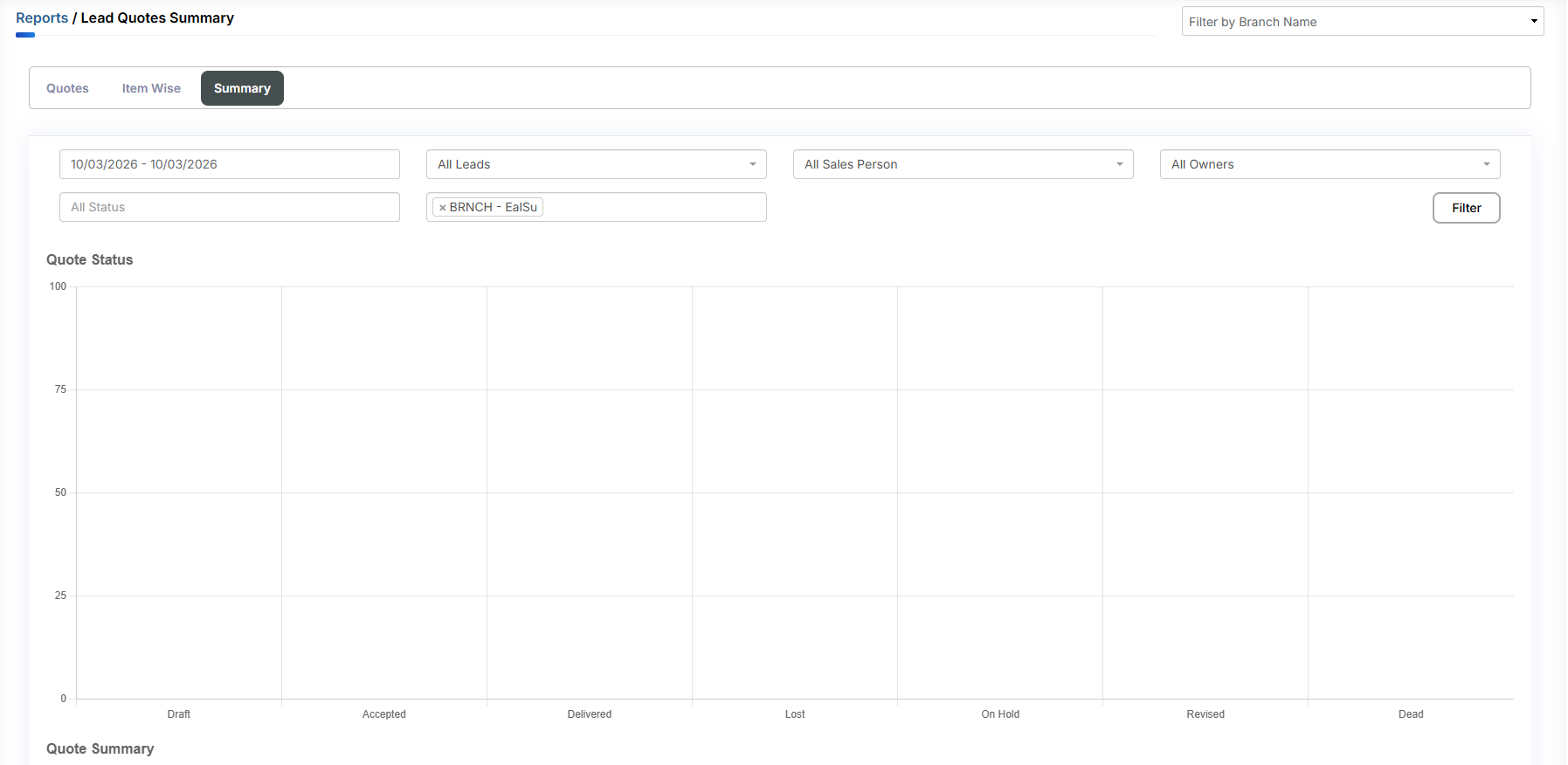
Summary – Filters
| Filter Name | Description |
|---|---|
| Date Range | Filters quotation data based on the selected date period. |
| All Leads | Allows viewing summary data for all leads or a selected lead. |
| All Sales Person | Filters quotations based on selected salespersons. |
| All Owners | Filters summary data based on record owners. |
| All Status | Filters quotations based on status categories. |
| Filter by Branch Name | Filters quotation data for a selected branch. |
Appointments Report
Report Overview
The Appointments Report provides a centralized view of all scheduled appointments within the system. It helps track and organize appointments by categorizing them based on Leads, Staff, and Appointment Status.
The report captures important information such as the appointment date and time, associated lead, staff involved, feedback provided, and the appointment status (Scheduled, Rescheduled, or Completed).
This report enables teams to monitor lead interactions, track follow-ups, and manage staff schedules efficiently, ensuring better coordination and visibility of appointment activities.
The report also provides options to view or export data using Entries, Columns, Copy, Excel, CSV, PDF, and Print, along with a Search feature to quickly locate specific appointment records.
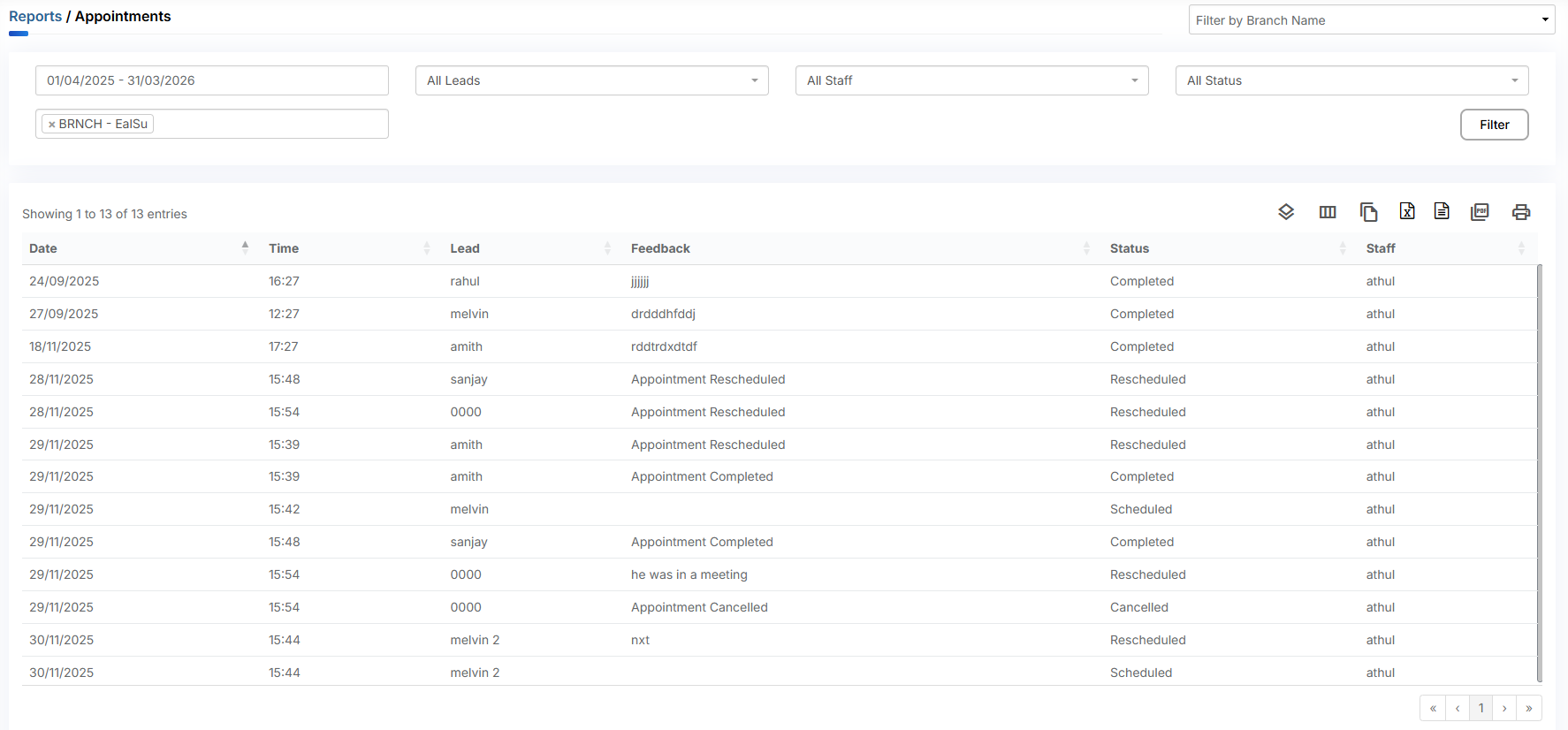
Report Columns
| Column | Description | Calculation / Formula (Optional) |
|---|---|---|
| Date | Date on which the appointment is scheduled. | Format: DD/MM/YYYY |
| Time | Scheduled time of the appointment. | Format: HH:MM |
| Lead | Name of the potential customer associated with the appointment. | Pulled from Lead records |
| Feedback | Notes or feedback recorded after or during the appointment. | Entered by staff |
| Status | Current status of the appointment (Scheduled, Rescheduled, Completed). | Pulled from appointment record |
| Staff | Staff member responsible for handling the appointment. | Pulled from Staff records |
Filter Columns
| Filter | Description |
|---|---|
| Date Range | Filters appointments based on the selected time period. |
| All Leads | Filters appointments based on the selected lead. |
| All Staff | Displays appointments assigned to a specific staff member. |
| All Status | Filters appointments by status such as Scheduled, Rescheduled, or Completed. |
| Filter by Branch Name | Filters appointment records based on the selected branch. |
Last updated: July 24, 2026