Suppliers
Daily Purchase Report
Report Overview
The Daily Purchase Report provides detailed insights into a company's purchasing activities within a selected time period. It helps track purchases made from suppliers and presents key metrics such as purchase references, supplier details, item information, quantity purchased, tax values, and total purchase cost.
This report is useful for monitoring procurement activities, analyzing supplier transactions, and understanding the total value of purchases made during a specific timeframe. It supports filtering based on date, suppliers, items, item groups, staff, and cost centers, enabling comprehensive purchase analysis.
The report also includes export and viewing options such as Entries, Columns, Copy, Excel, CSV, PDF, and Print, along with a Search feature to quickly locate specific purchase records.
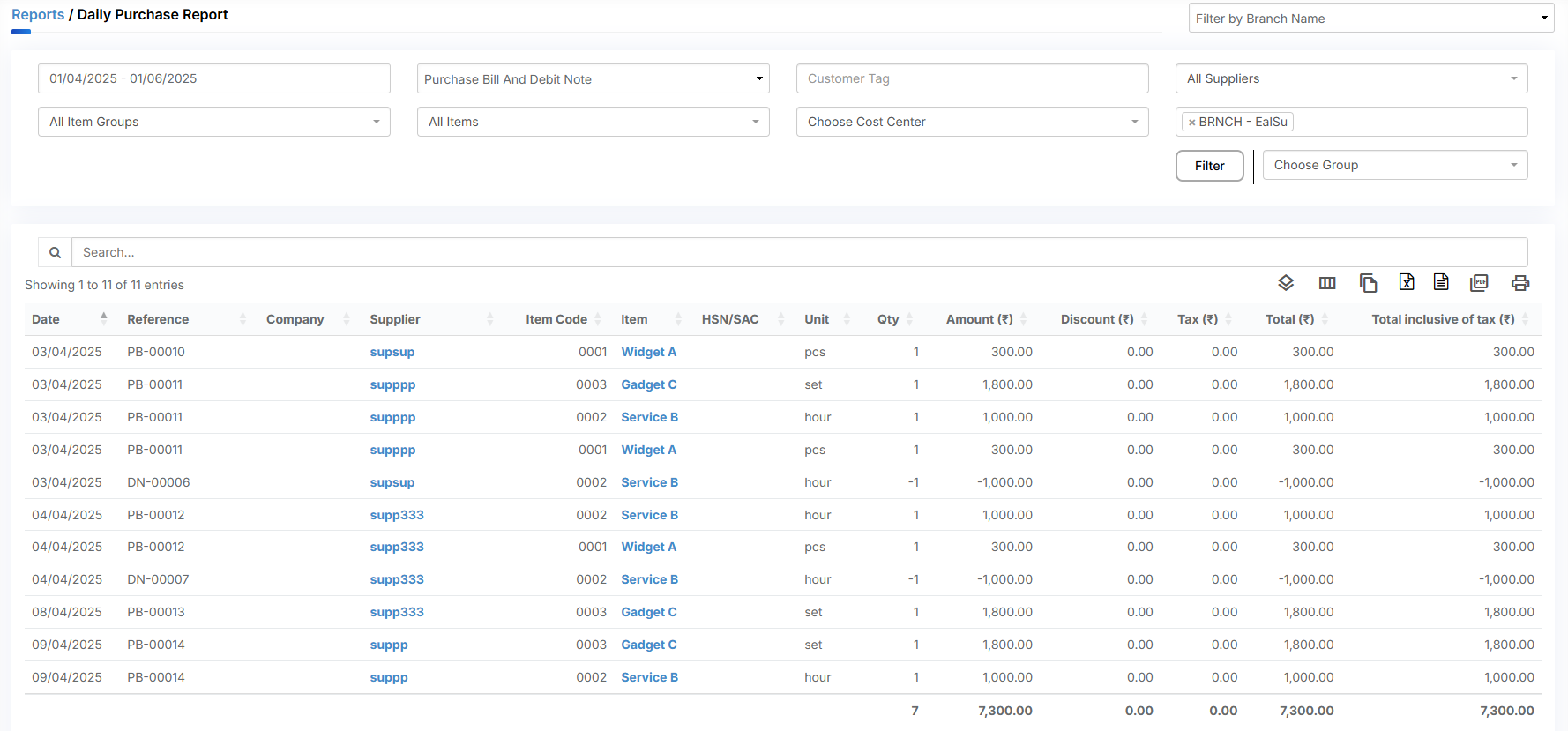
Report Columns
| Column | Description | Calculation / Formula (Optional) |
|---|---|---|
| Date | Date when the purchase transaction was recorded. | Format: DD/MM/YYYY |
| Reference | Unique reference number of the purchase bill or debit note. | Generated during purchase creation |
| Company | Company associated with the purchase transaction. | Pulled from company records |
| Supplier | Name of the supplier from whom the purchase was made. | Pulled from Supplier Master |
| Item Code | Unique code assigned to the purchased item. | Pulled from Item Master |
| Item | Name or description of the purchased item. | Pulled from Item Master |
| HSN/SAC | HSN or SAC code associated with the item for tax classification. | Pulled from item tax configuration |
| Unit | Unit of measurement for the item (e.g., Nos, Pack, Kg). | Pulled from Item Master |
| Qty | Quantity of the item purchased. | Entered during purchase entry |
| Amount (₹) | Base price of the purchased items before tax. | Qty × Item Price |
| Discount (₹) | Discount applied to the purchase transaction, if any. | Applied during purchase entry |
| Tax (₹) | Tax amount applied to the purchase transaction. | Calculated based on tax configuration |
| Total (₹) | Total purchase value excluding tax. | Amount − Discount |
| Total inclusive of tax (₹) | Final purchase value including tax. | Total + Tax |
| Branch | Branch associated with the purchase transaction. | Pulled from branch selection |
Report Filters
| Filter Name | Description |
|---|---|
| Date Range | Filters purchase records based on the selected time period. |
| Purchase Bill and Debit Note | Allows filtering of purchase transactions by document type such as purchase bills or debit notes. |
| Customer Tag | Filters suppliers based on assigned tags. |
| All Suppliers | Allows filtering records by specific suppliers. |
| All Item Groups | Filters purchases based on item group categories. |
| All Items | Filters purchase data based on specific items. |
| Choose Cost Center | Displays purchases associated with a selected cost center. |
| Filter by Branch Name | Filters purchase transactions based on branch. |
| Choose Group | Allows grouping or filtering records based on a selected group. |
Report Footers
| Footer Field | Description |
|---|---|
| Qty | Total quantity of items purchased in the report. |
| Amount (₹) | Total base purchase amount before discounts and taxes. |
| Discount (₹) | Total discount applied across all purchase transactions. |
| Tax (₹) | Total tax applied to the purchase transactions. |
| Total (₹) | Total purchase value excluding tax after discounts. |
| Total inclusive of tax (₹) | Final total purchase value including taxes. |
Payable Aging Report
Report Overview
The Payable Aging Report provides a comprehensive view of the amounts owed to suppliers. It helps businesses monitor outstanding payables and understand how long supplier invoices have remained unpaid.
The report categorizes outstanding amounts into different aging periods such as Current, 1–30 Days, 31–60 Days, 61–90 Days, and 91+ Days. This classification enables finance teams to quickly identify overdue payments and manage supplier liabilities effectively.
By analyzing these aging buckets, organizations can improve cash flow planning, prioritize payments, and maintain healthy supplier relationships.
The report also supports data export and viewing options such as Entries, Columns, Copy, Excel, CSV, PDF, and Print, along with a Search feature to locate supplier records quickly.
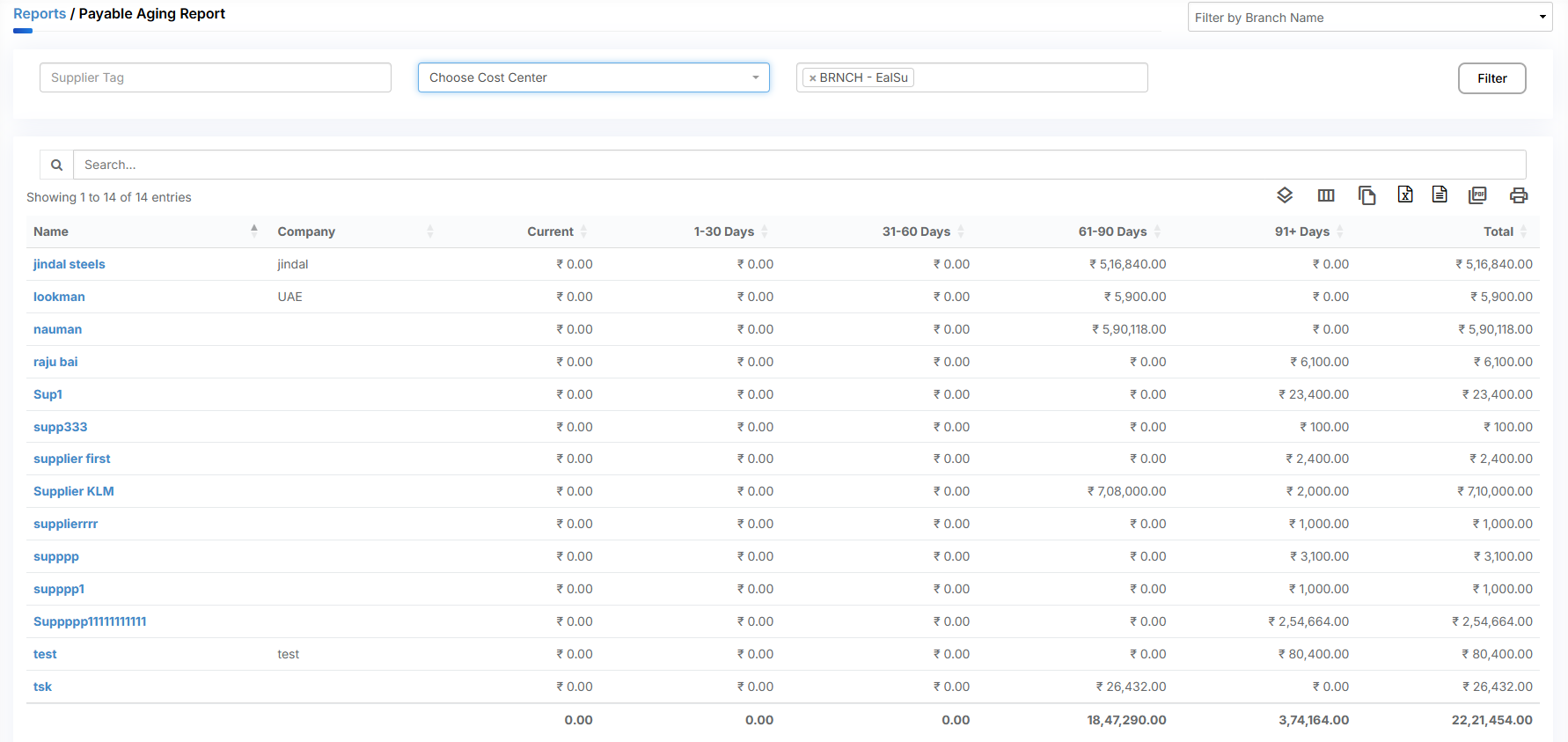
Report Columns
| Column | Description |
|---|---|
| Name | Name of the supplier for whom the payable amount is recorded. |
| Company | Company associated with the supplier or transaction. |
| Current | Outstanding amount that is not yet due. |
| 1–30 Days | Amount overdue between 1 and 30 days. |
| 31–60 Days | Amount overdue between 31 and 60 days. |
| 61–90 Days | Amount overdue between 61 and 90 days. |
| 91+ Days | Amount overdue for more than 90 days. |
| Total | Total outstanding payable amount for the supplier. |
Report Filters
| Filter Name | Description |
|---|---|
| Supplier Tag | Filters suppliers based on assigned tags. |
| Choose Cost Center | Displays supplier payables associated with a specific cost center. |
| Filter by Branch Name | Filters payable records based on branch. |
Report Footers
| Footer Field | Description |
|---|---|
| Current | Total outstanding amount that is not yet due. |
| 1–30 Days | Total payable amount overdue within 30 days. |
| 31–60 Days | Total payable amount overdue between 31 and 60 days. |
| 61–90 Days | Total payable amount overdue between 61 and 90 days. |
| 91+ Days | Total payable amount overdue beyond 90 days. |
| Total | Total outstanding payable amount across all suppliers displayed in the report. |
Supplier Due Statement
Report Overview
The Supplier Due Statement provides a detailed overview of outstanding dues owed to suppliers, showcasing their respective payment status and due amounts. It helps track supplier liabilities with document references, due dates, paid amounts, PDC amounts, and pending dues.
Options are available to export or view the data using Entries, Columns, Copy, Excel, CSV, PDF, and Print.
A Search option is also available to quickly locate specific records.
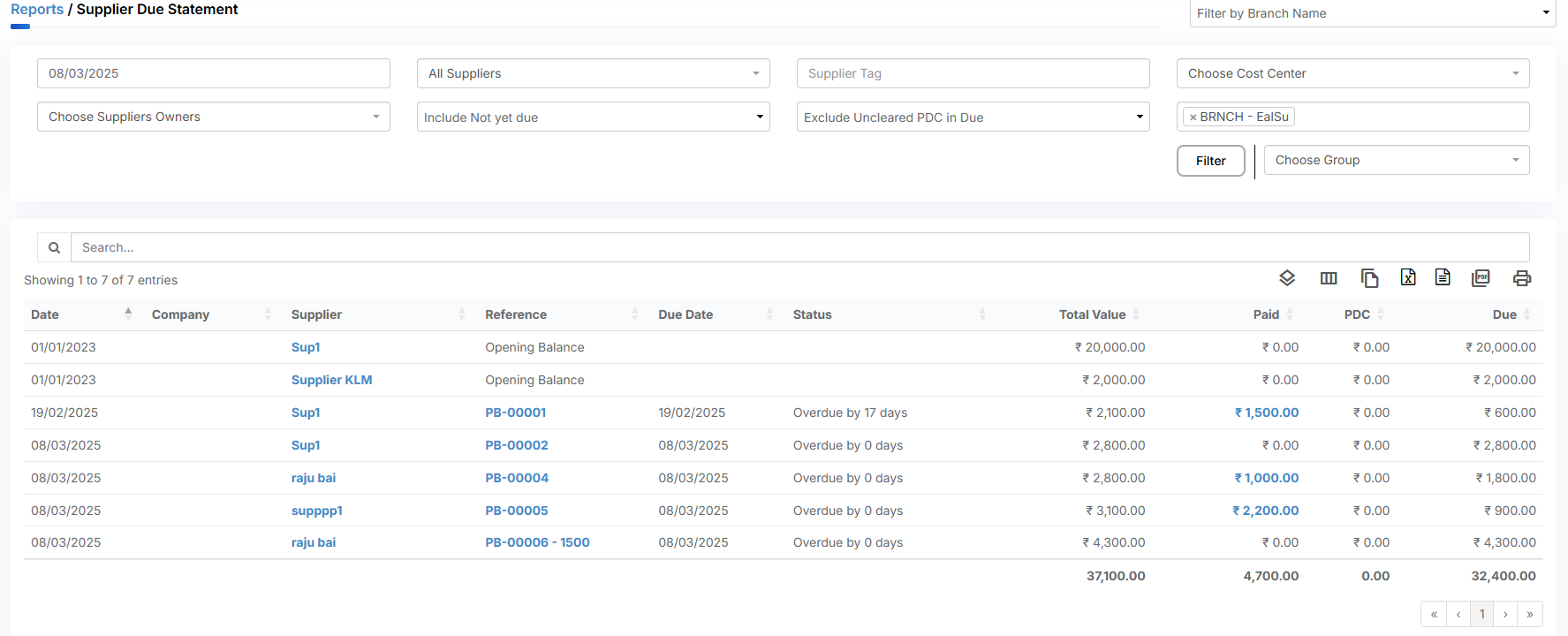
Report Columns
| Column | Description | Calculation / Formula (Optional) |
|---|---|---|
| Date | Date on which the purchase transaction/document was created. | Format: DD/MM/YYYY |
| Company | Company associated with the supplier transaction. | Pulled from company records |
| Supplier | Name of the supplier for whom the payable transaction exists. | Pulled from Supplier Master |
| Reference | Reference number of the purchase bill or debit note. | Generated during purchase entry |
| Due Date | Date by which the payment is expected for the supplier invoice. | Defined by payment terms / due setup |
| Status | Indicates payment status such as overdue duration. | Example: Overdue by X days (system-calculated from Due Date) |
| Total Value | Total value of the purchase transaction. | Total bill value (as per document) |
| Paid | Amount already paid against the purchase transaction. | Sum of payments allocated to the reference |
| PDC | Amount covered through post-dated cheques (if applicable). | Sum of PDC entries linked to the reference |
| Due | Remaining unpaid amount for the supplier transaction. | Total Value − Paid − PDC |
Note on Due calculation:
- If Include Uncleared PDC in Due is selected, uncleared PDC is considered in due.
- If Exclude Uncleared PDC in Due is selected, uncleared PDC is not considered in due.
Report Filters
| Filter Name | Description |
|---|---|
| Date | Filters supplier due transactions based on the selected date. |
| All Suppliers | Displays transactions for all suppliers or a selected supplier. |
| Supplier Tag | Filters suppliers based on assigned tags. |
| Choose Cost Center | Displays transactions related to a specific cost center. |
| Choose Suppliers Owners | Filters supplier records based on the assigned owner. |
| Include Not yet due | Includes supplier invoices that are not yet due for payment along with overdue invoices in the report. |
| Exclude Not yet due | Displays only invoices that are due or overdue, excluding invoices that are not yet due. |
| Exclude Uncleared PDC in Due | Excludes uncleared post-dated cheque (PDC) amounts from the due amount calculation. |
| Include Uncleared PDC in Due | Includes uncleared post-dated cheque (PDC) amounts in the due amount calculation. |
| Filter by Branch Name | Filters transactions based on the selected branch. |
| Choose Group | Allows grouping of records based on a selected field. |
Report Footers
| Footer Field | Description |
|---|---|
| Total Value | Sum of the total purchase values displayed in the report. |
| Paid | Total amount already paid to suppliers. |
| PDC | Total amount covered through post-dated cheques. |
| Due | Total outstanding amount that remains payable to suppliers. |
Supplier Trend Report
Report Overview
The Supplier Trend Report provides an analytical overview of purchasing activities associated with individual suppliers over a selected period. It helps businesses evaluate supplier performance and purchasing patterns by showing the count and total value of transactions related to Purchase Bills, Debit Notes, Purchase Receipts, and Purchase Orders.
This report enables organizations to identify high-performing suppliers, frequently used suppliers, and suppliers with declining or minimal transaction activity. By analyzing these metrics, businesses can make better procurement decisions and manage supplier relationships effectively.
The report also includes export and viewing options such as Entries, Columns, Copy, Excel, CSV, PDF, and Print, along with a Search feature to quickly locate supplier records.
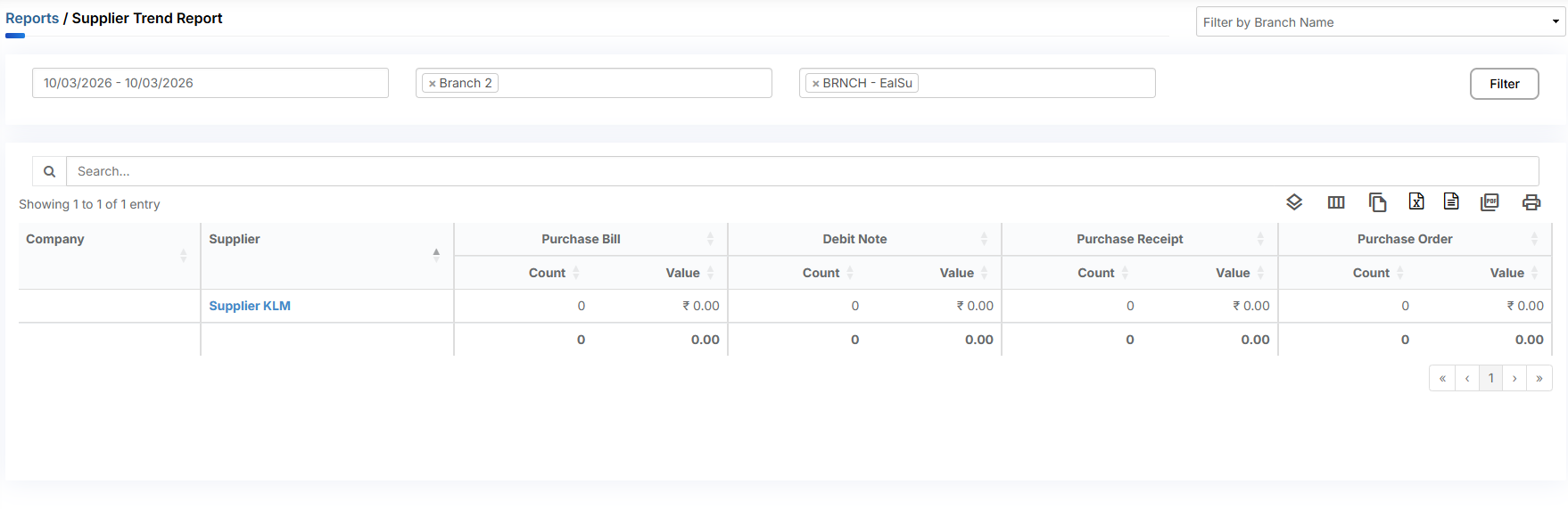
Report Columns
| Column | Description | Calculation / Formula (Optional) |
|---|---|---|
| Company | Company associated with the supplier transactions. | Pulled from company records |
| Supplier | Name of the supplier whose transaction trends are being analyzed. | Pulled from Supplier Master |
| Purchase Bill – Count | Total number of purchase bills created for the supplier during the selected period. | Count of Purchase Bills linked to the supplier |
| Purchase Bill – Value | Total value of purchase bills recorded for the supplier. | Sum of Purchase Bill amounts |
| Debit Note – Count | Total number of debit notes issued for the supplier. | Count of Debit Notes linked to the supplier |
| Debit Note – Value | Total value of debit notes issued to the supplier. | Sum of Debit Note amounts |
| Purchase Receipt – Count | Number of purchase receipts recorded for the supplier. | Count of Purchase Receipts linked to the supplier |
| Purchase Receipt – Value | Total value of purchase receipts recorded for the supplier. | Sum of Purchase Receipt amounts |
| Purchase Order – Count | Total number of purchase orders created for the supplier. | Count of Purchase Orders linked to the supplier |
| Purchase Order – Value | Total value of purchase orders issued to the supplier. | Sum of Purchase Order amounts |
Report Filters
| Filter Name | Description |
|---|---|
| Date Range | Filters supplier transaction data based on the selected period. |
| Supplier Tag | Filters suppliers based on assigned tags. |
| Filter by Branch Name | Displays supplier transactions associated with the selected branch. |
Report Footers
| Footer Field | Description |
|---|---|
| Purchase Bill – Count | Total number of purchase bills displayed in the report. |
| Purchase Bill – Value | Total value of purchase bills across all suppliers. |
| Debit Note – Count | Total number of debit notes displayed in the report. |
| Debit Note – Value | Total value of debit notes across all suppliers. |
| Purchase Receipt – Count | Total number of purchase receipts recorded in the report. |
| Purchase Receipt – Value | Total value of purchase receipts across all suppliers. |
| Purchase Order – Count | Total number of purchase orders displayed in the report. |
| Purchase Order – Value | Total value of purchase orders across all suppliers. |
Supplier Credits Report
Report Overview
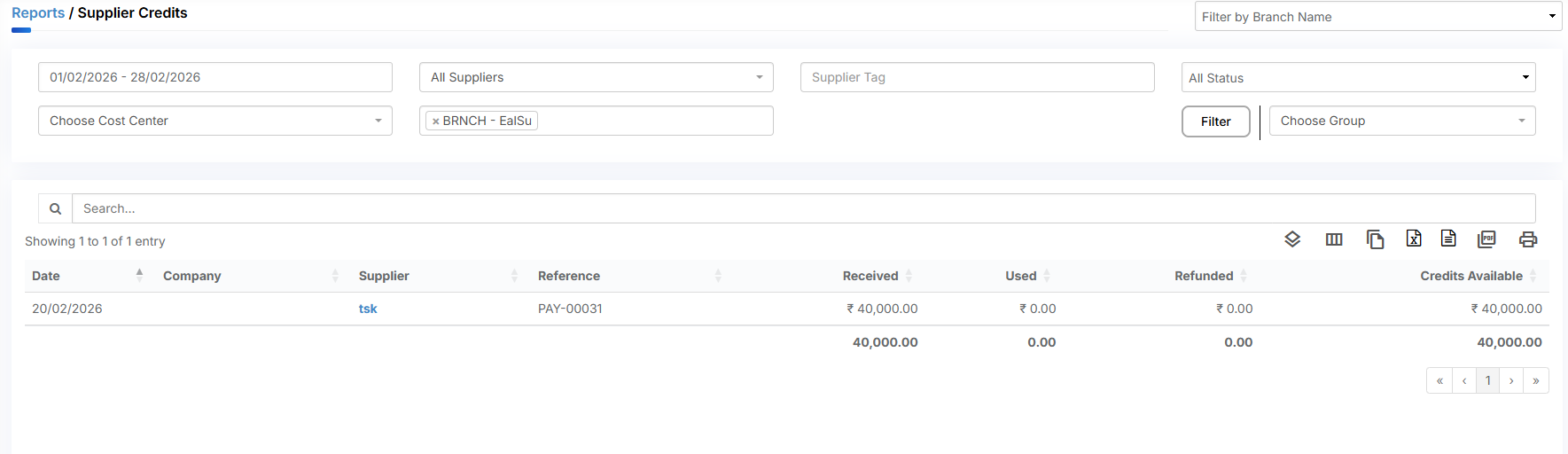
The Supplier Credits Report provides a comprehensive overview of credits received from individual suppliers through various credit-related transactions. It helps track the total credits received, credits used against purchases, refunded credits, and the remaining credit balance available.
This report is useful for monitoring supplier credit adjustments such as debit notes, supplier refunds, and credit allocations, enabling businesses to maintain accurate records of supplier credit balances.
The report also includes export and viewing options such as Entries, Columns, Copy, Excel, CSV, PDF, and Print, along with a Search feature to quickly locate specific supplier credit records.
Report Columns
| Column | Description | Calculation / Formula (Optional) |
|---|---|---|
| Date | Date when the supplier credit transaction was recorded. | Format: DD/MM/YYYY |
| Company | Company associated with the supplier credit transaction. | Pulled from company records |
| Supplier | Name of the supplier from whom the credit was received. | Pulled from Supplier Master |
| Reference | Reference number of the transaction generating the credit (e.g., payment reference or debit note). | Generated during transaction creation |
| Received | Total credit amount received from the supplier. | Credit value generated from supplier transactions |
| Used | Portion of the received credit that has been utilized against purchases or payments. | Sum of credit applied to purchase transactions |
| Refunded | Credit amount refunded back to the supplier, if applicable. | Sum of refund transactions |
| Credits Available | Remaining credit balance available for future use. | Received − Used − Refunded |
Report Filters
| Filter Name | Description |
|---|---|
| Date Range | Filters supplier credit transactions based on the selected period. |
| All Suppliers | Displays transactions for all suppliers or a selected supplier. |
| Supplier Tag | Filters suppliers based on assigned tags. |
| All Status | Filters records based on credit transaction status. |
| Choose Cost Center | Displays credit transactions associated with a specific cost center. |
| Filter by Branch Name | Filters records based on the selected branch. |
| Choose Group | Allows grouping of records based on a selected field. |
Report Footers
| Footer Field | Description |
|---|---|
| Received | Total credits received from suppliers displayed in the report. |
| Used | Total credits that have been applied against transactions. |
| Refunded | Total credits refunded to suppliers. |
| Credits Available | Total remaining supplier credits available for future use. |
Purchase Order Report
Report Overview
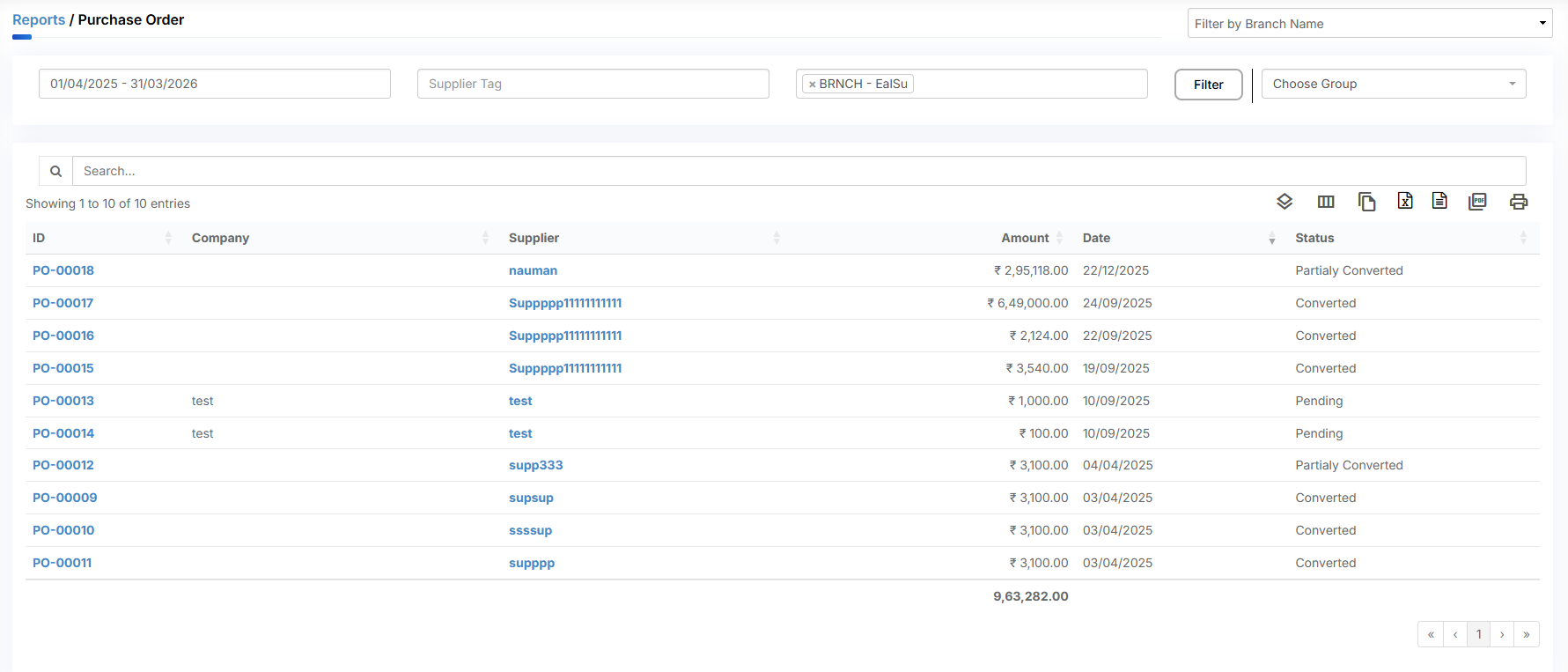
The Purchase Order Report provides a comprehensive view of purchase orders placed with individual suppliers. It includes essential details such as the purchase order ID, supplier name, company, order amount, order date, and the current status of each purchase order.
This report helps businesses monitor purchasing activities, track the status of supplier orders (such as Pending, Partially Converted, or Converted), and analyze total purchase commitments within a selected period.
The report includes several export and viewing options such as Entries, Columns, Copy, Excel, CSV, PDF, and Print, along with a Search feature to quickly locate specific purchase order records.
Report Columns
| Column | Description | Calculation / Formula (Optional) |
|---|---|---|
| ID | Unique identifier assigned to each purchase order. | Generated automatically by the system (e.g., PO-79). |
| Company | Name of the company associated with the purchase order. | Pulled from company records. |
| Supplier | Name of the supplier to whom the purchase order was issued. | Pulled from Supplier Master. |
| Amount | Total value of the purchase order. | Sum of all item totals within the purchase order. |
| Date | Date when the purchase order was created. | Format: DD/MM/YYYY |
| Status | Current status of the purchase order (e.g., Pending, Partially Converted, Converted). | Determined based on the purchase order fulfillment or conversion status. |
Report Filters
| Filter | Description |
|---|---|
| Date Range | Allows users to filter purchase orders within a selected date range. Only purchase orders created between the selected start and end dates will be displayed in the report. |
| Supplier Tag | Filters purchase orders based on supplier categories or tags assigned in the Supplier Master. This helps in analyzing purchase orders for specific supplier groups. |
| Filter by Branch Name | Filters records based on the selected branch. |
| Choose Group | Allows users to group the report data based on selected criteria for better analysis and summarized viewing of purchase orders. |
Report Footers
| Field | Description |
|---|---|
| Total Amount | Displays the sum of all purchase order amounts listed in the report based on the applied filters. |
Debit Note Report
Report Overview
The Debit Note Report assists businesses in accurately tracking adjustments made for returned goods and debit notes generated during business transactions. It provides essential information about each debit note including the date, reference to the corresponding purchase bill (if applicable), the supplier involved, the debit amount, and the current status of the debit note.
This report helps maintain transparency in supplier-related adjustments by recording debit transactions that arise due to returns, pricing corrections, or other purchase-related discrepancies. It enables businesses to monitor whether debit notes are Open or Closed, ensuring proper reconciliation with supplier accounts.
The report also includes multiple export and viewing options such as Entries, Columns, Copy, Excel, CSV, PDF, and Print, along with a Search feature to quickly locate specific debit note records.
Report Columns
| Column | Description | Calculation / Formula (Optional) |
|---|---|---|
| ID | Unique identifier assigned to each debit note transaction. | Auto-generated (DN-XXXX format) |
| Company | Name of the company associated with the debit note transaction. | Pulled from company records |
| Supplier | Name of the supplier involved in the debit note transaction. | Pulled from Supplier Master |
| Reference | Reference number of the related purchase bill or document associated with the debit note. | Pulled from linked purchase bill (if available) |
| Amount | Total debit amount generated for the transaction. | Sum of debit note line item values |
| Date | Date when the debit note was created or recorded in the system. | Format: DD/MM/YYYY |
| Status | Indicates the current state of the debit note such as Open or Closed. | Based on debit note processing status |
Filter Columns
| Filter | Description |
|---|---|
| Date Range | Allows users to filter debit notes within a specific date period. The report will display records created between the selected start and end dates. |
| Supplier Tag | Filters debit notes based on supplier categories or tags assigned in the supplier master. This helps in analyzing debit transactions by supplier groups. |
| Choose Cost Center | Enables filtering of debit notes based on the selected cost center to track debit adjustments associated with specific departments or operational units. |
| Filter by Branch Name | Filters records based on the selected branch. |
| Choose Group | Groups the report data based on selected criteria to provide summarized insights for analysis. |
Report Footers
| Column | Description |
|---|---|
| Amount | Displays the total sum of all debit note amounts shown in the report based on the applied filters. |
Calculation:
Total Amount = Sum of Amount column values
Purchase Receipt Report
Report Overview
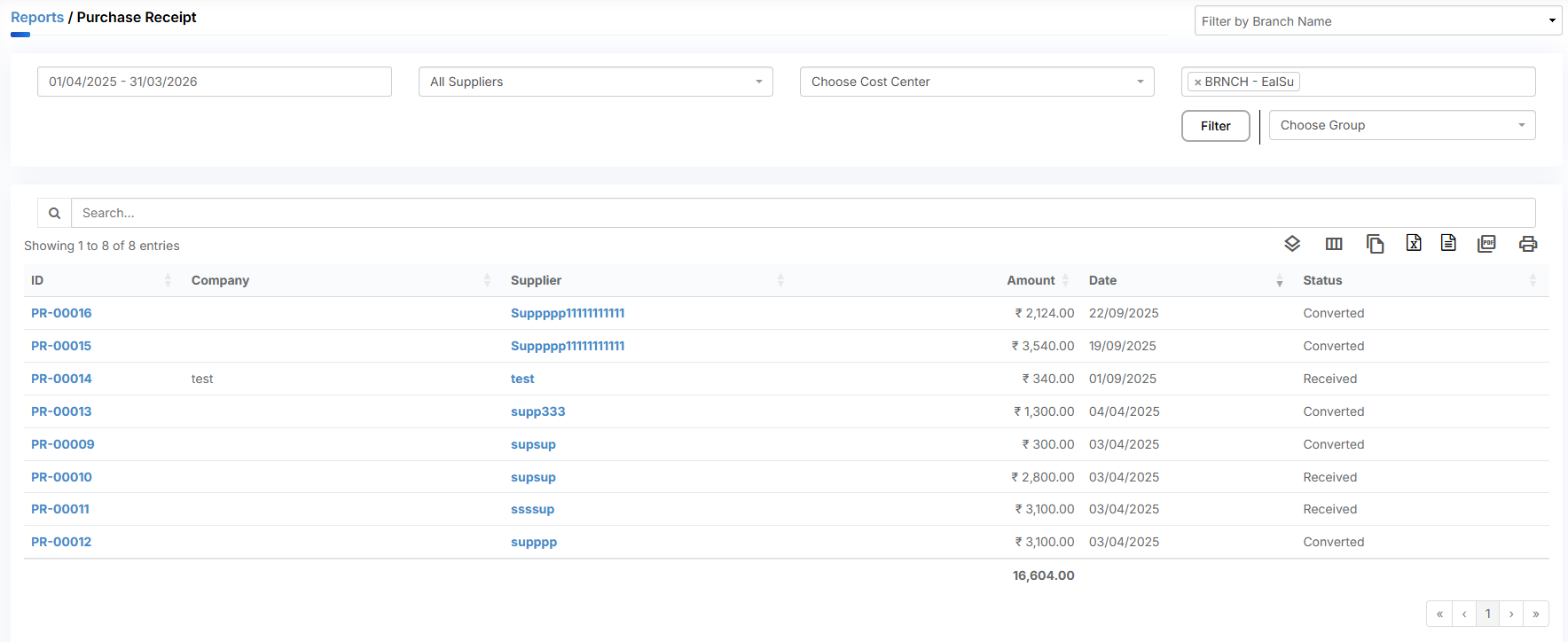
The Purchase Receipt Report provides a clear view of the goods received from suppliers against purchase transactions. It helps track the total amount of goods purchased, the date of receipt, and the status of each purchase receipt.
This report is an important document for monitoring procurement activities and ensuring that goods ordered from suppliers are received on time and properly recorded. It also helps businesses verify supplier deliveries and track the progress of purchase receipts within the procurement workflow.
The report includes export and viewing options such as Entries, Columns, Copy, Excel, CSV, PDF, and Print, along with a Search feature to quickly locate specific purchase receipt records.
Report Columns
| Column | Description | Calculation / Formula (Optional) |
|---|---|---|
| ID | Unique identifier generated for each purchase receipt transaction. | Auto-generated by the system |
| Company | Company associated with the purchase receipt. | Pulled from company records |
| Supplier | Name of the supplier from whom the goods were received. | Pulled from Supplier Master |
| Amount | Total value of the goods received in the purchase receipt. | Sum of item values in the receipt |
| Date | Date on which the purchase receipt was recorded. | Format: DD/MM/YYYY |
| Status | Current status of the purchase receipt such as Received or Converted. | Updated based on transaction workflow |
Filter Columns
| Filter | Description |
|---|---|
| Date Range | Filters purchase receipts recorded within the selected time period. |
| All Suppliers | Displays purchase receipts for all suppliers or a selected supplier. |
| Choose Cost Center | Filters purchase receipts associated with a specific cost center. |
| Filter by Branch Name | Displays purchase receipts for the selected branch. |
| Choose Group | Allows grouping of records based on a selected field for better analysis. |
Report Footer
| Footer Field | Description |
|---|---|
| Amount | Displays the total value of all purchase receipts listed in the report based on the applied filters. |
Goods Received Note Report
Report Overview
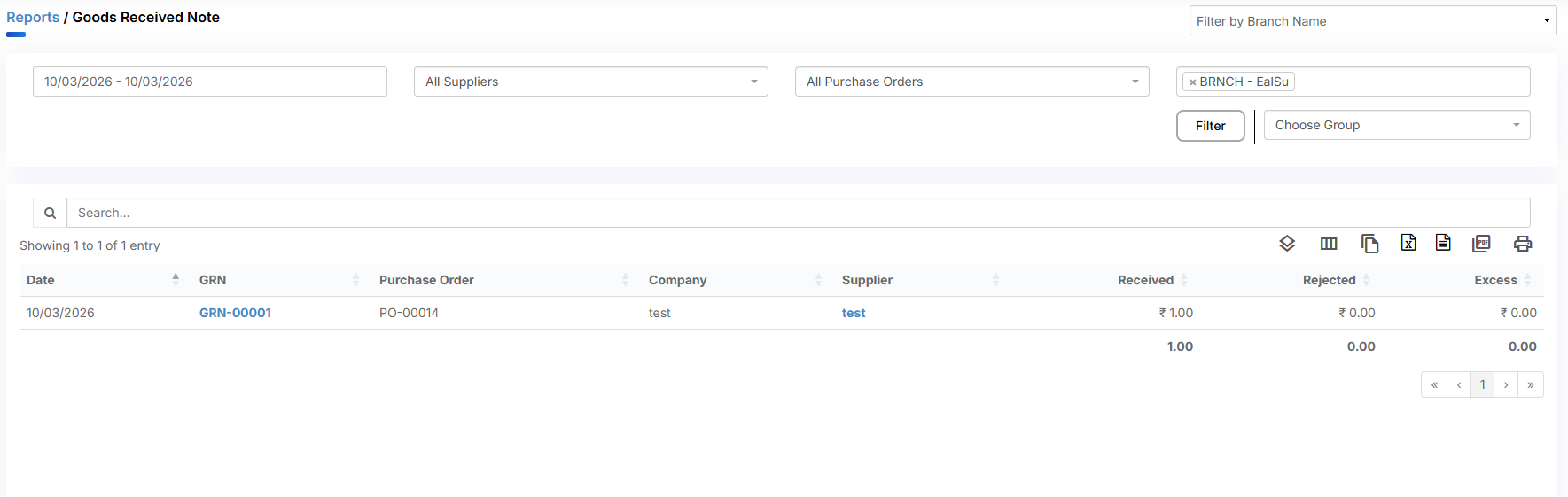
The Goods Received Note (GRN) Report helps businesses efficiently manage inventory and track supplier deliveries by providing a comprehensive summary of goods received notes generated during procurement transactions.
This report includes essential details such as the date of receipt, reference to the corresponding purchase order, supplier name, and the quantity of goods received, rejected, and recorded as excess. It enables organizations to verify supplier deliveries, monitor discrepancies in received goods, and maintain accurate inventory records.
The report also supports export and viewing options such as Entries, Columns, Copy, Excel, CSV, PDF, and Print, along with a Search feature for quickly locating specific GRN records.
Report Columns
| Column | Description | Calculation / Formula (Optional) |
|---|---|---|
| Date | Date when the Goods Received Note was recorded. | Format: DD/MM/YYYY |
| GRN | Unique identifier generated for each Goods Received Note. | Auto-generated by the system |
| Purchase Order | Reference ID of the purchase order associated with the goods receipt. | Pulled from Purchase Order records |
| Company | Company associated with the goods receipt transaction. | Pulled from company records |
| Supplier | Name of the supplier who delivered the goods. | Pulled from Supplier Master |
| Received | Total quantity of goods successfully received from the supplier. | Sum of accepted item quantities |
| Rejected | Quantity of goods rejected due to damage, defects, or mismatches. | Sum of rejected item quantities |
| Excess | Quantity of goods received beyond the ordered quantity. | Excess quantity recorded during receipt |
Filter Columns
| Filter | Description |
|---|---|
| Date Range | Filters GRN records based on the selected time period. |
| All Suppliers | Displays GRN records for all suppliers or a selected supplier. |
| Choose Cost Center | Filters GRN records associated with a specific cost center. |
| Filter by Branch Name | Displays GRN records for the selected branch. |
| Choose Group | Allows grouping of records based on a selected field for better analysis. |
Report Footer
| Footer Field | Description |
|---|---|
| Received | Total quantity of goods received across all GRN records displayed in the report. |
| Rejected | Total quantity of goods rejected across the listed GRN records. |
| Excess | Total quantity of goods recorded as excess in the displayed GRN records. |
Supplier Payments Report
Report Overview
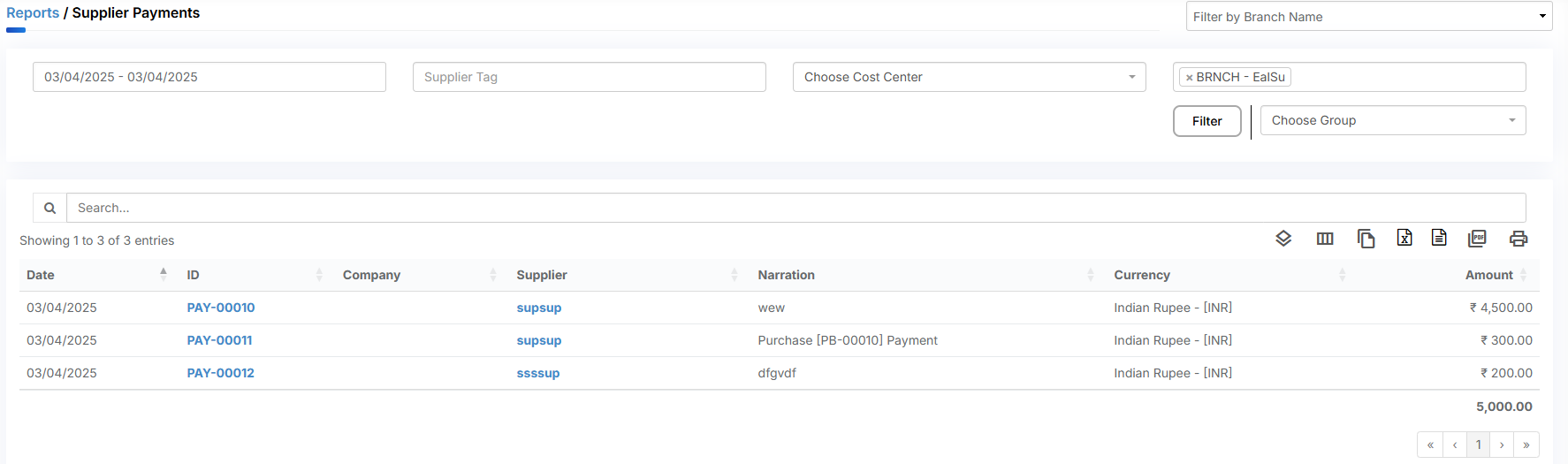
The Supplier Payments Report offers insights into all payments made to individual suppliers within the system. It provides key details such as the payment date, unique payment ID, company, supplier name, narration/description of the payment, currency used, and the total payment amount.
This report helps businesses monitor supplier payment activities, track financial outflows related to purchases, and maintain transparency in supplier settlements.
The report also includes options to view or export data using Entries, Columns, Copy, Excel, CSV, PDF, and Print, along with a Search feature to quickly locate specific payment records.
Report Columns
| Column | Description | Calculation / Formula (Optional) |
|---|---|---|
| Date | Date on which the payment was made to the supplier. | Format: DD/MM/YYYY |
| ID | Unique identifier generated for each supplier payment transaction. | Auto-generated payment ID |
| Company | Company associated with the payment transaction. | Pulled from company records |
| Supplier | Name of the supplier to whom the payment was made. | Pulled from Supplier Master |
| Narration | Short description or note explaining the purpose of the payment. | Entered during payment creation |
| Currency | Currency used for the payment transaction. | Pulled from payment record |
| Amount | Total payment amount paid to the supplier. | Payment amount recorded in the transaction |
Filter Columns
| Filter | Description |
|---|---|
| Date Range | Filters supplier payment transactions based on the selected time period. |
| Supplier Tag | Filters suppliers based on assigned tags. |
| Choose Cost Center | Displays payment transactions associated with a specific cost center. |
| Filter by Branch Name | Filters payment records based on the selected branch. |
| Choose Group | Allows grouping of records based on a selected field for better analysis. |
Report Footer
| Footer Field | Description |
|---|---|
| Amount | Total value of all supplier payments displayed in the report. |
Last updated: July 24, 2026