Inventory Out
The Inventory Out module is used to record the movement of items leaving the inventory for transactions that are not directly linked to standard sales processes.
This includes scenarios where items are issued for internal usage, project-related activities, or other dependent transactions. In such cases, the stock is reduced from inventory even though it may not be part of a direct sales invoice.
The module also captures item usage related to projects or customer-specific requirements, ensuring that all outgoing stock movements are properly tracked.
This helps maintain accurate inventory levels and provides better visibility into how stock is being utilized across different operations.
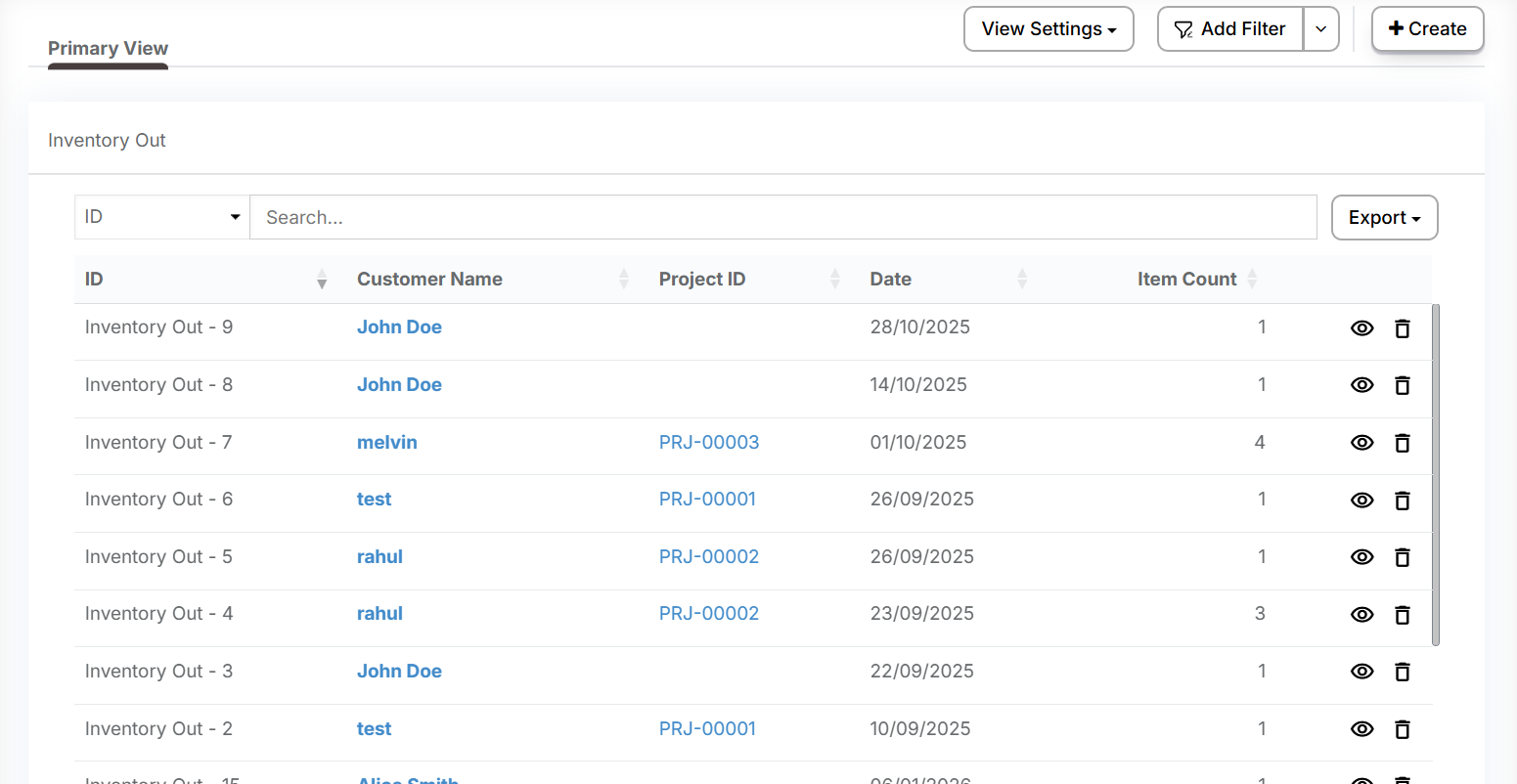
When you click on the Inventory Out module, you will be redirected to the Inventory Out Smart View, where all the created inventory out transactions are listed.
On the top-right side of the Smart View, there is a Create button to record a new inventory out transaction.
The Smart View displays the following details:
- ID – Unique Inventory Out ID
- Customer Name – Name of the customer associated with the transaction (if applicable)
- Project ID – Related project reference (if applicable)
- Date – Date of the transaction
- Item Count – Number of items included in the transaction
Under the Manage section, the following options are available:
- View – View the details of the transaction
- Delete – Remove the transaction
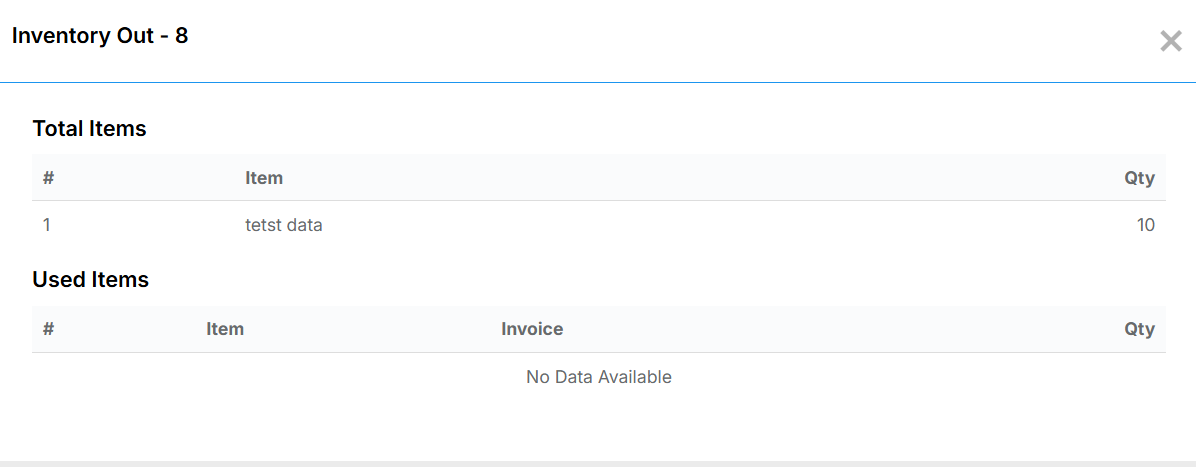
When you click on the View option from the Manage section of a specific Inventory Out entry, you will be redirected to the Inventory Out Detail View.
In this view, you can see the details of the items included in the transaction.
The following information is displayed:
- Item Name / Number – Name or reference of the item
- Quantity (Qty) – Quantity of the item moved out of inventory
By default, the items will remain as Unassociated.
- Items that are not linked to any specific record will remain under the Unassociated section.
- Once the items are associated with a related transaction (such as a project or customer usage), they will be moved and displayed under the Used Items section.
This helps in tracking whether the issued inventory has been allocated or is still pending association.
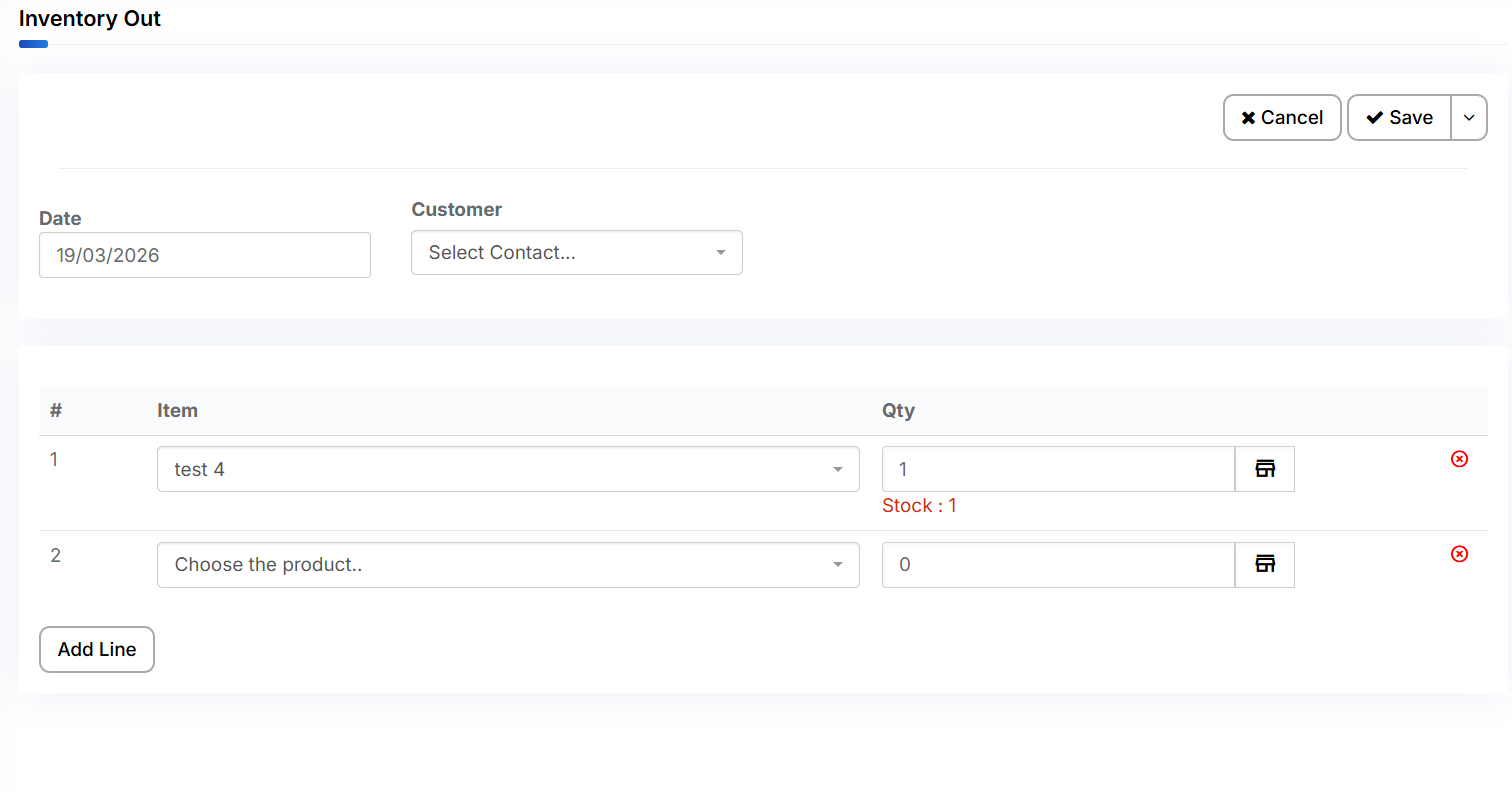
When you click on the Create button, you will be redirected to the Inventory Out Creation Form, where you can record a new inventory out transaction.
Basic Information
- Date – Automatically populated with the current date (can be modified if required)
- Customer – Select the customer to associate with the inventory out (if applicable)
Item Details
- Add Line – Click to add items to the transaction
- Item – Select the item to be moved out of inventory
- Quantity (Qty) – Enter the quantity of the item
Saving the Transaction
After entering all the required details, click Save.
Once saved:
- The Inventory Out transaction is created
- The stock will be reduced from inventory
- Items will remain as Unassociated until they are linked to a related transaction (such as project or customer usage)
Last updated: July 24, 2026