Catalogue
The Catalogue module is used to classify items with special pricing and manage item rates. It allows businesses to create customized price lists by assigning different rates to selected items.
These catalogues can be applied to customers and suppliers, ensuring that the predefined pricing is used during sales and purchase transactions. This helps in maintaining consistent pricing for different parties.
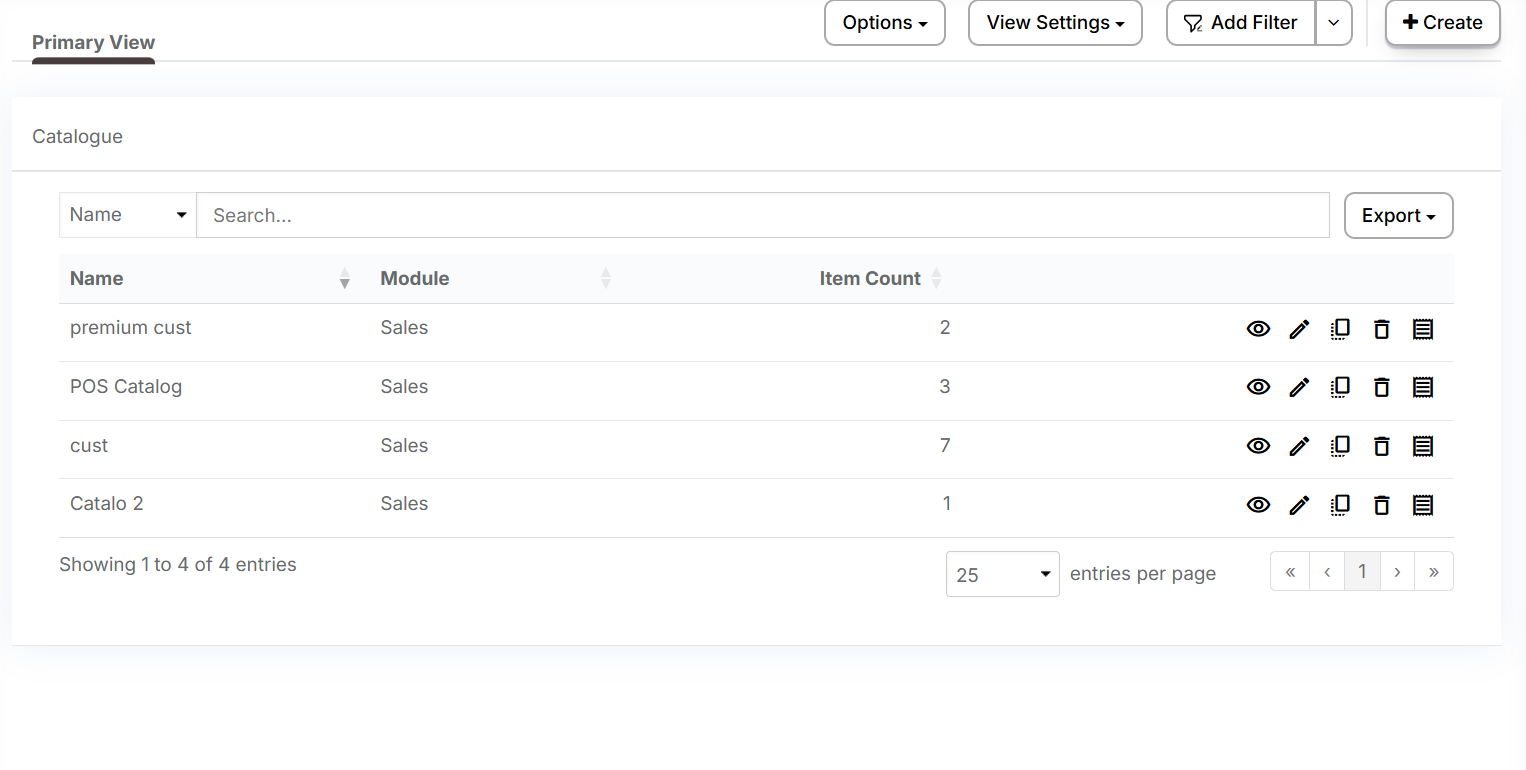
When you click into the Catalogue module, you will be redirected to the Smart View, where all the created catalogues are listed.
The Smart View displays the following details:
- Name – Name of the catalogue
- Module – Indicates whether the catalogue is created for Sales or Purchase
- Item Count – Number of items added under the specific catalogue
Under the Manage section, the following options are available:
- View – View the details of the catalogue
- Edit – Modify the catalogue details
- Clone – Create a duplicate of the catalogue
- Delete – Remove the catalogue
- Log – View activity logs related to the catalogue
On the top-right side of the Smart View, there is a Create button which allows users to create a new catalogue.
Catalogue View
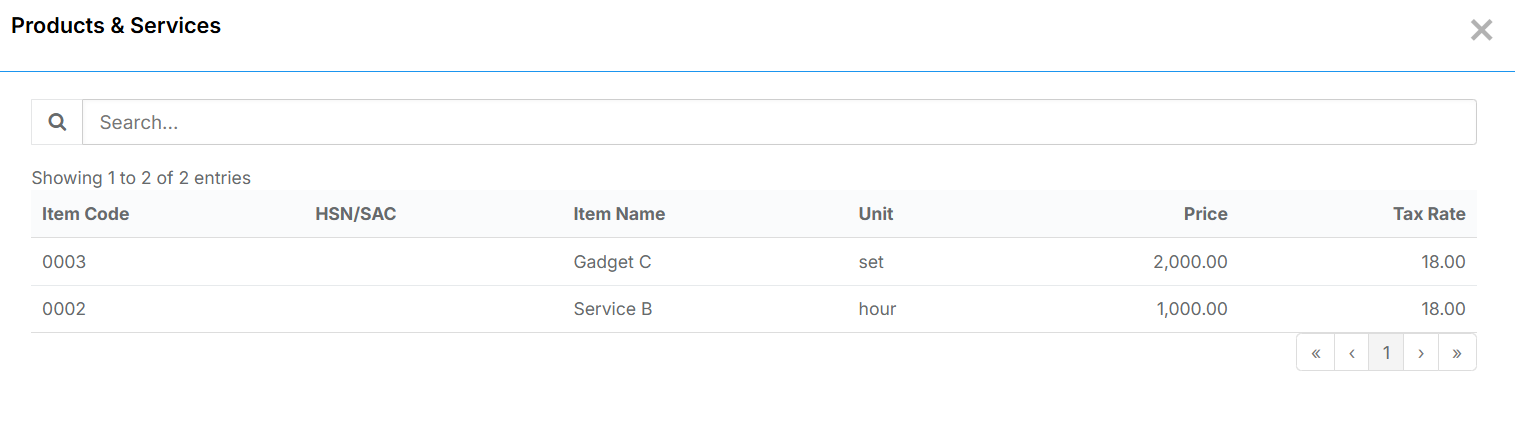
When you click on the View option from the Manage section of a specific catalogue, you will be redirected to the Catalogue Detail View.
In this view, you can see the list of all items added under the selected catalogue along with their details.
The following information is displayed:
- Item Code – Unique code of the item
- HSN/SAC – Tax classification code of the item
- Item Name – Name of the item
- Unit – Unit of measurement of the item
- Price – Price defined for the item in the catalogue
Create Catalogue
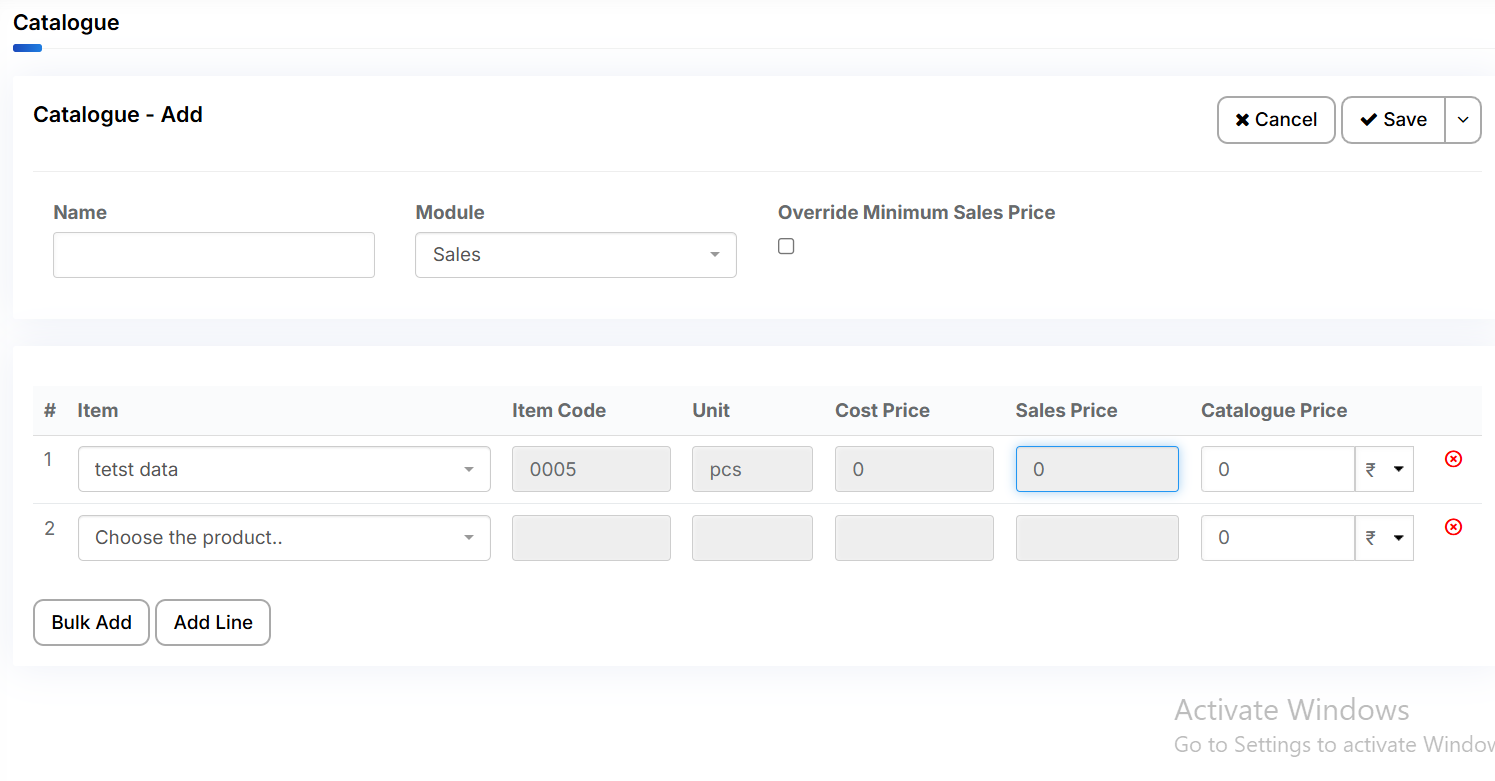
To create a new catalogue, click the Create button located at the top-right side of the Catalogue Smart View. You will be redirected to the Catalogue Creation Form.
Basic Information
- Name – Enter the name of the catalogue.
- Module – Select whether the catalogue is for Sales or Purchase.
- Override Minimum Sales Price –
This option is used when the catalogue price is set below the minimum sales price defined for an item.
- If this option is disabled, transactions cannot be completed below the minimum sales price.
- If enabled, the system allows transactions using the catalogue price even if it is lower than the minimum sales price.
Adding Items to Catalogue
You can add items to the catalogue in the item section.
- Item Code – Automatically fetched
- Unit – Automatically fetched
- Sales Price / Cost Price – Automatically populated based on the item
- Catalogue Price – Enter the price to be applied for this catalogue
Users can define specific pricing for each item by updating the Catalogue Price.
Saving the Catalogue
After entering all the required details, click Save.
The catalogue will be successfully created and added to the catalogue list.
Usage
The created catalogues can be applied to customers or suppliers while creating or editing them. Once applied, the defined catalogue pricing will be used during sales or purchase transactions.
- Tax Rate – Applicable tax rate for the item
This section helps users easily view and manage all items included in a specific catalogue along with their assigned pricing.
Last updated: July 24, 2026