Inventory Adjustment
The Inventory Adjustment module is used to record and manage stock changes that are not directly linked to sales, purchases, or customer transactions.
This module helps in handling situations such as:
- Damaged or defective stock
- Expired items
- Stock corrections due to counting differences
- Clearance of dead or unused stock
By using inventory adjustments, businesses can ensure that the actual stock quantity matches the system records, maintaining accurate inventory tracking and reporting.
When you click on the Inventory Adjustment module, you will be redirected to the Inventory Adjustment Smart View, where all the created inventory adjustments are listed.
The Smart View displays the following details:
- ID – Unique Inventory Adjustment ID
- Date – Date on which the inventory adjustment was created
- Narration – Description or reason for the adjustment
- Created By – Name of the user who created the adjustment
Under the Manage section, the following options are available:
- View – View the details of the adjustment
- Edit – Modify the adjustment
- Delete – Remove the adjustment
- Log – View activity logs related to the adjustment
On the top-right side of the Smart View, there is a Create button to create a new inventory adjustment.
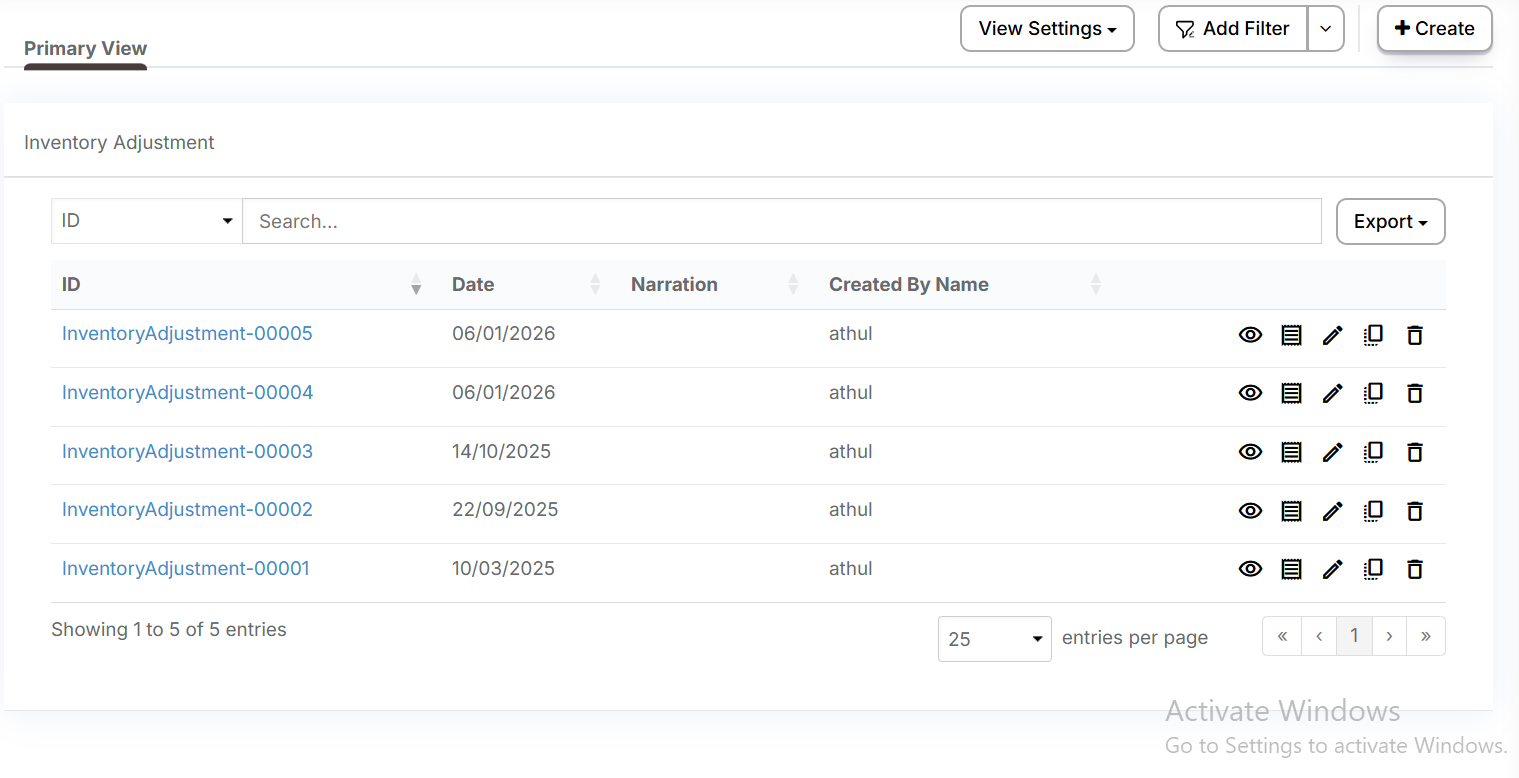
Inventory Adjustment View
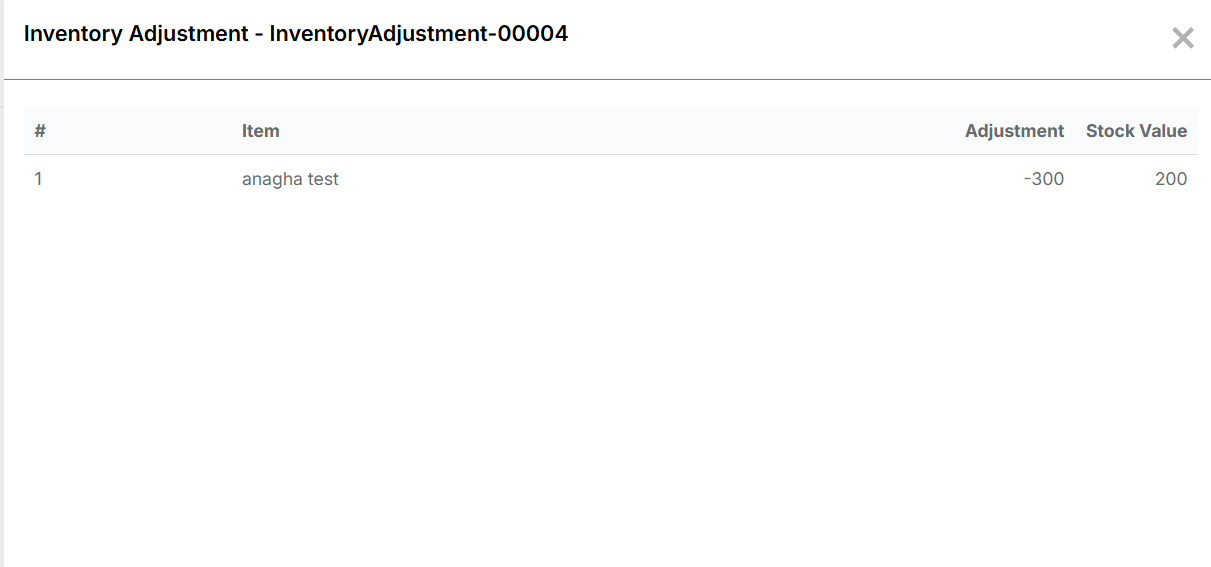
When you click on the View option from the Manage section of a specific inventory adjustment, you will be redirected to the Inventory Adjustment Detail Page.
In this view, you can see the complete details of the selected adjustment.
The following information is displayed:
- Adjustment Number – Unique reference number of the adjustment
- Stock Name – Name of the item for which the adjustment is made
- Adjustment Quantity – Quantity adjusted (increase or decrease)
- Stock Value – Value of the adjusted stock
This section helps users clearly understand the changes made to inventory and track stock corrections effectively.
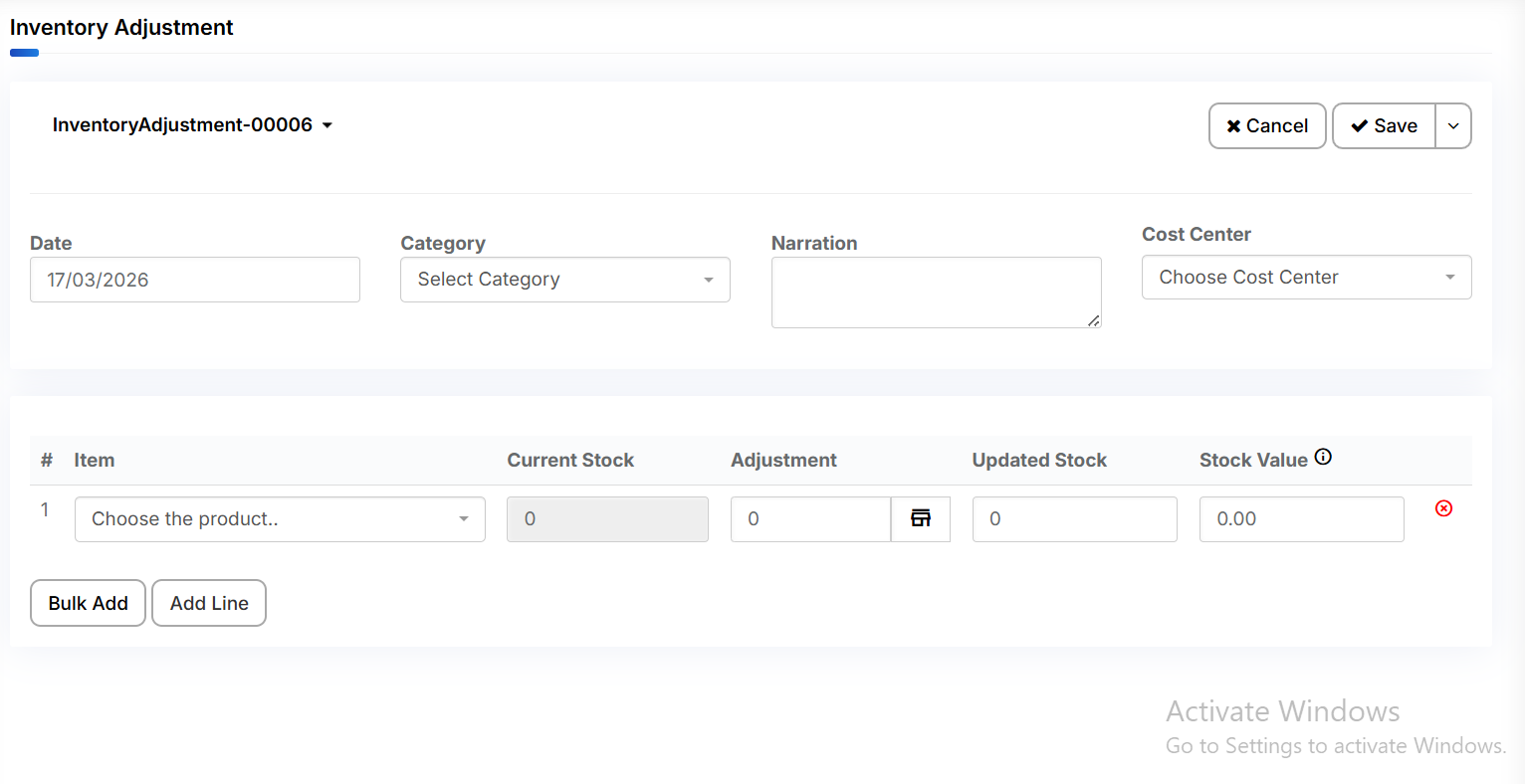
Create Inventory Adjustment
When you click on the Create button, you will be redirected to the Inventory Adjustment Creation Form, where you can record new inventory adjustments.
Basic Information
- Date – Automatically populated with the current date (can be modified if required)
- Narration – Enter the reason or description for the adjustment
- Cost Center – Select the relevant cost center, if applicable
- Category – Used to classify the adjustment for accounting purposes, helping in proper financial tracking and reporting
Item Adjustment Details
In the item section, you can define the adjustment details:
- Item – Select the item for which the adjustment is to be made
- Current Stock – Displays the existing stock quantity (non-editable)
- Adjustment Quantity – Enter the quantity to be adjusted (increase or decrease)
- Updated Stock – Automatically calculated based on the adjustment quantity
Saving the Adjustment
After entering all the required details, click Save.
The inventory adjustment will be recorded, and the stock will be updated accordingly.
The created adjustment will also be reflected in the Inventory Adjustment Smart View for future reference and tracking.
Last updated: July 24, 2026