Sales Order
Sales Orders are used to reserve stock for the customer once the sales agreement is confirmed. It records the details of the products or services requested by the customer, including quantities, pricing, taxes, and delivery information. The Sales Order helps the business prepare the items for delivery and ensures that the required stock is allocated for that customer. It also acts as an intermediate step in the sales workflow, allowing the order to be processed further through documents such as Delivery Notes or Invoices. A Sales Order is created after the order is confirmed. It records the customer's request for products or services and helps reserve the required stock for that order. This document is used internally to manage order processing before delivery.
Creating a Sales Order
Navigate to:
Proforma Invoice → Convert → Sales Order

The Sales Order Creation Page opens.
Sales Order Form
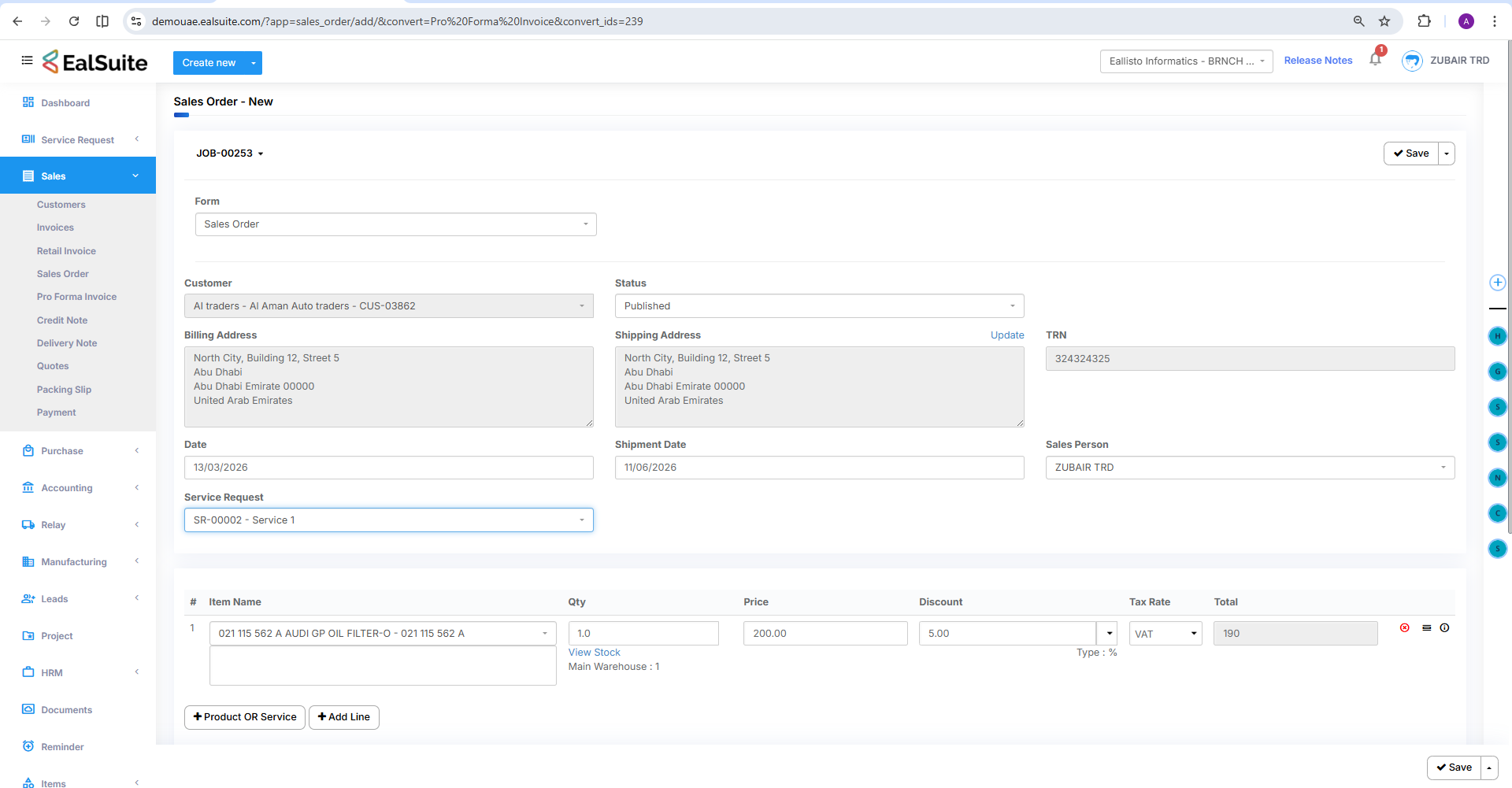
Fields include:
| Field | Description |
|---|---|
| Customer | Auto populated from the proforma invoice. |
| Status | Select sales order status. |
| Billing Address | Auto populated from customer details. |
| Shipping Address | Auto populated; can be updated using the Update link. |
| TRN | Auto populated. |
| Date | Select sales order date. |
| Shipment Date | Select shipment date. |
| Project | Select project from dropdown. |
| Sales Person | Select responsible user. |
| Service Request | Select related service request. |
Item Table
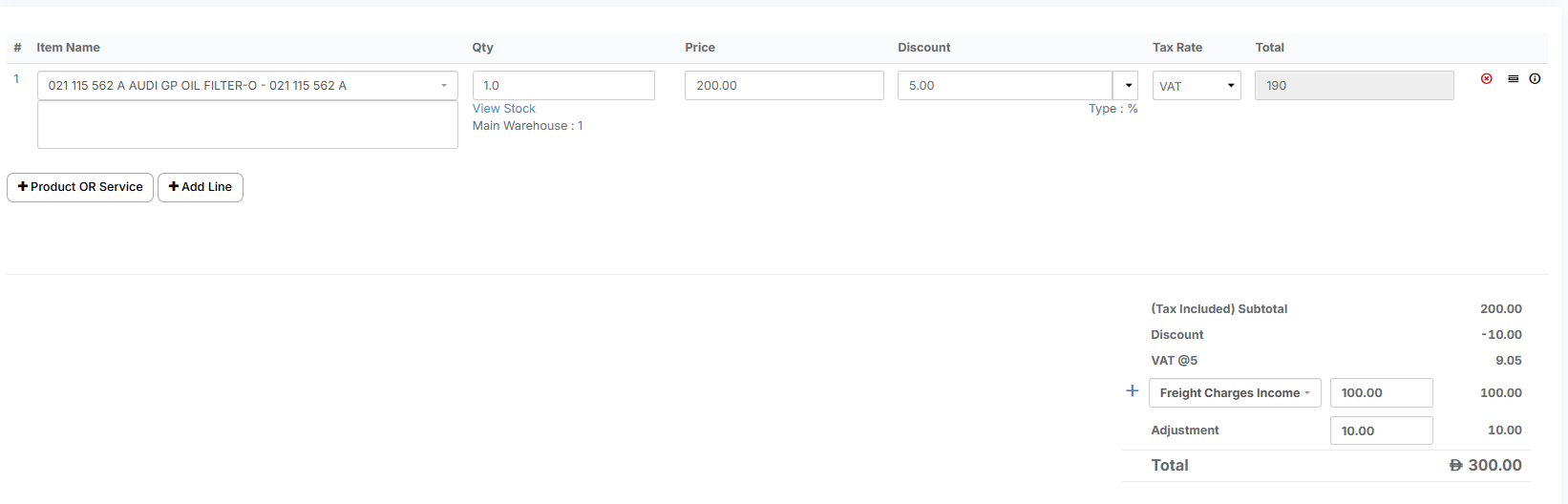
The Item Table is used to add items to the Sales Order.
- Select the Item and enter the Quantity, Price, Discount, and Tax Rate.
- The Total amount for each item is calculated automatically based on the entered values.
- Based on the item details, the system calculates the overall Subtotal, Discount, Tax, and Total for the document.
Additional Fields

The form also includes additional fields:
- Expense Category – Used to add any additional expenses related to the sales order.
- Adjustment – Used to manually adjust the final amount if required.
Terms

Select terms from the Terms dropdown.
After Submission
Click Submit.
The system redirects to the Sales Order View Page.
Sales Order View Page
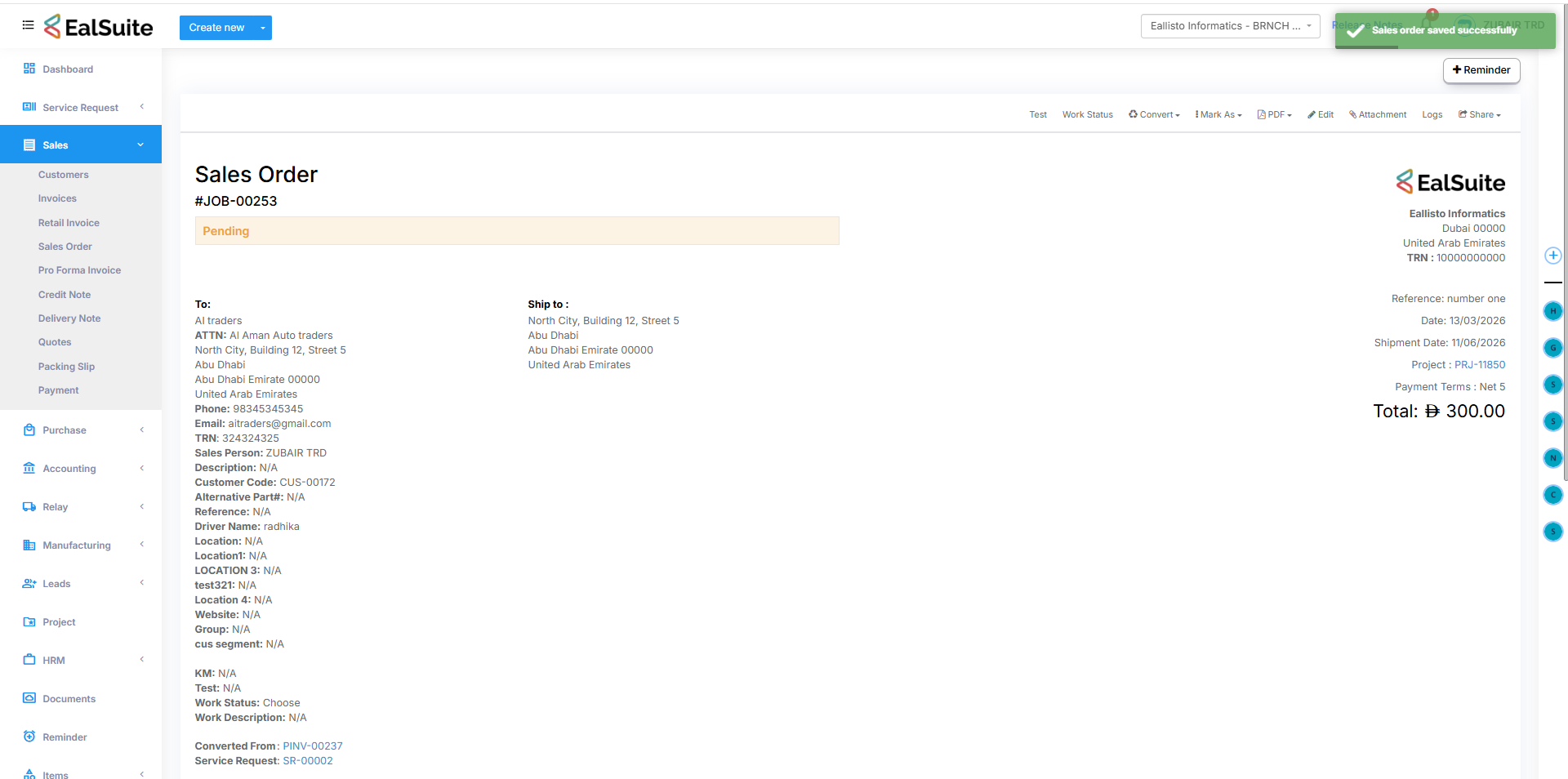
After submission, the Sales Order View Page displays the complete sales order details. It can also be accessed from the Sales Order Smart View Page by clicking on the Sales Order ID, which redirects the user to the detailed view of that specific sales order. A Delivery Note is created when goods are delivered to the customer. It records the details of the delivered items and helps track the movement of goods. The delivery note also updates the inventory by reducing the delivered quantities from stock.
Top Action Menu

The following options are available in the top menu.
Convert

The Convert dropdown contains:
- Convert to Invoice
- Convert to Delivery Challan
Mark As

Used to update the sales order status.
Available options include:
- Pending
- Cancelled
PDF
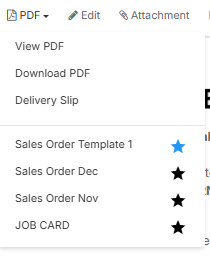
The PDF dropdown contains:
- View PDF
- Download PDF
- Create Delivery Slip
When Create Delivery Slip is selected:
A popup appears where the user can confirm the details and click Submit to generate the delivery slip.
Edit
Used to modify the sales order.
Attachment
Upload related documents.
Logs
Displays activity logs.
Share
The Share dropdown includes:
- Share Unique Link
- Preview Bill
Body Section
The main section of the page displays the sales order details.
Information includes:
Basic Details
Displays the main sales order information and customer details.
Converted From

Displays the source document from which the sales order was created.
Example: Converted From → Proforma Invoice
Item Details Table

Displays the list of items included in the sales order.
The table shows:
- Item
- Quantity
- Price
- Total
Below the table the system displays:
- Subtotal
- Tax
- Total
Amount in Words

The total amount of the sales order is displayed in words.
Example: Zero Dirhams Only
Terms Section

Displays the Terms and Conditions selected during the sales order creation.
The terms shown here are based on the term selected from the Terms List while creating the sales order.
Sales Order Smart View Page
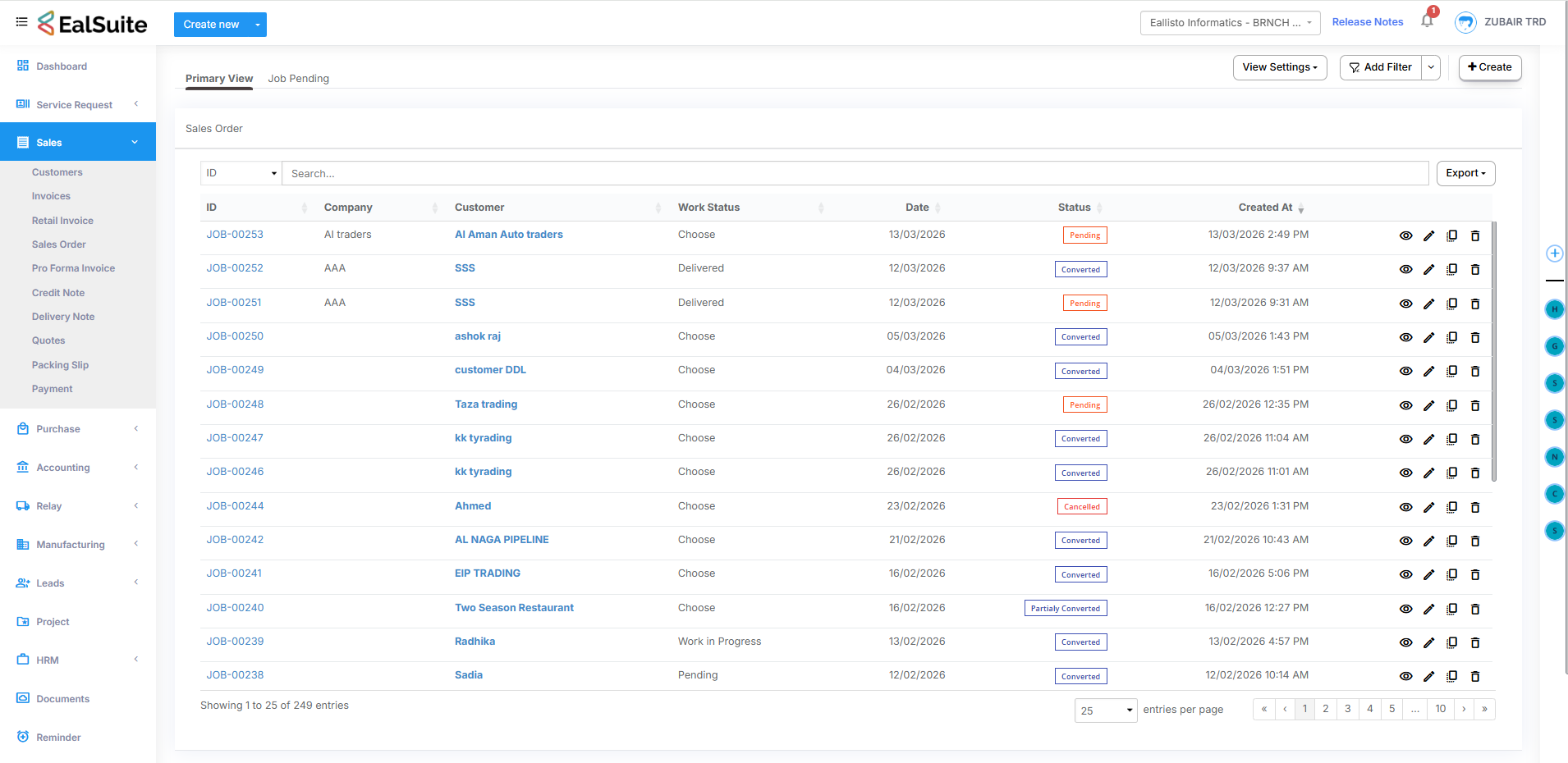
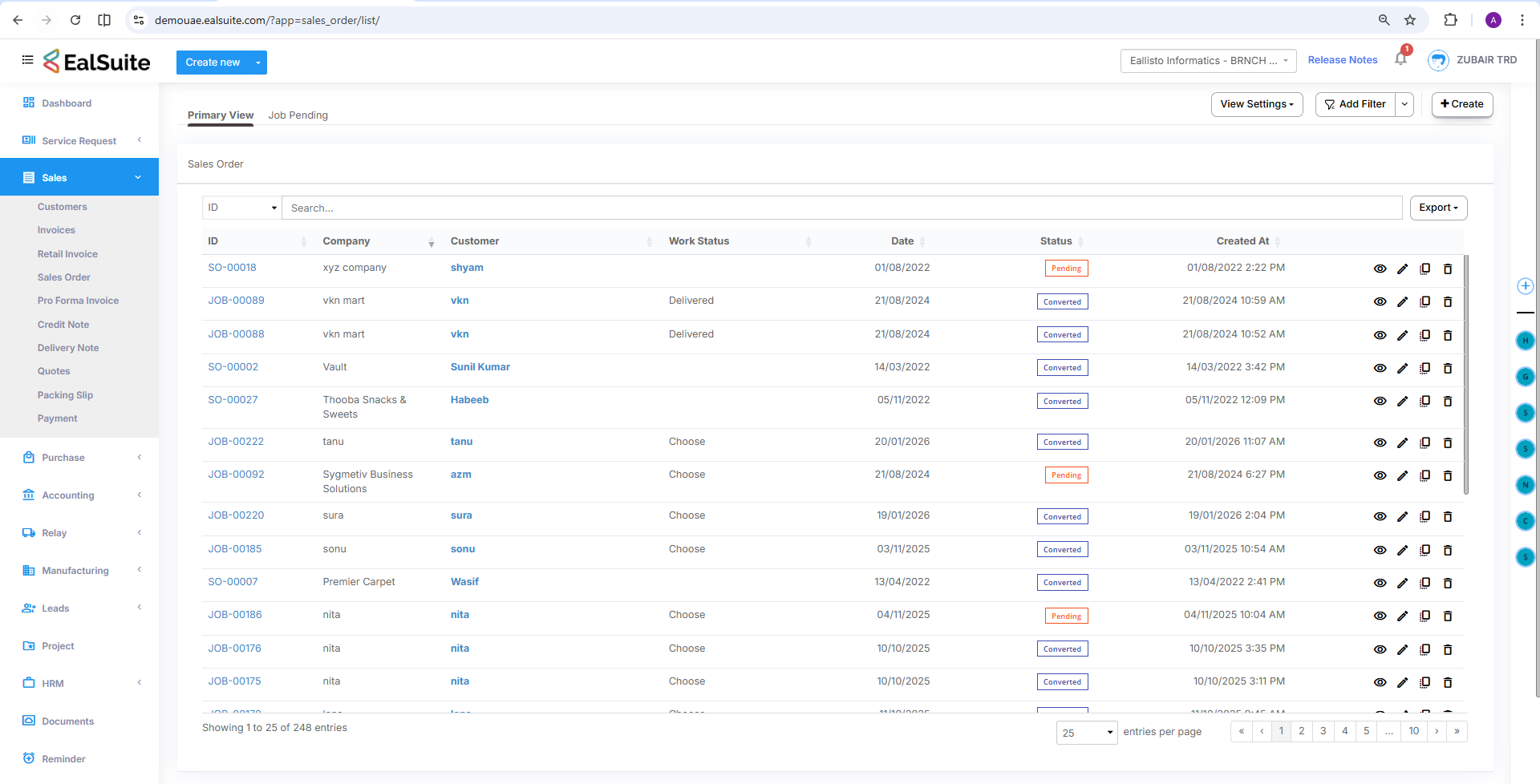
The Sales Order Smart View Page displays the list of all created sales orders.
From this page users can:
- View sales orders
- Access order details
- Manage existing sales orders
Last updated: July 24, 2026