Quote
The Quote module is used to create and send quotations to customers before confirming a sale. A quote includes product details, pricing, taxes, discounts, and terms, allowing customers to review the offer before placing an order. Quotes can be created directly from the Quote submodule or from related modules such as the Customer View Page, and once accepted, they can be converted into further sales documents such as Proforma Invoice, Sales Order, or Invoice. A Quote is used to provide a price proposal to the customer before confirming the sale. It includes details such as items, quantities, prices, taxes, and terms. Quotes help customers review the offer before placing the order and do not affect stock or financial records until they are converted into further sales documents.
Creating a Quote
To create a quote:
- Navigate to Sales → Quote

- Click Create

- The Quote Creation Form will open
Quote Creation Form
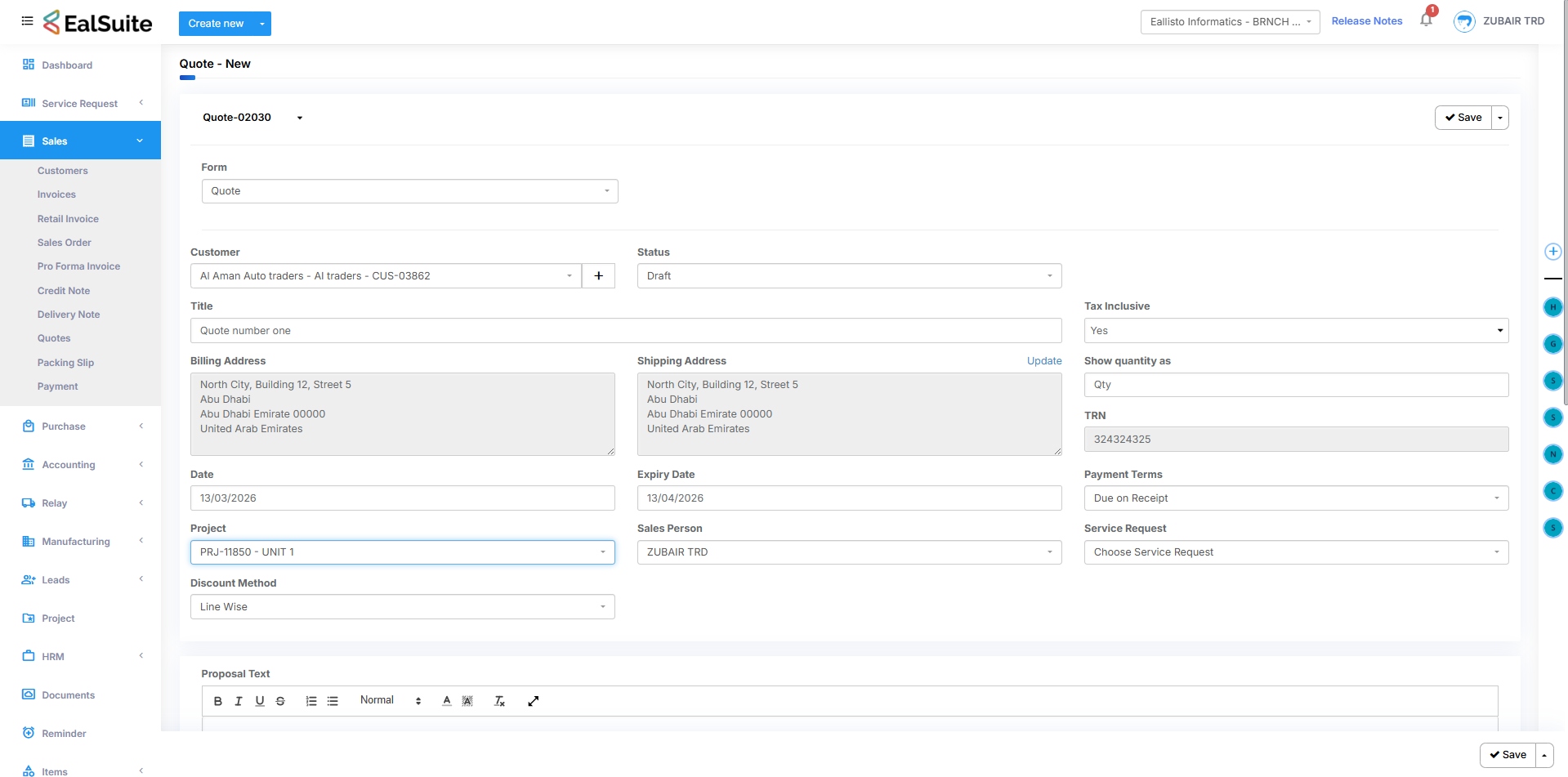
Enter the following details:
| Field | Description |
|---|---|
| Series | Select serial number (from Series Manager). |
| Form | Select configured quote form. |
| Customer | Select existing customer (option available to add customer from this page). |
| Status | Select quote status: • Draft • Published • Delivered • Accepted • Lost |
| Title | Enter quote title. |
| Billing Address | Auto populated from selected customer. |
| Shipping Address | Auto populated; can be modified if required. |
| Tax Inclusive | Enable or disable tax inclusive pricing. |
| Show Quantity As | Select quantity display format (Text). |
| Date | Select quote date. |
| Expiry Date | Select validity date of the quote. |
| Payment Terms | Select payment terms. |
| Project | Select project from dropdown. |
| Sales Person | Select user responsible for the quote. |
| Service Request | Select related service request. |
| Proposal Text | Content entered in this text editor is displayed at the top of the quote and supports formatting and styling options. |

- Discount Method – Choose discount calculation method:
- Line-wise : Discount is applied individually to each item.
- Bill-wise Before Tax : Discount is applied before tax calculation.
- Bill-wise After Tax : Discount is applied after tax calculation.
Item Table
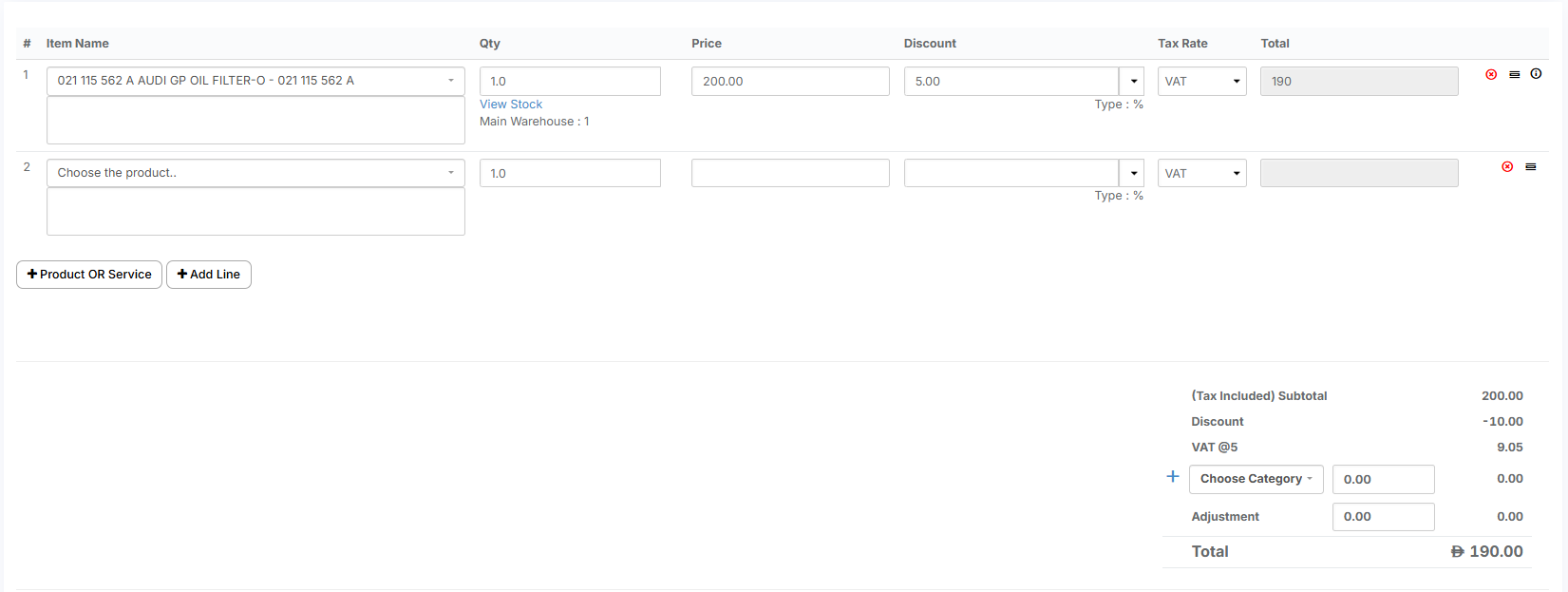
Items can be added to the quotation through the Item Table.
- The table contains fields such as Item Number, Image, Item, Quantity, Unit, Price, and Taxable Value.
- Users can select the required item and enter the quantity and price.
- If applicable, discount and tax rate can also be entered.
- Based on the entered values, the system automatically calculates the Subtotal, Discount, Tax, and Total.
- An Expense option is available to add additional charges if required.
- An Adjustment field is provided to enter any manual adjustment amount.
Terms

Select the required Terms from the Terms list.
After Submission
Click Submit.
The system redirects to the Quote View Page.
Quote View Page
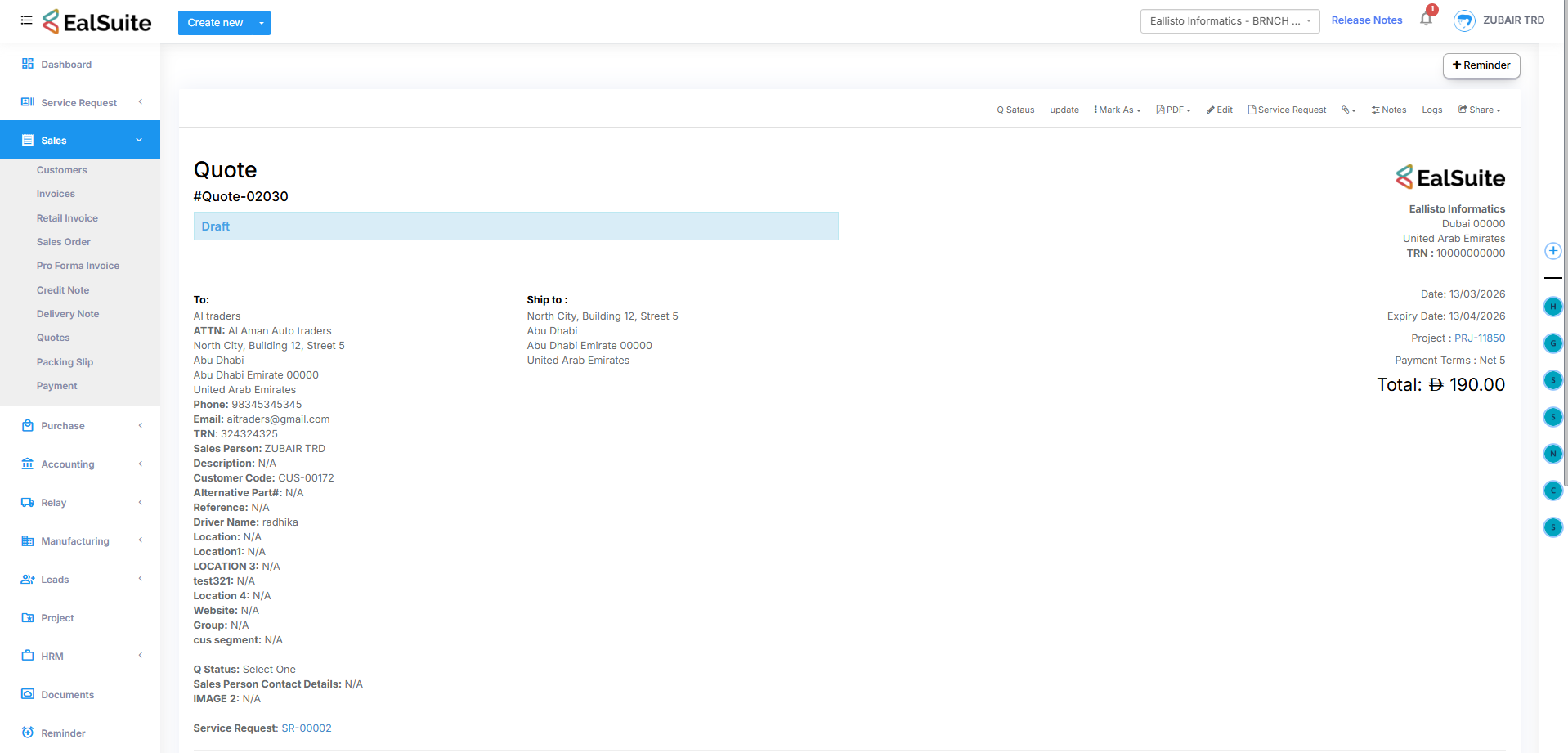
The Quote View Page displays the complete details of the quotation. It can be accessed by clicking the Quote ID from the Quote Smart View Page, which redirects the user to the detailed view of that specific quote.
The Quote View Page displays all quotation details.
Available Actions

- Mark As
- Edit
- Service Request
- Attachment
- Notes
- Logs
- Share
- Reminder
Mark As

The Mark As option is used to update the status of the quotation based on its progress in the sales process.
Available quote statuses include:
- Draft
- Published
- Delivered
- Accepted
- Lost
Draft → Published
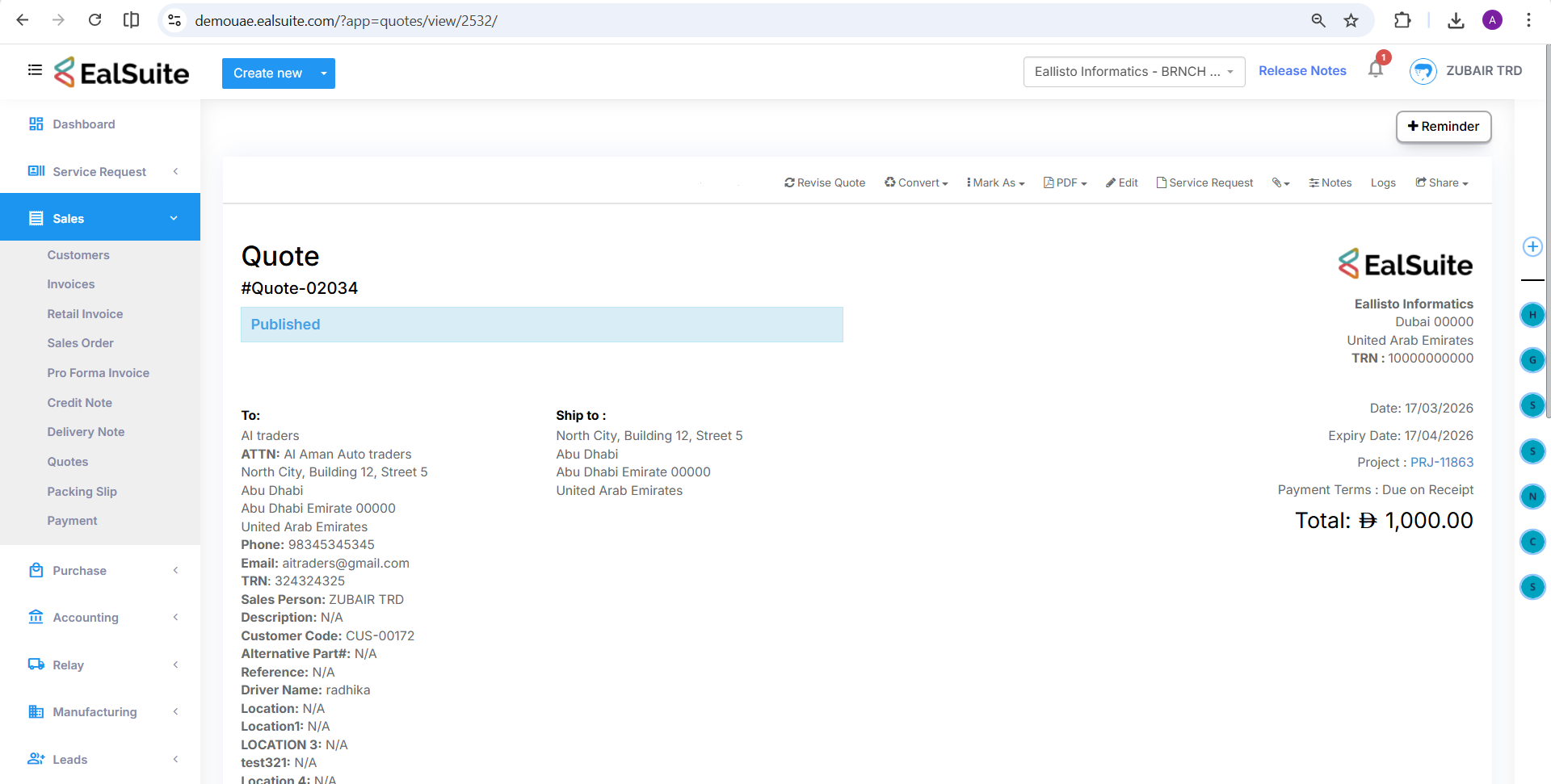
When the quotation status is changed from Draft to Published, additional actions become available to manage and refine the quotation.
Revise Quote

The Revise Quote option is used to create an updated version of the existing quotation.
- A new revised quote is created.
- The original quote becomes the Master Quote.
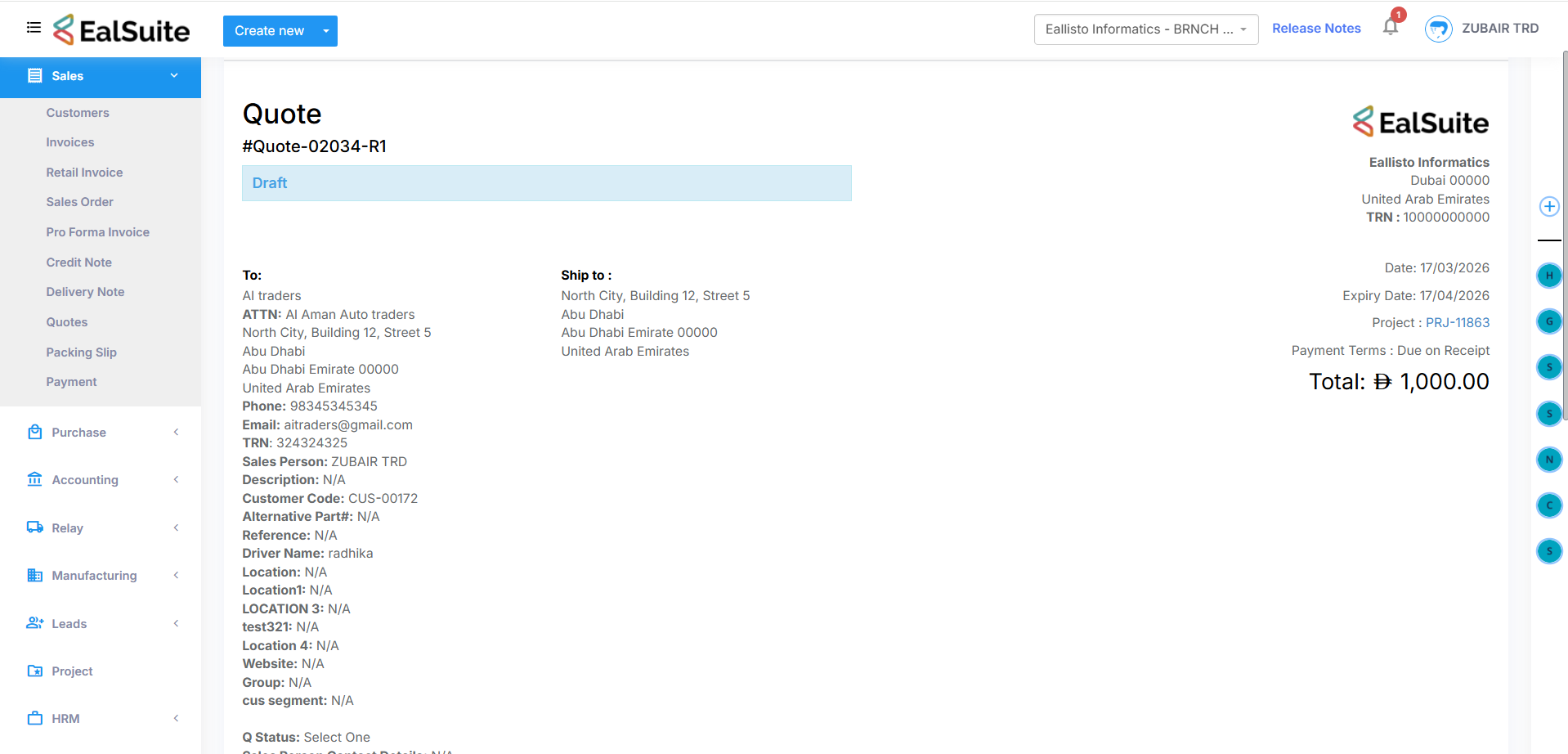

- The revised quote can be edited with updated details such as pricing, items, or terms.
- All further changes and processing should be continued using the revised quote.
This helps maintain version control and ensures that the original quotation remains unchanged while updates are tracked separately.
When the quotation status is updated to Accepted, the Convert option becomes available in the action menu.
Convert Options

The Convert option allows the quotation to be converted into other sales documents.
Once the quote status is marked as Accepted, the following conversion options are available:
- Convert to Proforma Invoice
- Convert to Invoice
- Convert to Sales Order
- Convert to Delivery Note
For the recommended sales workflow, the quote is typically converted to a Proforma Invoice.
Recommended Workflow
Accepted Quote → Proforma Invoice
This ensures that advance payment is collected before proceeding with further sales processing.
Last updated: July 24, 2026