Credit Note
Credit Notes are used to issue refunds or adjust customer credits when there are returns, billing corrections, or overpayments. This document records the amount that needs to be credited back to the customer and helps maintain accurate financial records. The credited amount can either be refunded to the customer or applied to future invoices, allowing businesses to manage adjustments and customer balances efficiently.
A Credit Note is used to record refunds or adjustments for a customer due to returns, billing corrections, or excess payments. The credited amount is reflected in the customer’s account and financial reports, and it can either reduce the outstanding invoice amount or be applied to future invoices.
Creating a Credit Note
Credit Notes can be created directly from the Invoice Page.

Click Credit Note.
The Credit Note Creation Page opens.
Credit Note Form
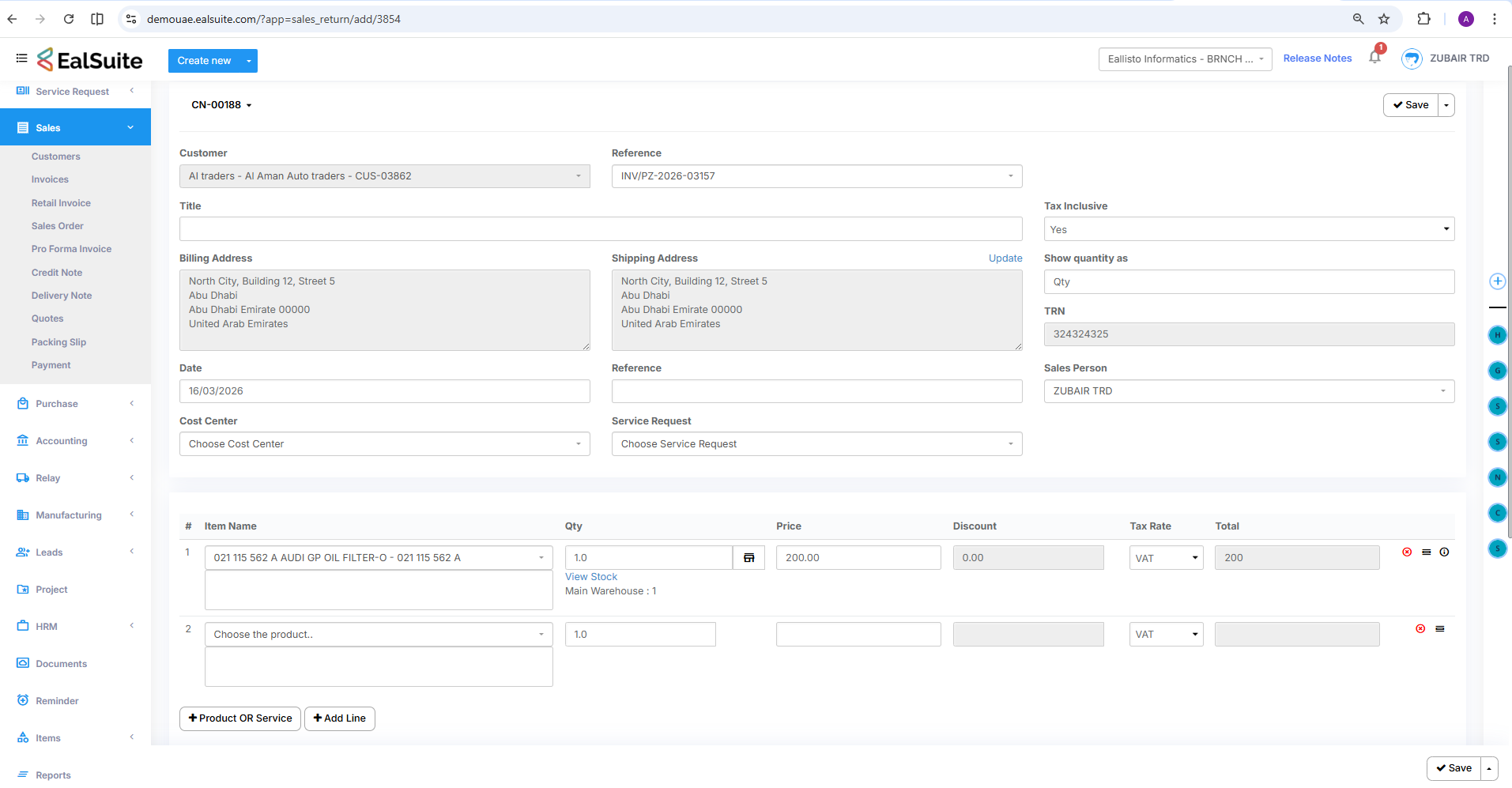
Fields include:
- Customer Name
- Reference
- Title
- Tax Inclusive
- Billing Address
- Shipping Address
- Show Quantity As
- TRN
- Date
- Sales Person
- Cost Center
- Service Request
Item Table
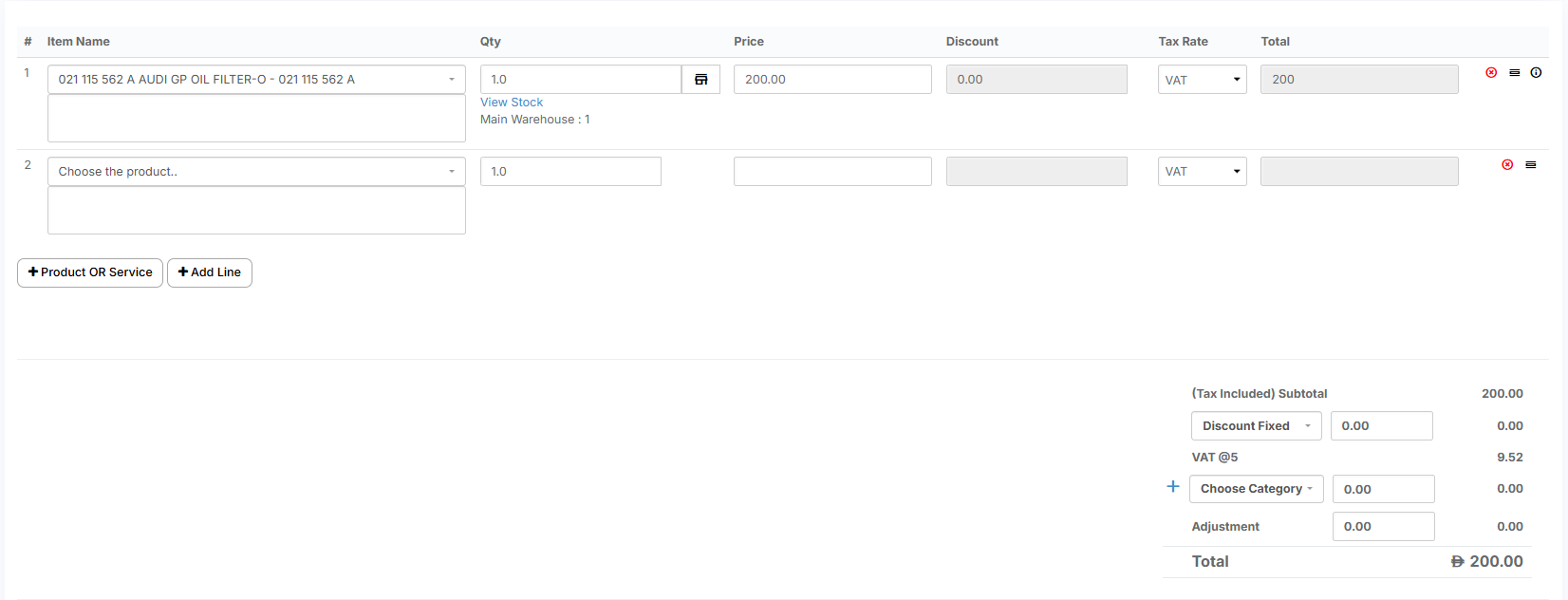
The Item Table is used to add and manage items in the Credit Note.
- It contains fields such as Item, Quantity, Price, Discount, Tax Rate, and Total.
- Users can select the Item and enter the Quantity, Price, Discount, and Tax Rate.
- The Total for each item is automatically calculated based on the entered values.
- Based on the item details, the system calculates the overall Subtotal, Discount, Adjustment, and Total for the credit note.
Terms Section
Users can select terms from the Terms List.

Submission
Click Submit.
The system redirects to the Credit Note View Page.
Credit Note View Page
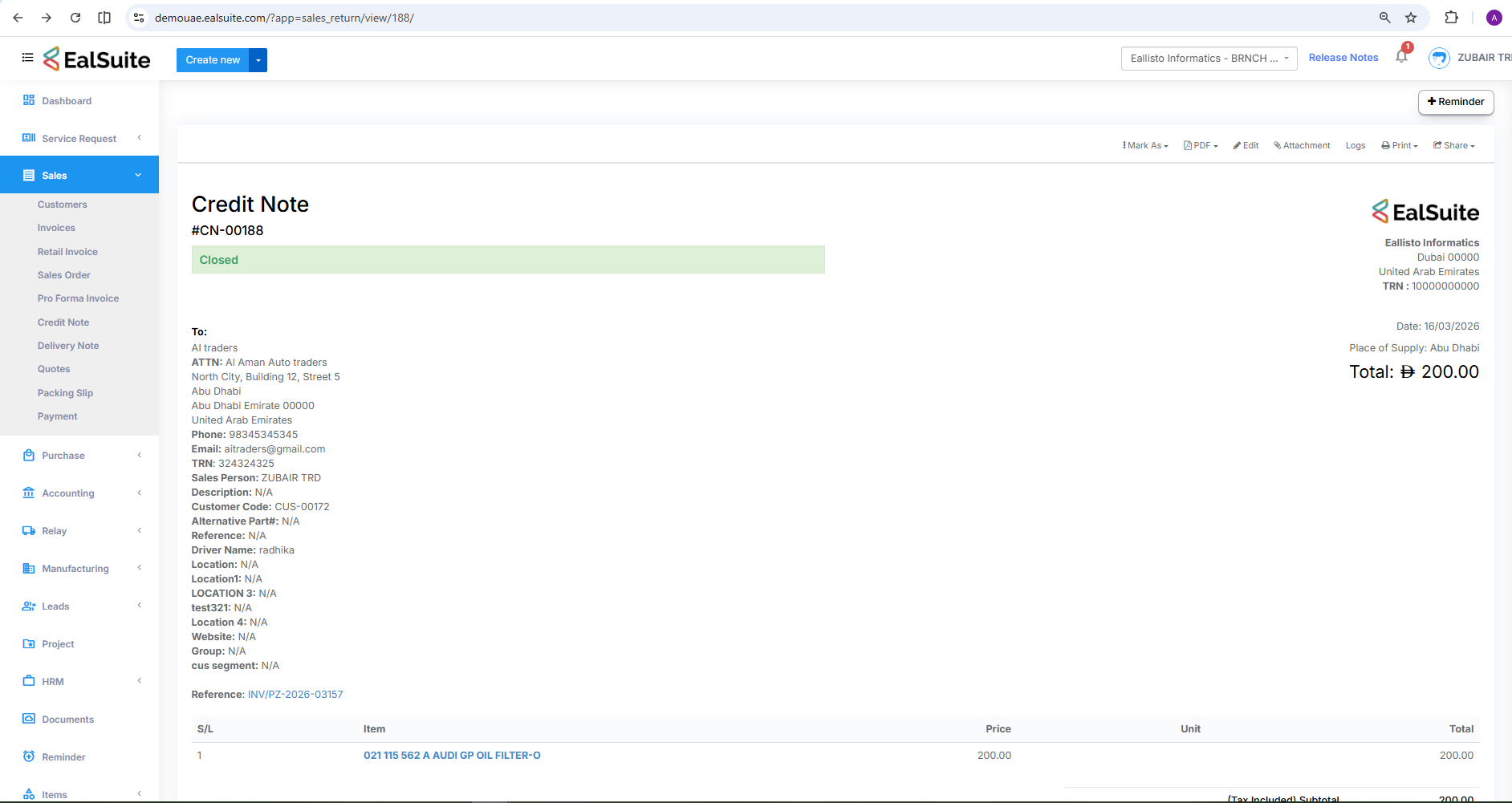
After creating a credit note, the Credit Note View Page displays the complete credit note details along with the available actions.
Top Action Menu

The top action menu provides options to manage the credit note.
Mark As

Used to update the status of the credit note.
Available option:
- Cancelled
PDF

Used to view or download the credit note in PDF format.
The PDF dropdown includes:
- View PDF
- Download PDF
- List of available Credit Note Templates created from Template Builder V2
Edit
Used to modify or adjust the credit amount if required.
Logs
Displays the activity logs related to the credit note.
Print
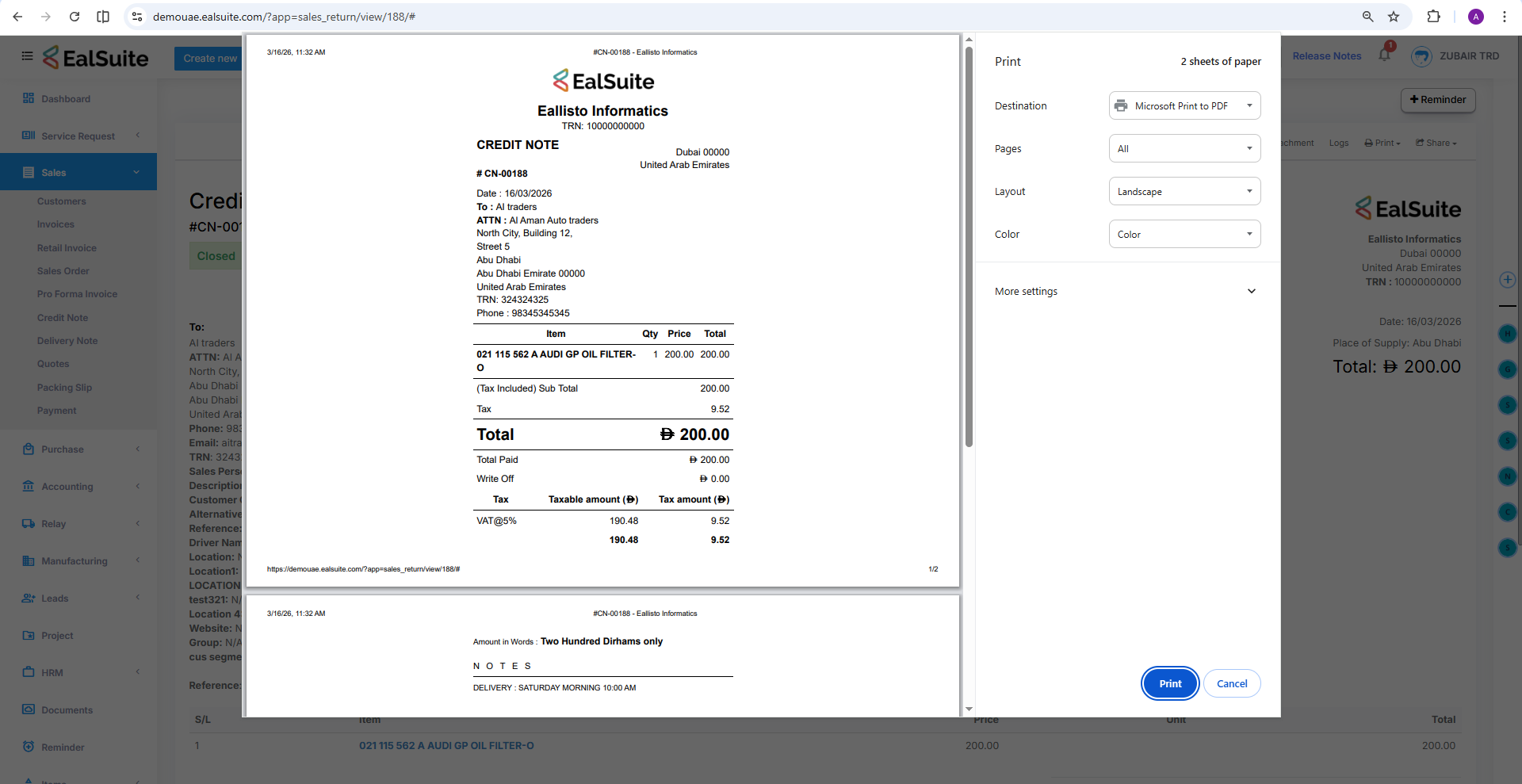
Used to print the credit note.
The Print dropdown includes:
- List of available print templates created from Template Builder Thermal Print
Share

Used to share the credit note with the customer.
The Share dropdown includes:
- Share Unique Link
- Preview Bill
Credit Note Body Section
The body section displays the main credit note details.
Basic Details
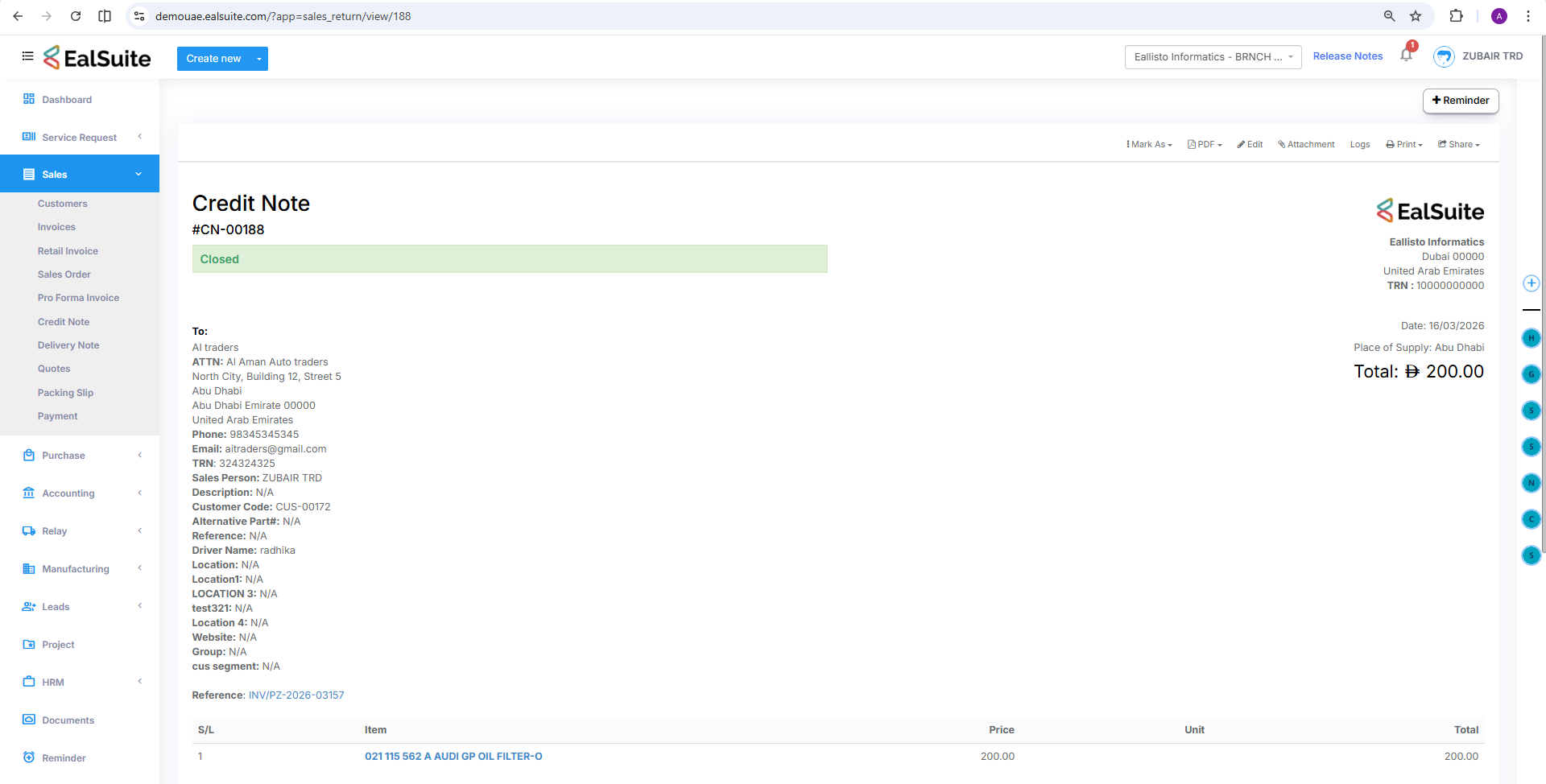
Shows the credit note information and customer details.
Reference

Displays the reference document associated with the credit note.
Item Table
Displays the items included in the credit note.
- The table includes Item, Quantity, Price, Discount, Tax Rate, and Total.
- The values are automatically calculated based on the entered details.
Below the item table, the system displays:
- Subtotal
- Tax
- Total

Amount in Words

Displays the total credit note amount written in words.
Example: Zero Dirhams Only
Apply Credits

If credits are available for the customer, the Apply Credits option appears at the top.
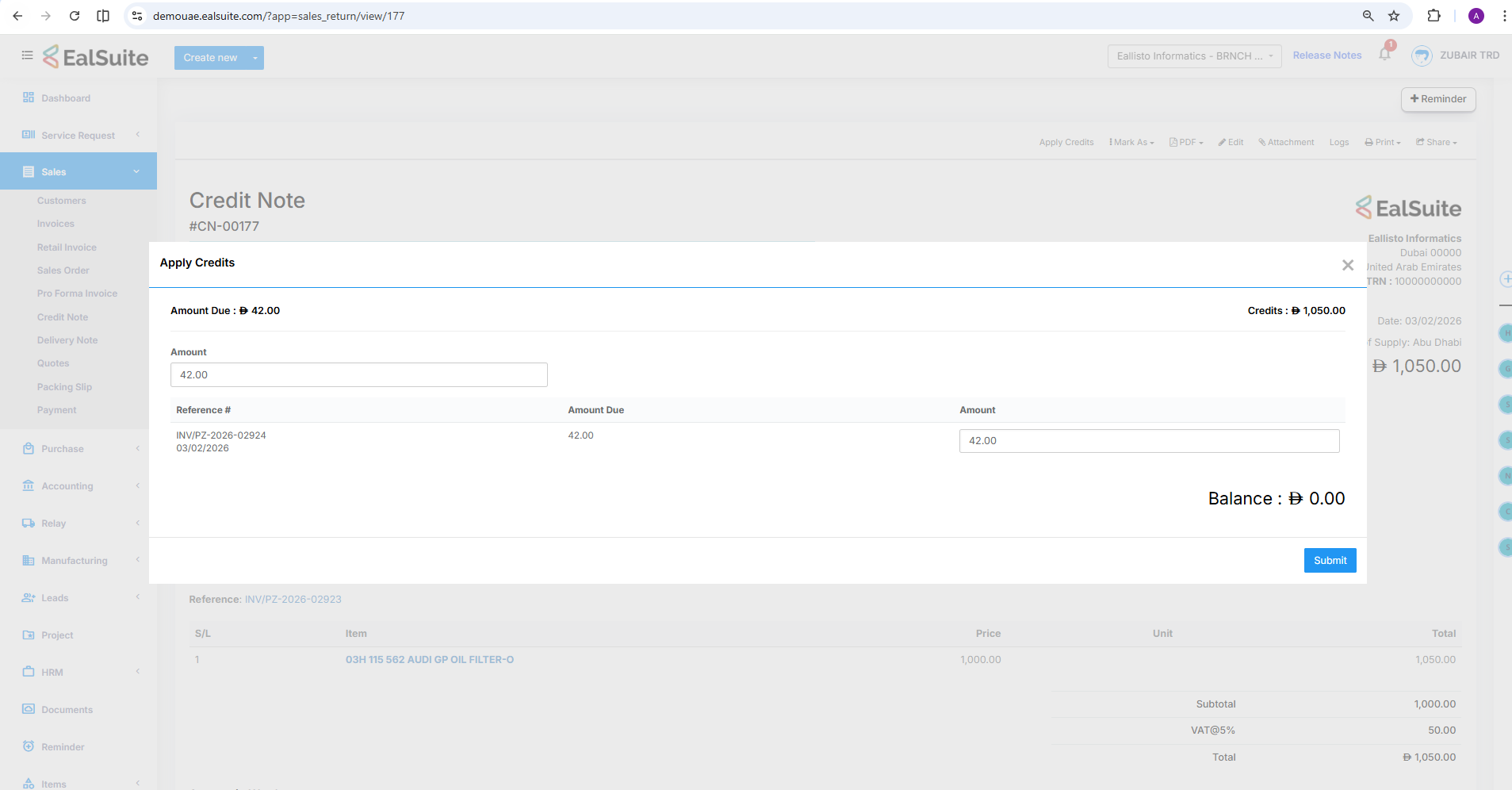
When Apply Credits is selected:
- The system displays invoices that have amount due.
- The available credit can be split across those invoices.
After allocation:
Click Submit.
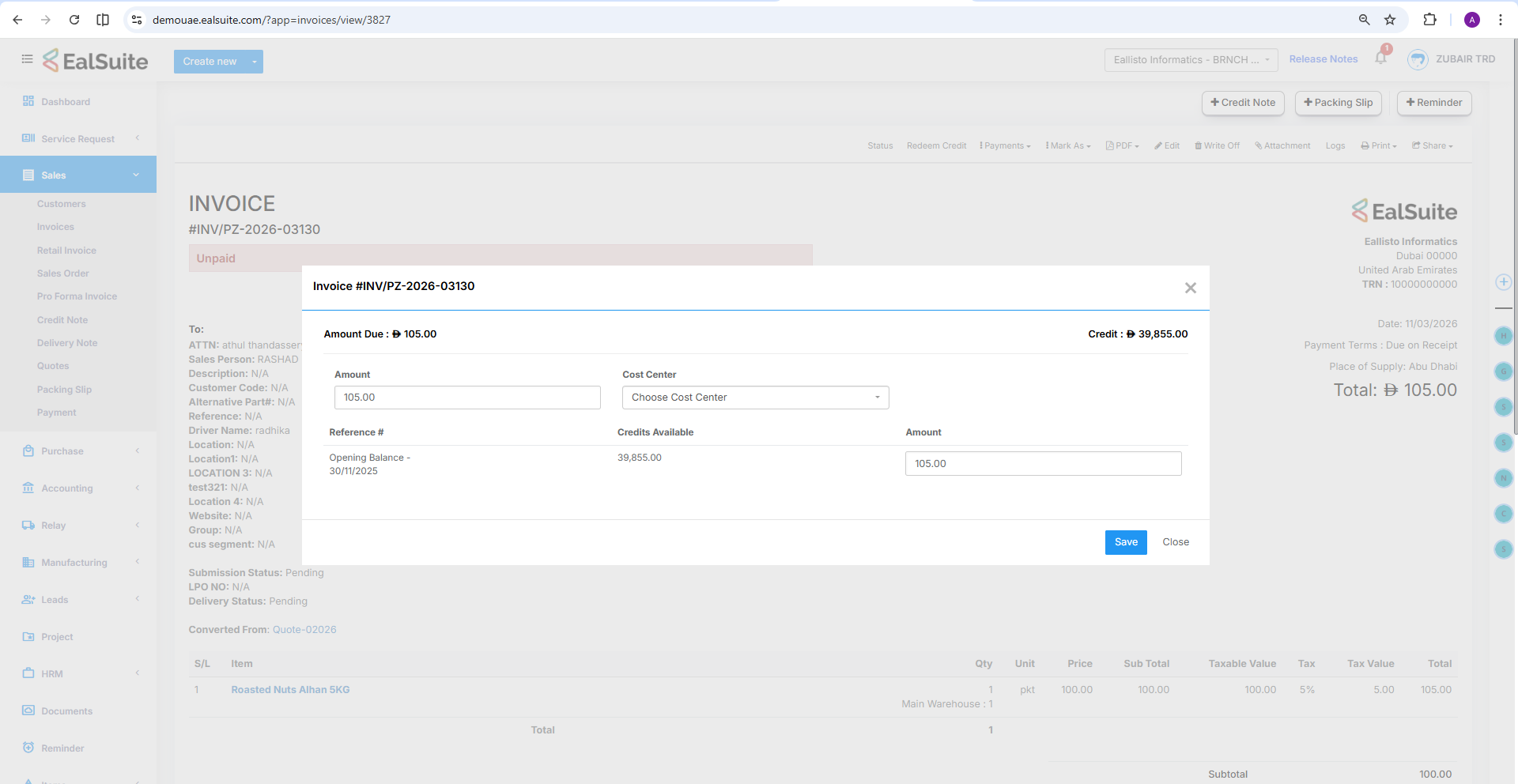
Redeem Credits

When the customer makes a future purchase:
- The Credit Note amount can be adjusted against the new invoice.
From the Invoice window, select:
Redeem Credits
The credit will be applied to the invoice balance.
Last updated: July 24, 2026