Lead Preference
Lead Appointment Mail
The Appointment Mail section allows you to manage the default email content used for lead appointments in EalSuite.
Managing Appointment Mail
When you open the Appointment Mail settings page:
- The default appointment mail content is displayed
- You can edit the email content as needed
- Click Submit to save the changes

Using Appointment Mail in Lead Appointments
- While creating a Lead Appointment, enable Send Appointment Mail
- Once enabled:
- An Email Body field will appear
- A CC field will also be available
- The updated appointment mail content will be automatically shown in the Email Body field
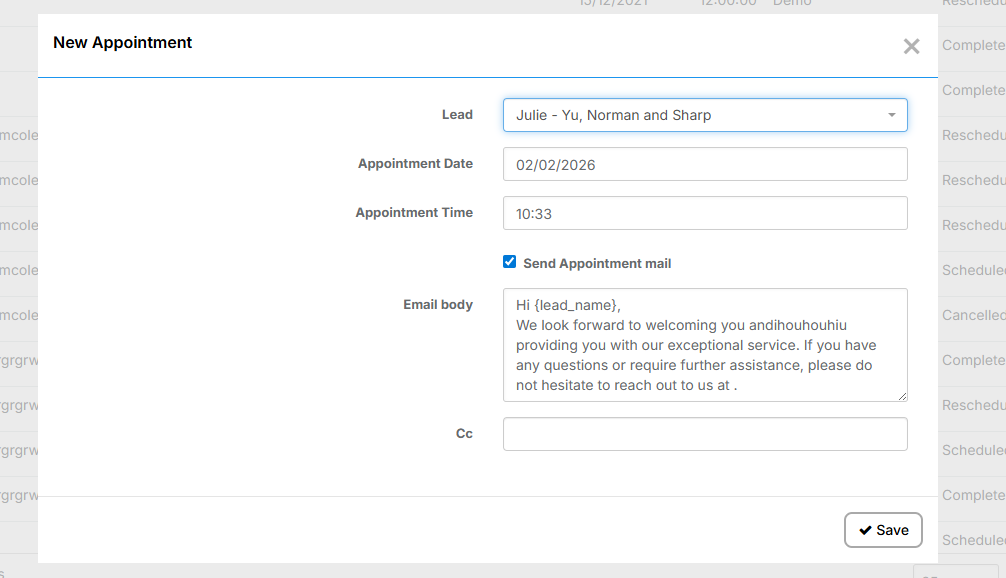
This helps ensure consistent and professional communication for lead appointment notifications.
Lead Source
A Lead Source refers to the channel or origin from which a lead is acquired. It helps identify how potential customers came to know about your business, such as through referrals, advertisements, websites, campaigns, or direct contact.
The Lead Source section allows you to create and manage these sources in EalSuite, making it easier to track and analyze lead generation channels.
Managing Lead Sources
When you open the Lead Source settings page:
- A list of already created lead sources is displayed
- In the Manage section, you can:
- Set Default – Mark a source as the default selection
- Delete – Remove an existing source

Creating a Lead Source
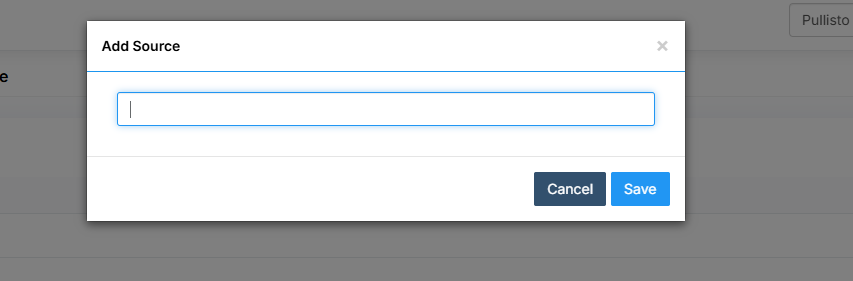
- Click the Add button
- A popup window will appear
- Enter the Source Name
- Click Submit to save or Cancel to discard
The newly created lead source will be added to the list.
Using Lead Sources in Leads
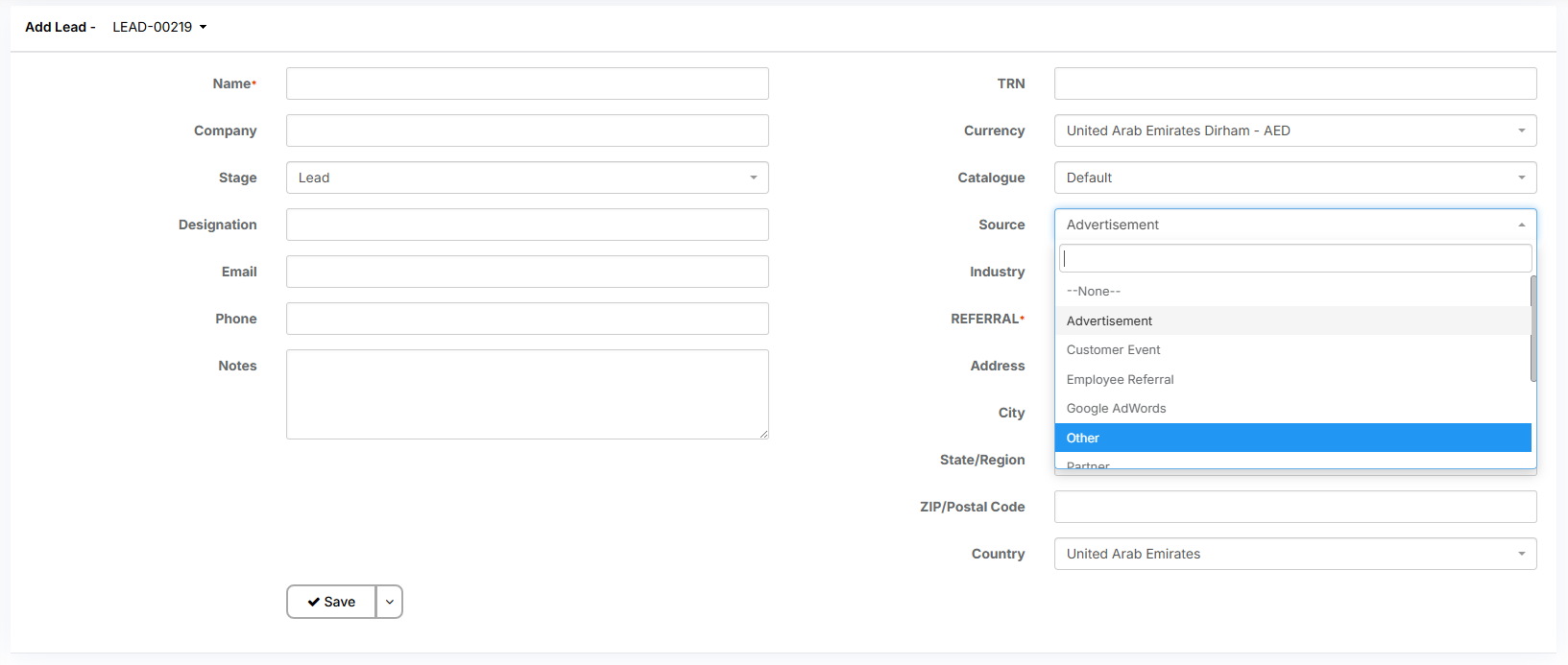
- While creating a Lead, a Source field is available in the lead creation form
- The Source dropdown displays all created lead sources
- Select the appropriate source to indicate where the lead originated from
Lead Industry
A Lead Industry represents the business sector or industry to which a lead belongs. It helps categorize leads based on their line of business, such as IT, Healthcare, Manufacturing, Retail, Education, and more.
The Lead Industry section allows you to create and manage industry types in EalSuite for better lead classification and analysis.
Managing Lead Industries
When you open the Lead Industry settings page:
- A list of already created lead industries is displayed
- In the Manage section, you can:
- Set Default – Mark an industry as the default selection.
- Delete – Remove an existing industry.

Creating a Lead Industry
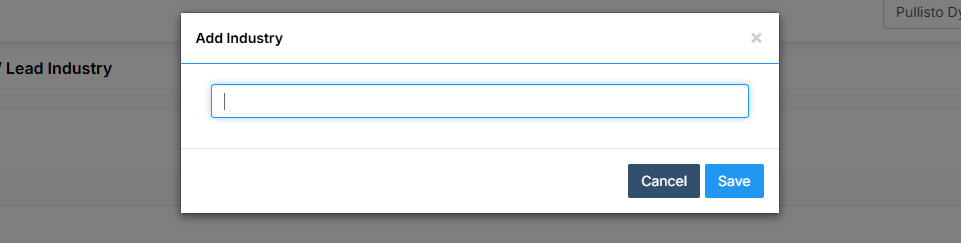
- Click the Add button.
- A popup window will appear.
- Enter the Industry Name.
- Click Submit to save or Cancel to discard.
The newly created lead industry will be added to the list.
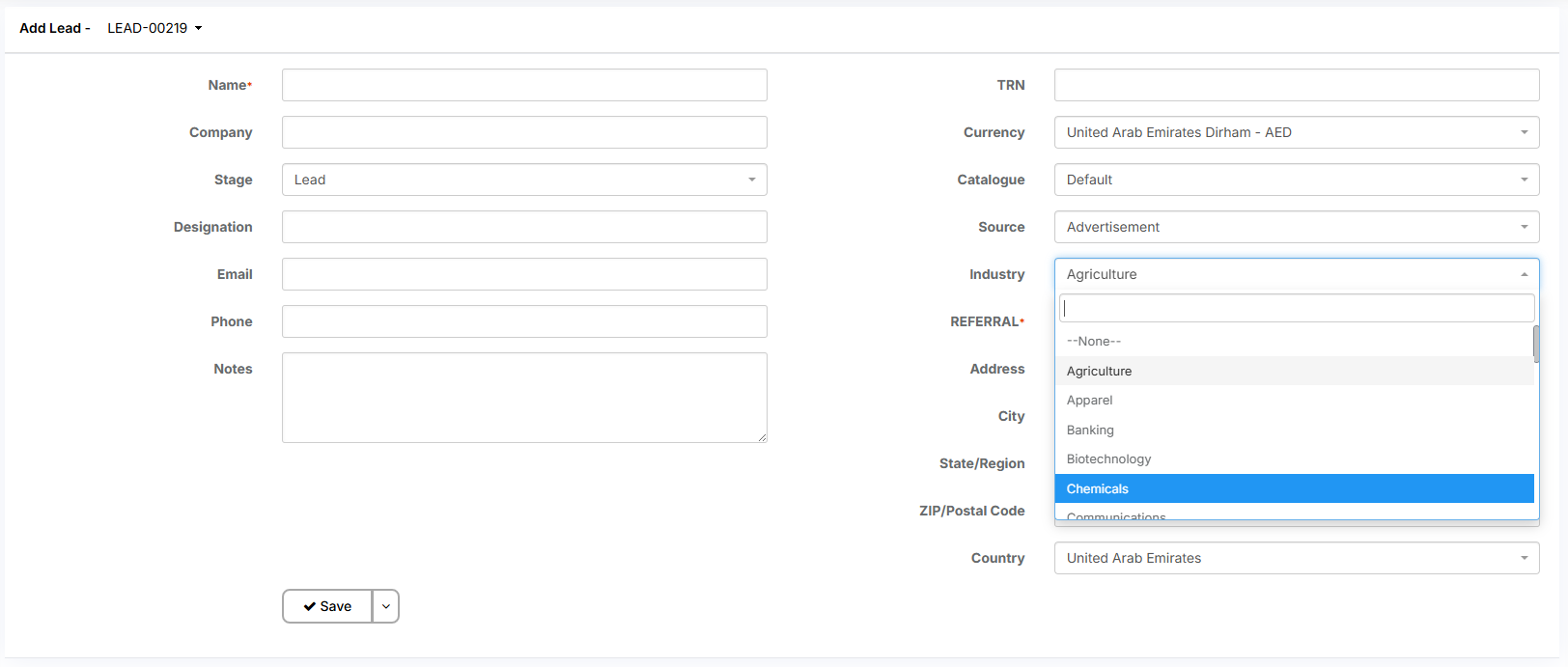
Using Lead Industry in Leads
- While creating a Lead, an Industry field is available in the lead creation form.
- The Industry dropdown displays all created lead industries.
- Select the appropriate industry to classify the lead correctly.
Lead Stage
A Lead Stage represents the current status or progress level of a lead in the sales process. Leads typically move through multiple stages such as Lead, Opportunity, Demo, Negotiation, and Closed, helping teams track and manage follow-ups effectively.
The Lead Stage section allows you to manage these stages in EalSuite.
Managing Lead Stages
When you open the Lead Stage settings page:
- A list of existing lead stages is displayed
- Some default lead stages are already available in the system
- In the Manage section, you can:
- Set Default – Set a stage as the default for new leads
- Delete – Remove a stage (if it is not in use)

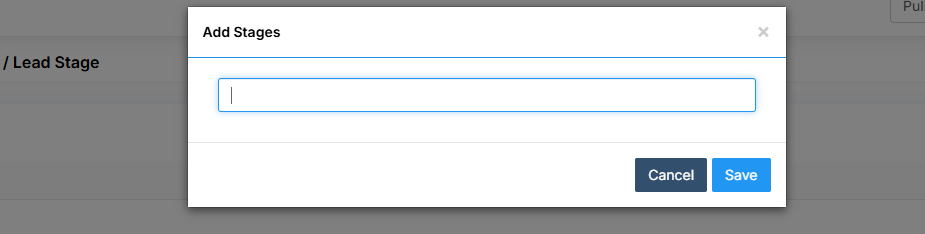
Creating a Lead Stage
- Click the Add button
- A popup window will appear
- Enter the Stage Name (for example: Demo, Follow-up, Opportunity)
- Click Submit to save or Cancel to discard
The newly created stage will be added to the lead stage list.
Using Lead Stage in Leads
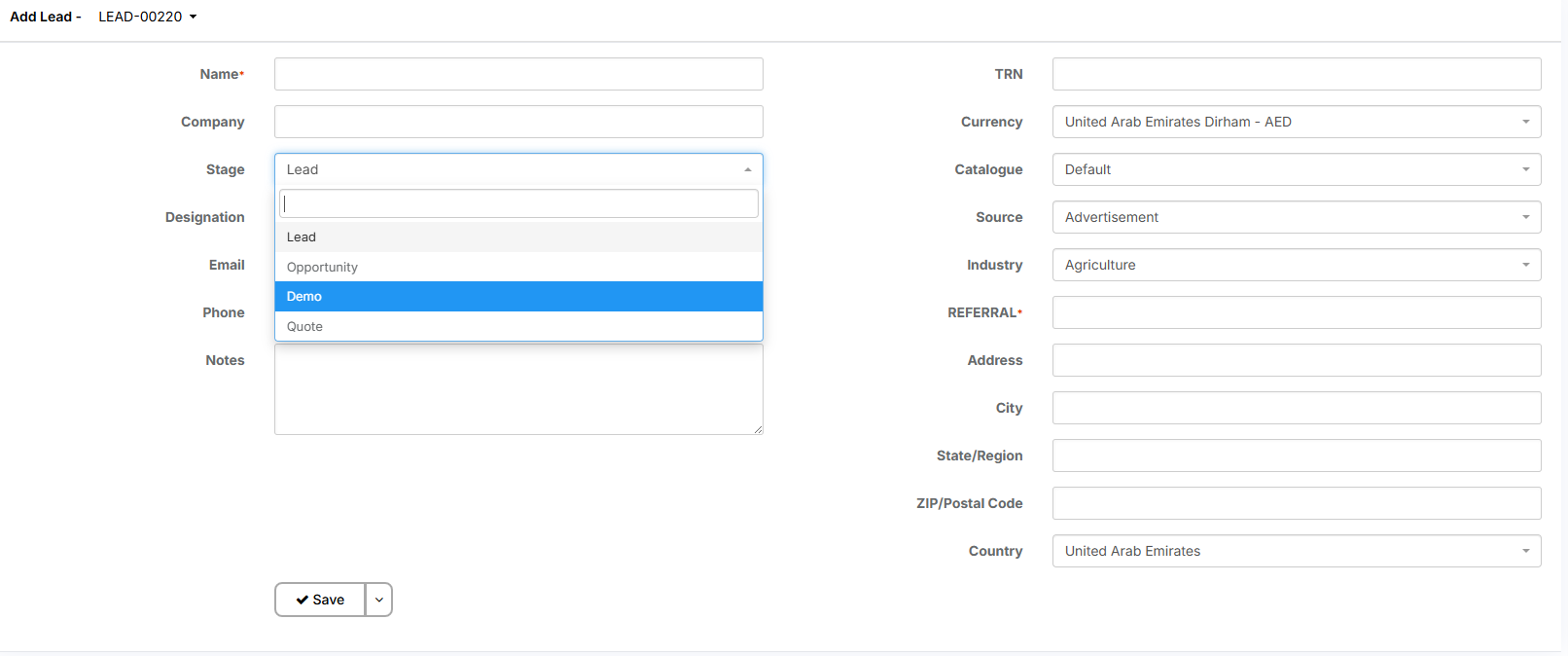
- While creating a Lead, a Stage field is available in the lead creation form
- The Stage dropdown shows all available lead stages
- Select the appropriate stage based on the lead’s current status
- After the lead is created, the stage can be updated as the lead progresses through different steps
Last updated: July 24, 2026