Payment
The Payment section in the Purchase module is used to record and manage payments made to suppliers for purchase transactions.
When you navigate to Purchase → Payment, the system opens the Supplier Payment Smart View.
The Smart View displays the list of all supplier payments created in the system.
From the Smart View, users can manage the records using the following actions:
- Edit
- Delete
Create Payment
To create a new supplier payment:
- Navigate to Purchase → Payment
- Click Create on the top right corner.
You will be redirected to the Payment Creation Form.
Payment Creation Form
The Payment Creation Form is used to enter the details required to record a supplier payment.
The form contains the following fields:
- Supplier
Select the supplier to whom the payment is being made.
The supplier list is fetched from the Supplier → Purchase module.
- Account
Select the account from which the payment will be made.
The account list is fetched from the Banking → Accounts module.
- Payment Method
Choose the method used for the payment such as Cash, Cheque, or Electronic Transfer.
- Date
Displays the payment date. The current date is selected by default but can be modified if required.
- Narration
Enter a description for the payment transaction.
- Amount
Enter the total amount for the payment transaction.
- Project (Optional)
If the payment relates to a specific project
- Cost Centre
Select the relevant cost center
- Reference
Add any reference number
In the Supplier field, select the supplier to whom the payment is being made.
Once a supplier is selected:
- The system automatically fetches all outstanding Purchase Bills associated with that supplier.
- These purchase bills will appear in the reference table below the form fields.
The table displays the following details:
- Reference # – Purchase Bill reference number
- Amount Due – Outstanding amount for the purchase bill
- Amount – Field to enter the payment amount to be applied
Users can:
- Select & Unselect the checkbox next to the purchase bill
- Enter the amount to be paid against that bill
The system will automatically calculate and display:
- Amount Due – Total outstanding amount
- Amount Exceeded – Indicates if the entered payment amount exceeds the due amount
This feature ensures that payments are correctly mapped to the corresponding purchase bills for the selected supplier.
After entering the required details, click Save.
Once the payment is saved:
- The system redirects to the Payment View Page
- The payment record appears in the Supplier Payment Smart View
Payment View Page
The Payment View Page displays the complete details of the payment transaction.
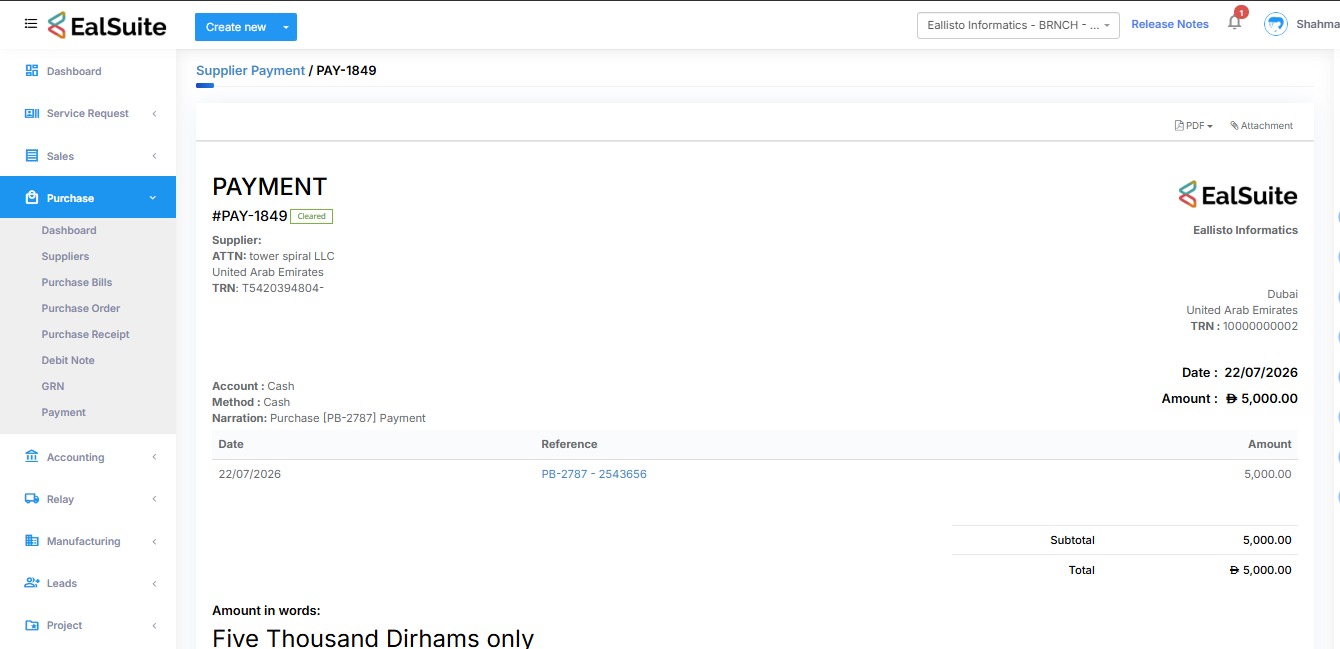
The page includes the following information:
- Payment ID
- Supplier details
- Account used
- Payment method
- Narration
- Reference
- Payment date
- Payment amount
The summary section displays the calculated totals for the payment:
- Subtotal
- Total
These values represent the total payment made to the supplier.
Amount in Words -
The system automatically converts the payment amount into words.
Example:
One Thousand Eight Hundred Ninety-one Dirhams only
This helps maintain clarity when generating documents or reports.
Payment Actions
The following options are available on the Payment View Page.
The PDF option allows users to generate and download a PDF version of the payment record.
This document can be used for financial documentation and record keeping.
Attachment
The Attachment option allows users to upload supporting documents related to the payment.
Uploaded files will appear in the Associated Documents table.
Cheque Details
If the Payment Method selected is Cheque, additional fields will appear to capture the cheque information.
These fields are used to record the details of the cheque used for the supplier payment.
The cheque details may include:
- Cheque Number – The number printed on the cheque.
- Cheque Date – The date mentioned on the cheque.
- Bank Account – The bank account from which the cheque is issued.
These details will be reflected in the Payment View
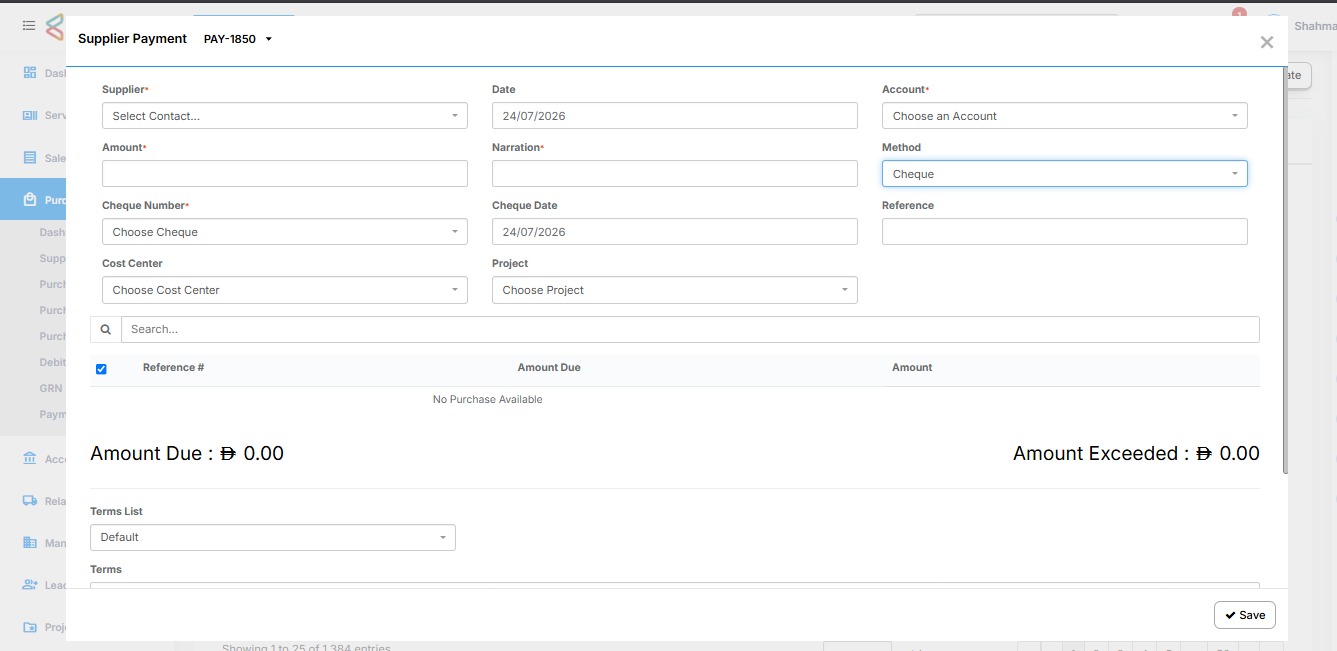
Once the cheque payment is saved:
- The cheque transaction will also be reflected in the Accounting → Cheques module.
Last updated: July 24, 2026