Debit Note
A Debit Note is used to record purchase returns or adjustments made to a supplier after a purchase bill has been created.
Debit Note Smart View
When you navigate to Purchase → Debit Note, you will be redirected to the Smart View where all created debit notes are listed.
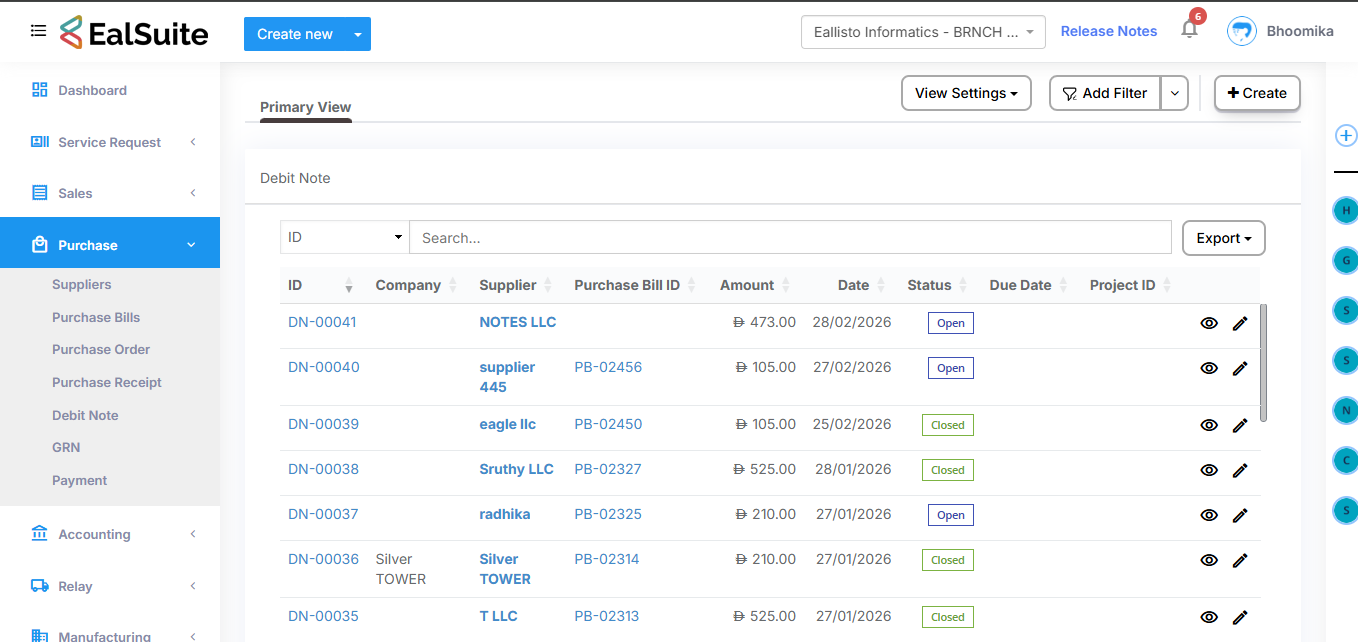
In the Manage section, the following options are available:
- View
- Edit
Create Debit Note
A Debit Note can be created in two ways in the system:
- Directly from a Purchase Bill
- From the Debit Note Creation Page
The behaviour of the debit note and the available actions may vary depending on how it is created.
1. Create Debit Note from Purchase Bill
A Debit Note can be created directly from an existing Purchase Bill.
To create a debit note from a purchase bill:
- Navigate to Purchase → Purchase Bills.
- Open the required Purchase Bill.
- On the Purchase Bill View Page, click + Debit Note.
Once clicked, the system will redirect you to the Debit Note Creation Form.
In this form:
- The Supplier details are automatically fetched from the purchase bill.
- The items listed will only be the items available in that specific Purchase Bill.
- Users can specify the quantity to be returned or adjusted for each item.
After entering the required details and clicking Save, the Debit Note will be created and the system will redirect to the Debit Note View Page.
Important Behavior
- When the credit is applied to the purchase bill, the Debit Note status becomes Closed.
- Once the status is Closed, the Apply Credits option will no longer be available, since the credit has already been fully applied.
2. Create Debit Note from Debit Note Module
A Debit Note can also be created directly from the Debit Note module.
To create it:
- Navigate to Purchase → Debit Note.
- Click Create on the top right corner.
This will open the Debit Note Creation Form.
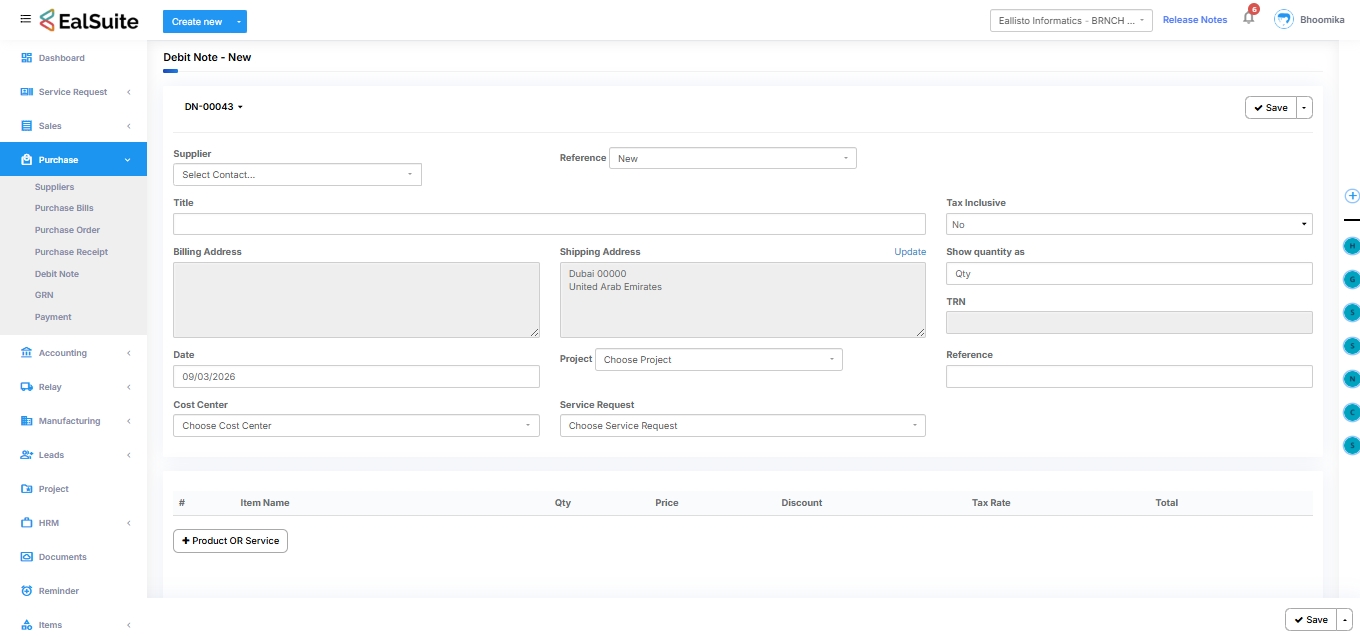
In this form:
- You can select the supplier manually.
- The item list will display all available items in the system, not limited to a specific purchase bill.
Users can then:
- Select the required items
- Enter the quantity, price, and tax details
- Save the debit note
After saving, the system will redirect to the Debit Note View Page.
Applying Credits
If the debit note is created from the Debit Note module, it is not automatically linked to a purchase bill.
In this case:
- The Apply Credits option will be available.
- Users can apply the debit note amount to one or more purchase bills.
When credits are applied:
- The purchase bill payable amount will be reduced.
- The debit note amount will be adjusted accordingly.
Once the entire debit note amount is applied, the system will automatically change the Debit Note status to Closed.
After the status becomes Closed, the Apply Credits option will no longer be available, since the debit note has been fully utilized.
Debit Note View Page
When you click View, you will be redirected to the Debit Note View Page, where the complete details of the debit note are displayed.
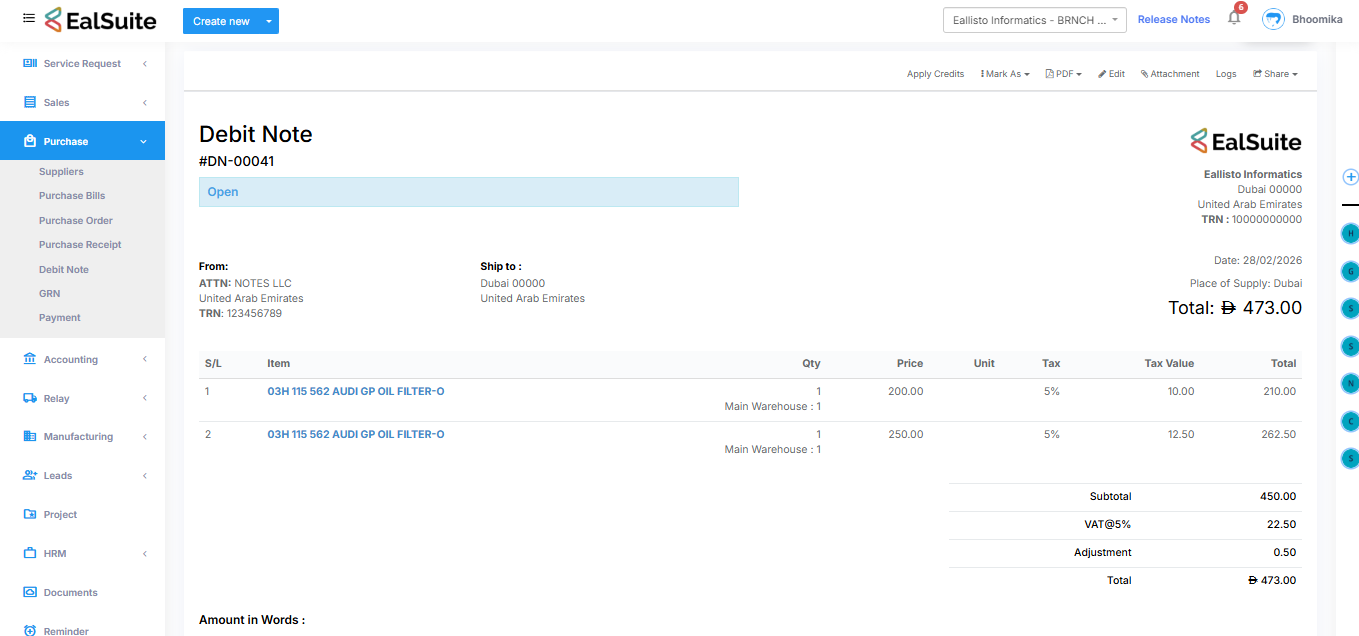
The view page displays the following information:
- Debit Note Number
- Status
- Supplier Details
- Shipping Address
- Date
- Place of Supply
- Total Amount
Below this section, the item table displays:
- S/L
- Item Name
- Quantity
- Price
- Unit
- Tax
- Tax Value
- Total
This table shows the items that are being returned or adjusted.
Available Actions in Debit Note
On the Debit Note View Page, the following actions are available:
- Apply Credits
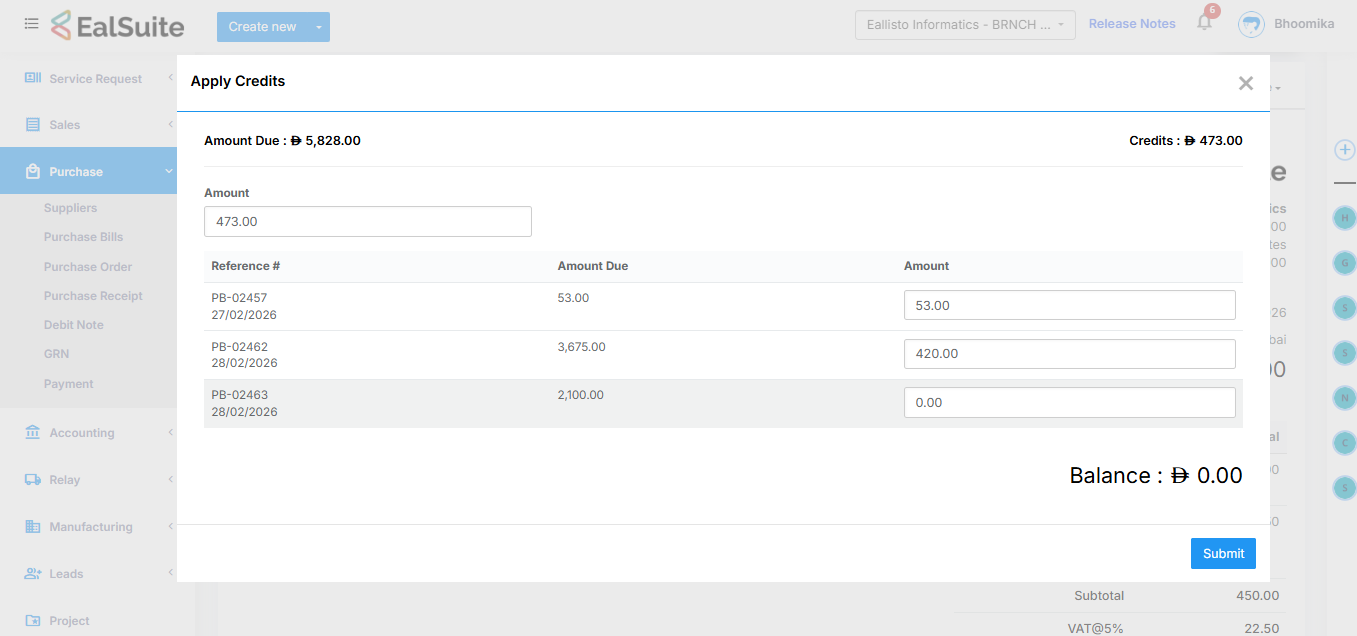
- Mark As - Cancelled
- Edit
- Attachment
- Logs
- Share
Last updated: July 24, 2026