GRN
The GRN (Goods Received Note) section is used to record and verify the goods received from a supplier against a Purchase Order. It confirms that the items ordered have been delivered and received by the company.
This module helps maintain accurate purchase and inventory records by documenting the quantity of items received, rejected, or received in excess.
When you navigate to Purchase → GRN, you will be redirected to the GRN Smart View, where all created GRN records are listed along with their relevant details.
In the Smart View, you can see the following information:
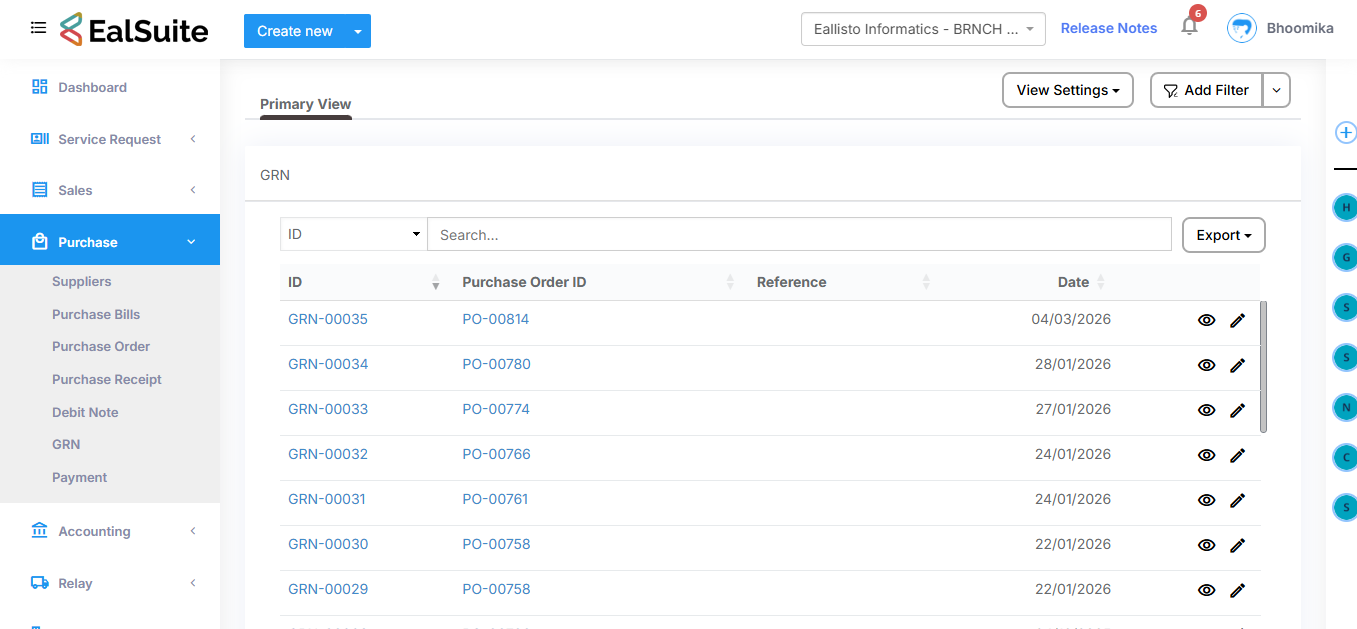
In the Manage section, the following options are available:
- View
- Edit
Create GRN
A GRN is usually created after the Purchase Order is accepted and goods are delivered by the supplier.
To create a GRN:
- Open the Purchase Order View Page.
- Mark As Accepted & Click Create GRN.
- The system redirects to the GRN Creation Form.
During creation, the Purchase Order details are automatically fetched, including the item list and ordered quantity.
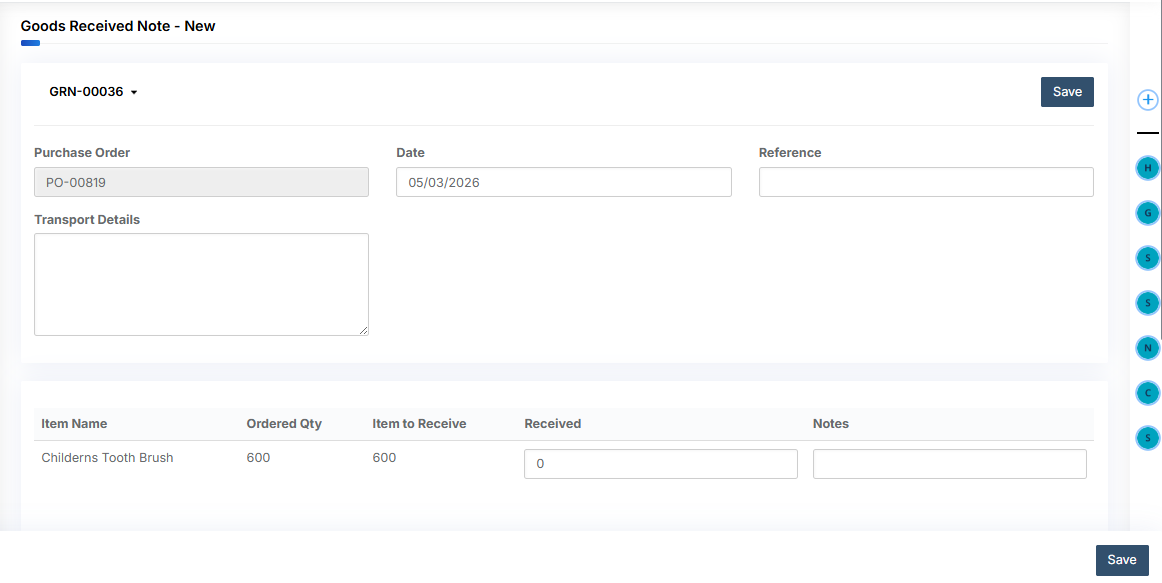
The GRN creation form contains the following fields:
- The GRN ID is automatically generated. Example: GRN-00036
- Displays the Purchase Order ID from which the GRN is created.
- The current date is selected by default, but it can be modified if required.
This 3 field is automatically filled.
- Reference Field is Used to enter any external reference number related to the delivery.
- This Transport Details field allows users to enter transport or delivery information
Item Table
The item table displays all items from the purchase order.
The table includes the following columns
- Item Name – Name of the product
- Ordered Qty – Total quantity ordered in the purchase order.
- Item to Receive – Remaining quantity available to receive
This 3 field is automatically fetched from Purchase Order
- Received – Quantity received in this GRN.
- Notes – Optional notes related to the received items.
The user enters the received quantity for each item.
Saving the GRN
After entering the received quantities:
- Click Save.
Once saved:
- The system creates the GRN record.
- The user is redirected to the GRN View Page.
- The GRN will also appear in the Purchase → GRN module list.
GRN View Page
Once the GRN is saved, the system redirects to the GRN View Page, where the complete goods receipt details are displayed.
The GRN View Page includes the following information:
- GRN Number
- Supplier Details
- Shipping Address
- Associated Purchase Order
- Date of receipt
The item table displays the goods received with the following columns:
- S/L – Serial number
- Item Name – Name of the product
- Received – Quantity received
- Rejected – Quantity rejected
- Excess – Quantity received beyond the ordered quantity
- Notes – Additional remarks
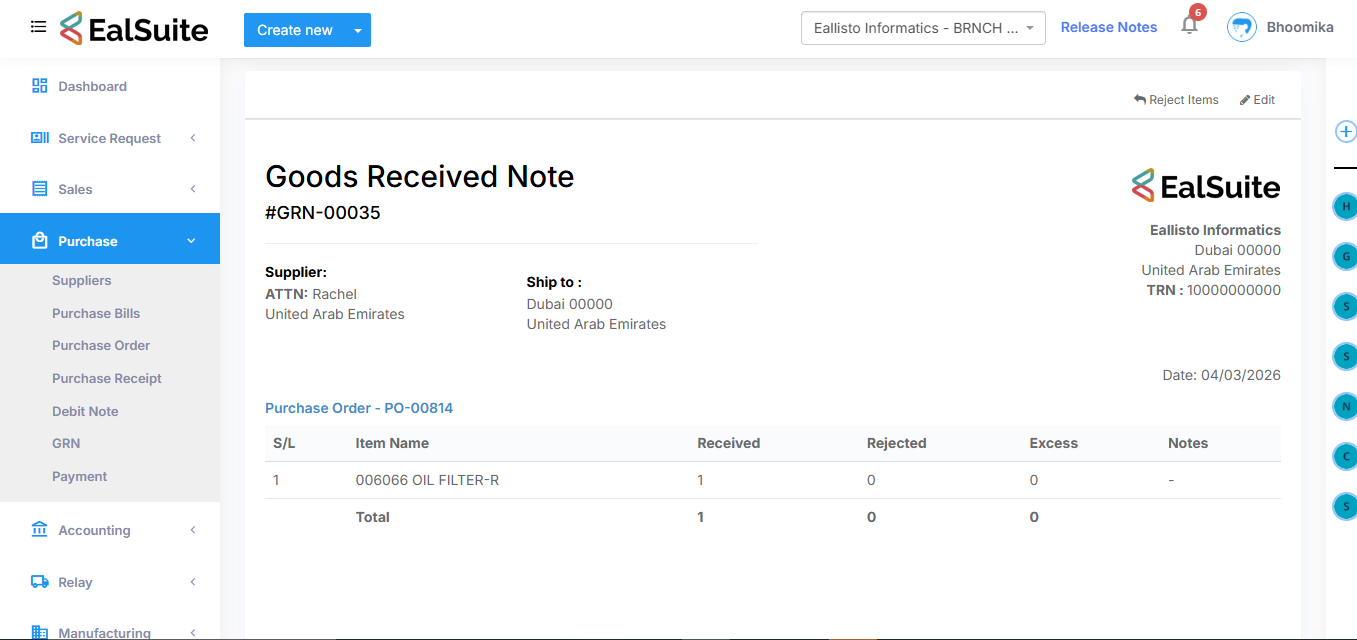
From the Grn ****View Page, users can perform further actions such as:
- Reject Items
- Edit
Reject Items
The Reject Items option is used when any received items are damaged, incorrect, or unacceptable.
When you click Reject Items, a Reject Items popup window will appear.
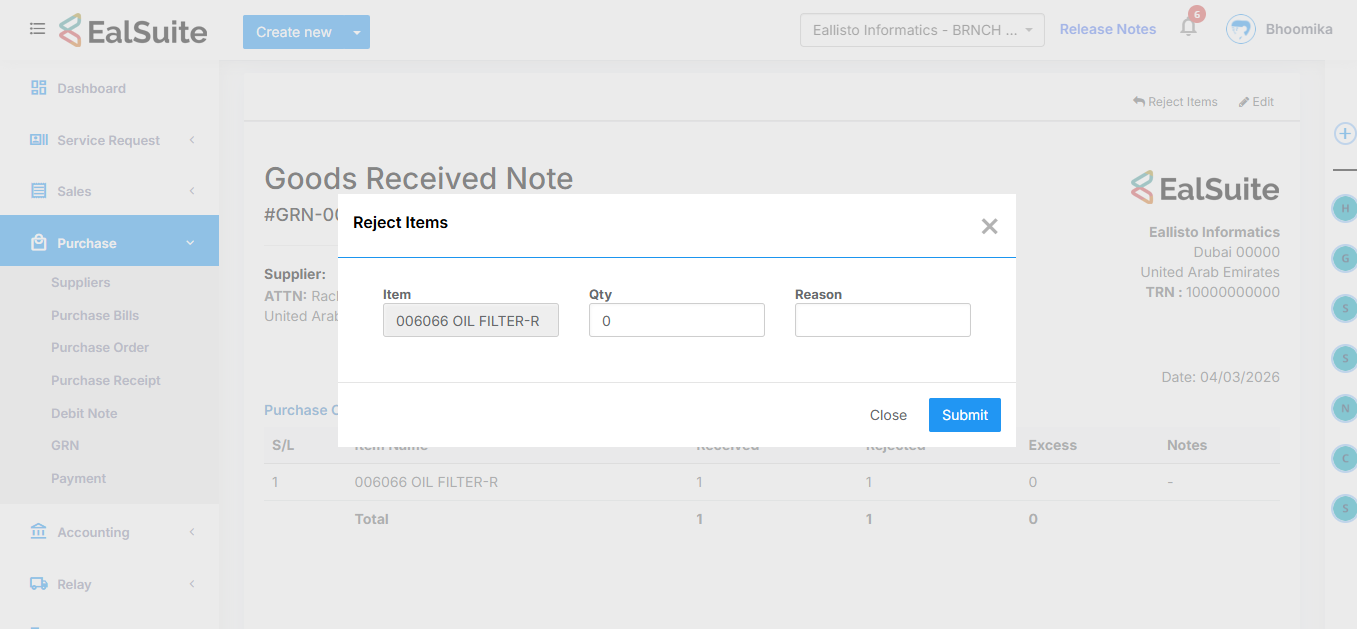
The popup includes the following fields:
- Item – Displays the item name from the GRN.
- Qty – Enter the quantity of items being rejected.
- Reason – Enter the reason for rejecting the items.
After entering the required details, click Submit.
Once submitted:
- The rejected quantity will be recorded in the Rejected column of the GRN item table and displays the rejected items in a separate Rejected Items table on the GRN View Page.
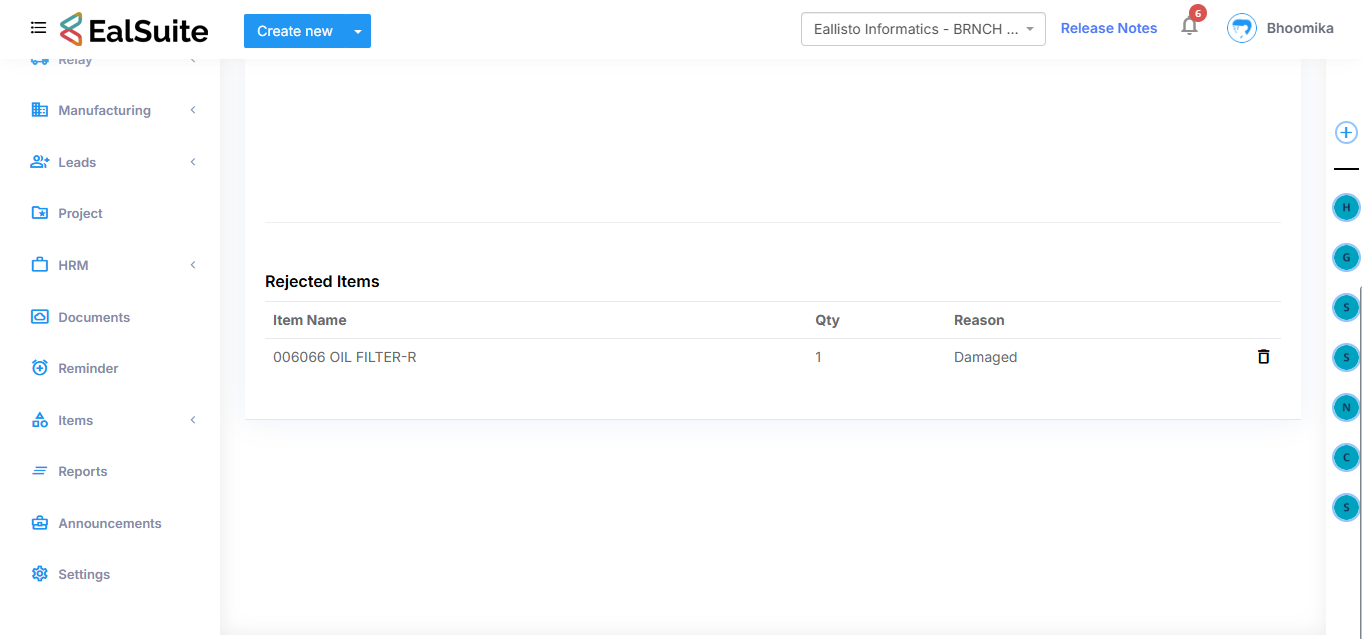
In this section, the following details are shown:
- Item Name – The item that has been rejected
- Qty – Quantity of the rejected item
- Reason – The reason entered while rejecting the item
This section helps maintain a clear record of all rejected goods for that GRN.
In the Manage section, a Delete icon is available.
- Delete – Allows removal of the rejected item entry if it was recorded incorrectly.
Once deleted, the rejected quantity will be removed from the rejected items list and the GRN record will be updated accordingly.
Edit
The Edit option allows you to modify the GRN details if required.
Last updated: July 24, 2026